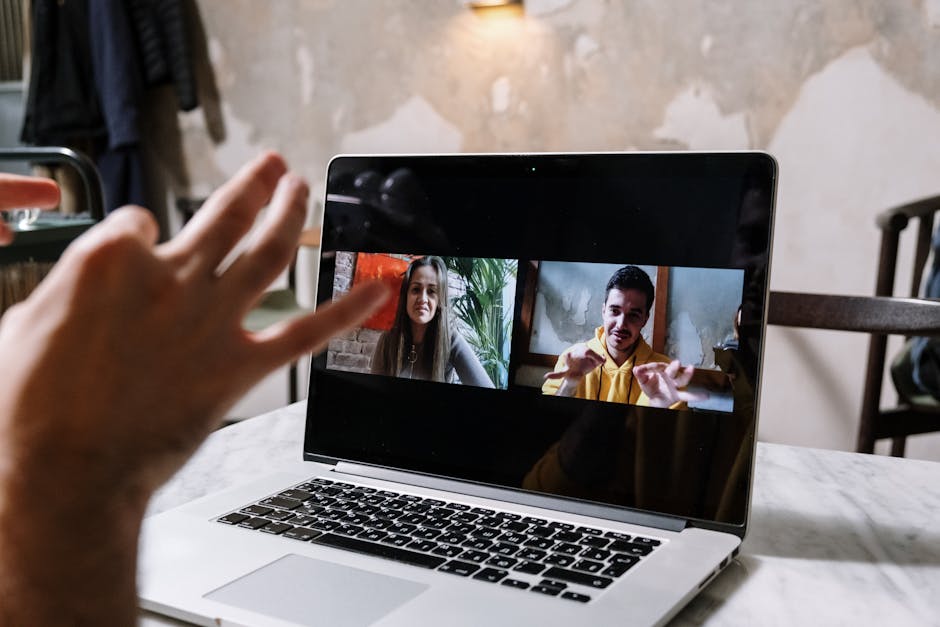
Why Zoom Recordings Need Post-Processing
Zoom records at modest bitrate (around 1-2 Mbps for 1080p), uses VBR encoding tuned for talking-head video, and adds an intro/outro frame that's usually unwanted. The output file plays everywhere but isn't optimized for any specific use.
If you're sharing the recording with clients, posting to YouTube, or archiving for a corporate library, the raw Zoom file usually needs:
- Trimming the start (Zoom's "Recording started" notification, dead time before content begins)
- Trimming the end (post-meeting chat that lingered)
- Compression for sharing (Zoom's recordings are larger than they need to be)
- Audio cleanup (Zoom's audio compression is aggressive; some restoration helps)
This post covers the practical post-processing pipeline. Our video compressor handles the encoding step.
Where Zoom Stores Recordings
| Recording type | Location | Format |
|---|---|---|
| Local recording (free/paid) | ~/Documents/Zoom/<meeting> (varies by OS) | MP4 (video) + M4A (audio-only) |
| Cloud recording (paid only) | Zoom cloud, downloadable | MP4 |
| Audio-only local | ~/Documents/Zoom/<meeting> | M4A |
| Speaker view file | Same folder as recording | "speaker" in filename |
| Gallery view file | Same folder | "gallery" in filename |
For local recordings, multiple files may exist for the same meeting (speaker view, gallery view, audio-only, transcript). The default "video1.mp4" is the gallery view if it was selected during recording.
Quick Trim with FFmpeg
For trimming the start and end without re-encoding (instant, no quality loss):
ffmpeg -i input.mp4 -ss 00:00:30 -to 00:45:00 -c copy output.mp4
-ss 00:00:30 starts at 30 seconds. -to 00:45:00 ends at 45 minutes. -c copy skips re-encoding.
Limitation: trim only at keyframe boundaries (typically every 2 seconds). For frame-accurate trims, re-encode:
ffmpeg -i input.mp4 -ss 00:00:31 -to 00:45:00 -c:v libx264 -preset fast -crf 22 -c:a copy output.mp4
This re-encodes the video to apply exact trim points but keeps audio unchanged.
Compression for Sharing
Zoom's recordings at 1080p are typically 200-400 MB per hour. For email or quick sharing, smaller is better:
ffmpeg -i input.mp4 \
  -c:v libx264 -preset slow -crf 26 \
  -profile:v high -level 4.0 \
  -pix_fmt yuv420p \
  -c:a aac -b:a 128k \
  -movflags +faststart \
  output.compressed.mp4
CRF 26 produces files about 50% the size of Zoom's source with no perceived quality loss for talking-head content. Critical for email attachments under 25 MB.
For an hour of 1080p Zoom content:
| Source | After CRF 22 | After CRF 26 | After CRF 28 |
|---|---|---|---|
| 380 MB | ~280 MB | ~150 MB | ~85 MB |
CRF 28 is acceptable for casual sharing. Below that (CRF 30+), text in screen-share segments starts looking blurry.
For more on screen recording compression, see Sending Screen Recordings to Clients.
Resolution Reduction
For long meetings shared with mobile audiences, dropping to 720p halves the file size:
ffmpeg -i input.mp4 \
  -c:v libx264 -preset slow -crf 24 \
  -vf "scale=1280:-1" \
  -profile:v high -level 4.0 \
  -pix_fmt yuv420p \
  -c:a aac -b:a 128k \
  -movflags +faststart \
  output.720p.mp4
For Zoom recordings of "talking head + screen share," 720p is rarely a problem. Screen-share text remains legible. Talking heads look fine.
For high-detail screen demos (small UI elements, tight code editor), keep at 1080p with higher CRF instead of dropping resolution.
Audio Cleanup
Zoom's audio compression is aggressive. Common issues:
- Pumping when a single speaker dominates (Zoom's noise gate kicks in)
- Echo in some setups despite Zoom's echo cancellation
- Volume jumps between speakers
- Background noise that Zoom's noise suppression couldn't fully remove
For light cleanup:
# Loudness normalize to -16 LUFS (good for podcast/voice content)
ffmpeg -i input.mp4 -af "loudnorm=I=-16:TP=-1:LRA=11" output.normalized.mp4
For more aggressive cleanup with noise reduction:
- Extract audio to WAV:
ffmpeg -i input.mp4 -c:a pcm_s24le audio.wav - Open in iZotope RX or Audacity
- Apply Voice De-noise / Spectral De-noise
- Apply gentle compression (3-4 dB GR)
- Loudness normalize to -16 LUFS
- Re-mux:
ffmpeg -i input.mp4 -i cleaned.wav -c:v copy -c:a aac -b:a 128k output.mp4
For background on audio file format conversion, see Audacity Export Settings.
Removing Specific Speakers
Some recordings need to remove specific speakers (privacy, redaction, contractual). Two approaches:
Audio mute only:
- Extract audio to a track in Audacity or your DAW
- Mute or replace specific speaker segments
- Re-mux with the muted audio
Cut speaker entirely:
- Identify the segments where the speaker appears
- Cut those segments from the video timeline (DaVinci Resolve, Premiere)
- Re-render
For redaction work, document what was removed in a separate notes file. Always keep an unredacted master.
Speaker View vs Gallery View
If you recorded "Speaker View" (one large person at a time), the file is one continuous shot of whoever spoke. Visual transitions are abrupt.
If you recorded "Gallery View," all participants are visible in tiles. Better for showing reactions, worse for focusing on the active speaker.
Many production workflows: record both. Use Speaker View as the master deliverable; Gallery View for B-roll moments showing reactions.
Common Issues
Audio out of sync: Zoom occasionally records audio with offset drift. Detect with ffprobe -i input.mp4 (check audio_start_time vs video_start_time). Fix with -vsync cfr flag in re-encode.
Recording starts mid-meeting: Zoom's local recording requires explicit start. Cloud recording has a setting for "auto-record from start of meeting." Use cloud recording for multi-host meetings where any host might forget to press Record.
File corrupted ("Convert recording" stuck): Zoom couldn't finalize the local recording. Use Zoom's "Convert Recording" tool from the support page, or extract usable bits with FFmpeg's recovery mode.
Video quality varies through recording: Zoom adapts video quality to network conditions. Recordings reflect what Zoom received, which varies by minute. There's no fix; the source quality is locked in.
Speaker view ends abruptly when speaker leaves: when the active speaker leaves, Zoom's recorded speaker view freezes briefly. Edit the cut in post.
For underlying video format conversion, see HEVC to H.264 for Premiere.
Adding Captions to Zoom Recordings
Zoom's auto-generated transcripts (in cloud recordings) export as VTT subtitles. To embed:
ffmpeg -i input.mp4 -vf subtitles=transcript.vtt output_with_captions.mp4
This burns the captions into the video. For removable subtitles, use the soft-subtitle approach:
ffmpeg -i input.mp4 -i transcript.vtt -c copy -c:s mov_text output.mp4
For more on subtitle formats, see SRT vs VTT vs ASS.
Common Use Cases
Internal training recordings: trim, compress to CRF 24, captions on, share via internal Drive/SharePoint.
Sales pitch deliverables: trim opening dead time, light compression to CRF 22 to retain quality, deliver via WeTransfer.
Webinar replays for marketing: trim, captions on, compress to CRF 26, upload to YouTube Unlisted, embed in marketing site.
Court depositions or legal records: minimal processing (only trim), keep audio at maximum quality, include unedited master with redaction notes.
Conference talks: trim Q&A if appropriate, compress to CRF 22, upload to YouTube or Vimeo, captions for accessibility.
Pro Tip: Always keep the original Zoom recording. Post-processing is destructive (or at least lossy). If a client asks for an unedited version after you've delivered, you need the source.
Frequently Asked Questions
Why is my Zoom recording so much bigger than expected?
Zoom uses 1-2 Mbps for video which seems low. The bitrate is multiplied by duration; a 2-hour meeting at 1.5 Mbps is 1.3 GB. To shrink: re-encode at CRF 24-26.
Can I improve the video quality after recording?
No. Zoom's recording is the highest quality you have. Upscaling or AI enhancement (Topaz Video AI) can help slightly but can't recover information that wasn't captured.
What about the audio-only M4A file?
Zoom records audio as a separate M4A alongside the video. Useful for podcast publishing of a meeting; just take the M4A and skip the video processing entirely.
How do I split a Zoom recording into multiple files?
ffmpeg -i input.mp4 -ss 00:00:00 -to 00:30:00 -c copy part1.mp4
ffmpeg -i input.mp4 -ss 00:30:00 -to 01:00:00 -c copy part2.mp4
For programmatic splitting, see Batch Processing Files Guide.
Can I extract chapters from Zoom transcripts?
Cloud recordings include a transcript. Parse it for natural breaks (long pauses, speaker changes, topic shifts) and add chapter markers in post-production. M4B chapter format is similar; see M4B Audiobook Chapters.
Should I export to MP4 or WebM?
MP4 for broadest compatibility (universal). WebM is smaller for the same quality but has narrower support for older devices. For corporate sharing: MP4. For web embedding only: either works.
Related Reading
Bottom Line
For Zoom recording cleanup: trim with -c copy for instant quality-preserving trim, re-encode at CRF 24-26 for sharing, drop to 720p for mobile-first audiences, normalize audio to -16 LUFS for voice clarity. Keep the unprocessed Zoom recording as your master. Our video compressor handles the compression step at consistent settings.