Vinyl records and cassette tapes hold recordings that exist nowhere else in the world — family recordings, regional pressings, demo tapes from bands that never made it to streaming. The degradation clock is always ticking: tape oxides shed, vinyl surfaces accumulate scratches, and every play causes physical wear.
Digitizing these recordings isn't just about convenience. It's preservation. Once done properly, the digital copy survives indefinitely and can be played without further damage to the source.
This guide covers the practical setup for digitizing both vinyl and cassettes, the recording formats to use, and the conversion workflow for producing clean, lasting digital archives.
Equipment You'll Need
For Vinyl Records
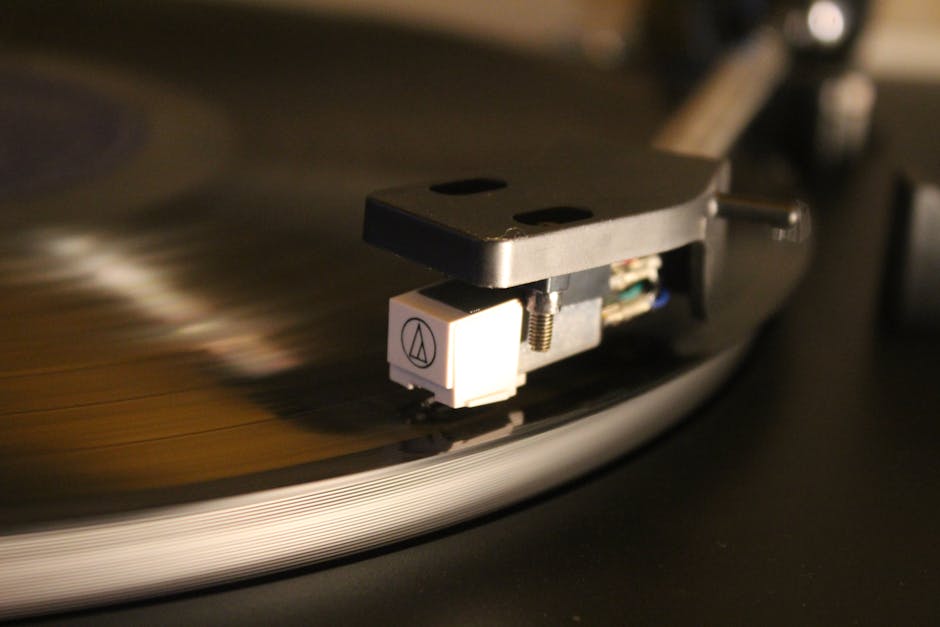
Turntable with line output: The most critical choice. Options range from budget USB turntables (Audio-Technica AT-LP60X, ~$130) to high-quality units with separate phono preamps (Pro-Ject Debut Carbon, ~$450+).
The key distinctions:
- USB turntables include a built-in phono preamp and USB audio interface. Plug in and record — convenient for beginners.
- Traditional turntables with a phono output need a separate phono preamp and audio interface. More setup, but better results.
Phono preamp (if needed): The phono signal from a turntable cartridge is low-level with RIAA equalization applied. A phono preamp amplifies and inverts the equalization curve to produce a line-level signal. Without it, recordings sound thin and quiet.
Audio interface: Connects your turntable output to your computer. The Focusrite Scarlett Solo ($120) or MOTU M2 ($170) are reliable choices. USB turntables skip this requirement.
Stylus condition: A worn or dirty stylus causes distortion and can damage records. Replace styli before starting a serious digitization project. A $20–40 replacement stylus for entry-level cartridges is a worthwhile investment.
For Cassette Tapes
Cassette deck: Consumer cassette decks from the 1980s–90s (found at thrift stores for $20–50 or specialty audio shops) are often better than modern budget players. Look for decks with 3-head designs (erase + record + playback) and Dolby noise reduction.
Head cleaning: Clean the tape heads, capstan, and pinch roller before recording. Use isopropyl alcohol (90%+) on a cotton swab. Dirty heads introduce hiss and frequency dropout.
Demagnetizer: Magnetized tape heads add hiss and reduce high-frequency response. A $15–25 demagnetizer takes 30 seconds to use and noticeably improves recordings from old decks.
Audio interface: Same as vinyl — connect the deck's line output to your audio interface's input. Set input levels so peaks reach –6 to –3 dBFS during the loudest passages.
Recording Format: Always Start with Lossless
When capturing analog audio to digital, record in a lossless format. You can always convert to compressed formats later; you can never recover quality that wasn't captured.
WAV (PCM) is the standard recording format. Use:
- Sample rate: 44.1kHz for music destined for CD-quality digital files; 48kHz if you also want compatibility with video editing. Higher rates (96kHz, 192kHz) produce larger files without audible benefit for typical home recordings.
- Bit depth: 24-bit during recording. This gives you more headroom to normalize levels afterward without introducing noise. Export/archive as 16-bit for CD-compatible files.
FLAC is an excellent archive format — lossless but 40–60% smaller than WAV. Some recording software captures directly to FLAC; alternatively, record as WAV and convert after the session.
| Format | Recording | Archive | Distribution |
|---|---|---|---|
| WAV 24-bit/44.1kHz | Yes — ideal | Yes (large) | No |
| WAV 16-bit/44.1kHz | Yes — good | Yes (large) | Acceptable |
| FLAC 24-bit | Yes | Yes — ideal | Limited |
| FLAC 16-bit | Yes | Yes — ideal | Most players |
| MP3 | No — lossy | No | Sharing only |
| AAC | No — lossy | No | Streaming only |
Pro Tip: Record at 24-bit even if your final archive will be 16-bit. The extra dynamic range gives you clean headroom to fix levels in editing without quantization noise.
Setting Recording Levels
Poor levels are the most common mistake in home digitization. Too hot and you clip (digital distortion that cannot be fixed). Too quiet and you boost background noise when normalizing.
Target level: Set input gain so the loudest passages peak at –6 to –3 dBFS on your recording software's meter. This gives headroom for unexpected loud transients.
For vinyl: play the loudest section of the side while watching the meter. Set gain to prevent clipping.
For cassettes: similar process. Play through the loudest segment of the tape while adjusting input gain. Note that tape Dolby NR should be engaged if the tape was recorded with it — check if the original recording sounds harsh or hissy with Dolby off.
Recording Software
Free options:
- Audacity (Windows/Mac/Linux): The standard for home digitization. Records multi-track, displays levels in real time, includes basic noise removal tools.
- GarageBand (Mac only): Clean interface, good quality, limited editing tools.
Paid options:
- Adobe Audition: Professional tools for noise reduction and restoration.
- iZotope RX (standalone): Industry-standard audio restoration. Worth it if you have many tapes with significant degradation.
Cleanup: Removing Noise and Crackle
Once you've captured the raw recording, some cleanup is typically needed before archiving.
Vinyl Crackle and Clicks
Vinyl recordings contain surface noise — clicks from scratches, pops from dust or static, and a constant low-level background noise.
Click removal: Audacity's "Repair" tool handles isolated clicks well. For extensive clicking, iZotope RX's De-click module is significantly more effective.
Surface noise reduction: Audacity's Noise Reduction effect works reasonably well. Capture a "noise print" from a section of between-track silence (just the surface noise without music), then apply reduction at 6–9dB. Aggressive settings introduce artifacts — less is more.
Pro Tip: Don't over-process. The goal is preservation, not perfect sound. A little surface noise is authentic; aggressively processed audio sounds thin and artificial. Aim for "clean enough," not "studio perfect."
Cassette Hiss
Tape hiss is the constant high-frequency noise inherent to cassette recordings. Modern noise reduction handles it well:
- Capture a noise print from a silent passage (beginning or end of the tape, between songs)
- Apply noise reduction at conservative settings (–6dB to –9dB)
- Check that the music hasn't lost high-frequency content (cymbals, consonants in vocals)
If the original tape was recorded with Dolby B or C noise reduction, engage the corresponding setting on playback for correct results.
Speed Correction
Cassette decks that haven't been serviced in years may have speed variations (wow and flutter). The recording sounds slightly fast, slow, or wavering. Audacity has a "Change Tempo" effect for gross corrections; iZotope RX's "Time and Pitch" module handles more subtle drift.
Speed issues with vinyl usually stem from turntable motor problems — verify the platter is spinning at the correct speed with a strobe disc before recording.
Normalizing Levels
After cleanup, normalize your recording so the loudest peak reaches –1dBFS. This maximizes digital volume without clipping.
In Audacity: Effects → Normalize → Set "Normalize maximum amplitude to" –1dB.
For multi-track albums (full vinyl sides), normalize the whole file rather than track-by-track — this preserves relative volume differences between songs as they appeared on the original recording.
Splitting Into Tracks
A full LP side records as a continuous file. You'll want to split it into individual tracks for proper playback in music apps.
- In Audacity, use the "Label Tracks" feature to place labels at each track boundary
- Export → Export Multiple, split by labels
- Name each file properly before exporting
For cassettes, find track beginnings in the waveform view — they're visible as sections where the audio level rises from silence or noise.
Final Format Conversion
After cleanup, you have clean WAV files at 24-bit. Now convert for your intended use:
Archive copy: Convert to FLAC 24-bit using the /audio-converter. This is your permanent, lossless archive — keep it on multiple drives and/or cold cloud storage.
Listening copy: Convert to FLAC 16-bit or high-quality MP3 (320kbps). Use the /audio-converter for format conversion. For the listening copy, 16-bit FLAC is the best balance of quality and compatibility.
Sharing: For sending recordings to family or friends, MP3 at 192–320kbps is universally compatible. Use /mp3-compressor for controlled quality compression.
See our guide on FLAC vs MP3 differences and WAV vs FLAC comparison for detailed quality comparisons if you're deciding between lossless archive formats.
Adding Metadata
Digital files should have proper metadata so your music app can organize them correctly:
- Track title, artist, album, year, track number
- Cover art: Scan the album cover at 300–600 DPI, include as embedded artwork
- Genre: Optional but useful for large libraries
Tools: Mp3tag (Windows), beets (cross-platform, command-line), Kid3 (Linux/Mac/Windows).
Storage and Backup
The whole point of digitization is preservation — don't store your digital copies in one place.
Recommended: 3-2-1 backup rule
- 3 copies of the data
- 2 different storage types (e.g., external SSD + cloud)
- 1 offsite copy (cloud storage or a drive kept at another location)
Cold cloud storage (Backblaze B2, AWS Glacier) is inexpensive for archives that don't need frequent access.
FAQ
How long does it take to digitize a record or cassette?
Real-time — a 45-minute LP takes 45 minutes to record. Add 30–60 minutes for cleanup, level adjustment, and track splitting. Batch the process over multiple sessions.
What's the best USB turntable for beginners?
The Audio-Technica AT-LP120XUSB ($180) and AT-LP60XUSB ($130) are reliable starting points. The LP120X has a higher-quality cartridge and manual tone arm, making it better for serious use.
Can I digitize a cassette with a standard cassette deck and headphone jack?
Yes, but headphone outputs have different impedance and level characteristics than line outputs. Use the line output if available. If only a headphone jack is present, set the volume to a medium level (not maximum) and adjust your audio interface input gain accordingly.
Do I need to clean my records before digitizing?
Yes — cleaning records before digitization removes surface debris that causes clicks and pops. A basic record cleaning brush (carbon fiber, $15–25) is sufficient for most records. For valuable or very dirty records, a wet cleaning method or ultrasonic cleaner produces better results.
Should I record both sides of a vinyl album as one file or separately?
Record each side as a single file, then split into tracks. This preserves the original side A / side B structure. Some audiophiles prefer keeping each side as a continuous file to maintain the intended listening experience.
Wrapping Up
Digitizing analog recordings is a project worth doing carefully. The physical media won't last forever, and the recordings on it can be irreplaceable. Record in lossless format from the start, clean up thoughtfully, archive in FLAC, and back up in multiple places.
Once your recordings are digital, the /audio-converter handles any format conversion you need — from your archive FLAC files to MP3 for mobile, to WAV for video editing projects. The records and tapes that have been sitting in a box deserve better than obsolescence.