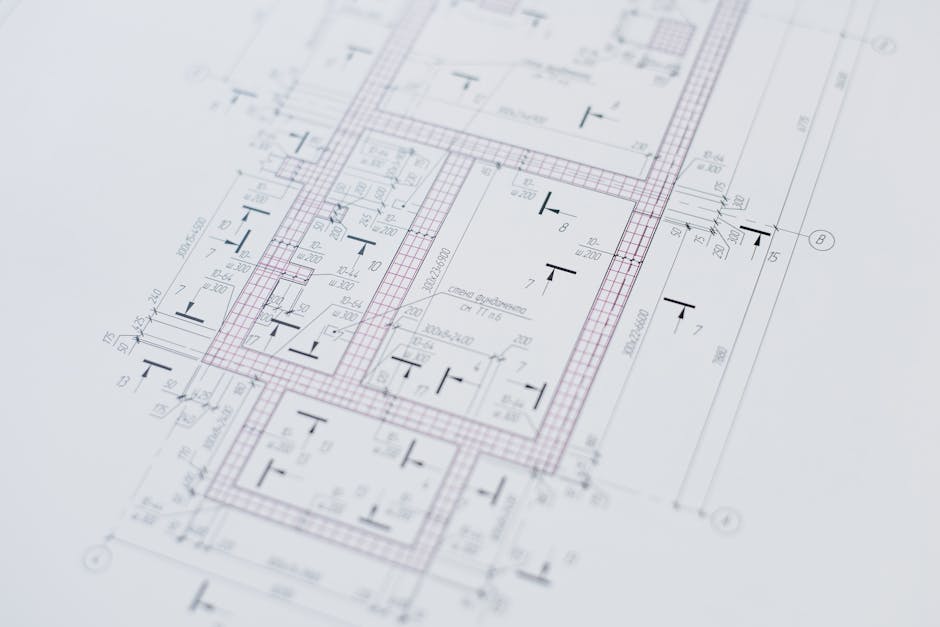
Why DXF Files Don't Open in Acrobat
DXF (Drawing Exchange Format) is AutoCAD's open-format file. Used for sharing CAD drawings between Autodesk software and competing tools (BricsCAD, FreeCAD, etc.).
The format works fine within CAD software ecosystems. Outside of CAD: most general tools can't open DXF. Acrobat doesn't preview them. macOS Preview shows nothing. Web browsers can't render them.
For sharing CAD drawings with clients, contractors, or web visitors who don't have CAD software: convert to PDF or SVG.
This post covers the practical conversion workflow. For broader vector format context, see EPS to SVG Conversion.
DXF Format Overview
DXF is text-based (or binary). The text format is human-readable but not easy to inspect:
0
SECTION
2
ENTITIES
0
LINE
8
0
10
0.0
20
0.0
11
100.0
21
50.0
0
ENDSEC
This describes a line from (0,0) to (100,50). The format is verbose; complex drawings produce massive text files.
DXF supports:
- 2D drawings (lines, polylines, circles, arcs)
- 3D drawings (3D faces, solids)
- Text and dimensions
- Layer management
- Linetypes (solid, dashed, etc.)
- Block definitions (reusable components)
For most architectural/engineering work: 2D DXF. For 3D: usually exported as STEP, IGES, or DWG.
DXF to PDF Conversion
For PDF output (most common for sharing):
AutoCAD: built-in. File > Export > PDF. Choose plot settings, paper size, scale.
Autodesk DWG TrueView (free): same export options.
LibreCAD (free): File > Export > PDF.
FreeCAD (free): File > Export > PDF.
ImageMagick (basic):
# Convert DXF to PDF (limited; for simple drawings)
convert input.dxf output.pdf
ImageMagick handles simple DXF but struggles with complex drawings. For production-quality PDF: use proper CAD software.
DXF to SVG Conversion
For web display:
Inkscape (free): File > Open > DXF file. File > Save As > SVG.
LibreCAD (free): File > Export > SVG.
Online services: ezyZip, AnyConv, etc. Privacy concerns for sensitive drawings.
Command-line via Inkscape:
inkscape --export-type=svg --export-filename=output.svg input.dxf
dxf2svg-tool (open-source library):
# Python library for DXF to SVG
pip install dxf2svg-tool
dxf2svg input.dxf output.svg
For batch conversion patterns, see Batch Processing Files Guide.
Layer Handling
DXF drawings are organized by layers (walls, dimensions, electrical, etc.). For PDF export:
AutoCAD: Layout tab > Page Setup > Plot
  - Plot Style: monochrome.ctb (B&W) or acad.ctb (color)
  - Plot to PDF
For SVG, layers map to SVG <g> groups. Inkscape preserves layer names.
For client review: include all relevant layers. Hide internal layers (construction lines, references).
Scale and Paper Size
For PDF deliverables, scale matters:
| Drawing | Paper size | Scale |
|---|---|---|
| Floor plan | A1 (594×841mm) | 1:50 |
| Elevation | A2 (420×594mm) | 1:50 |
| Detail | A3 (297×420mm) | 1:5 or 1:10 |
| Site plan | A0 (841×1189mm) | 1:200 |
For US: equivalent imperial sizes (Arch D 24×36in, Arch E 36×48in).
For SVG: web display ignores physical scale. SVG uses pixel coordinates. For dimensional accuracy in print: PDF.
Linetype and Color
CAD drawings use specific linetypes:
| Linetype | Use |
|---|---|
| Solid | Visible edges |
| Dashed | Hidden edges |
| Center | Centerlines |
| Phantom | Reference lines |
| Hidden | Architectural hidden |
PDF and SVG export preserve linetypes. Color systems:
- AutoCAD Color Index (ACI): 256 colors, mapped to specific RGB
- True Color: full RGB
- Color Books: Pantone, RAL
For B&W print: use monochrome.ctb plot style. For color: use acad.ctb or custom.
For broader color management, see CMYK vs RGB Printing.
Web Display Considerations
For web embedding of CAD drawings:
<!-- Direct SVG embed -->
<svg viewBox="0 0 100 100">
  <!-- DXF-converted SVG content -->
</svg>

<!-- External SVG -->
<img src="floor-plan.svg" alt="Floor plan" />

<!-- PDF embed -->
<embed src="floor-plan.pdf" type="application/pdf" width="100%" height="600" />
For interactive viewing: SVG (zoomable, panable). For print-quality download: PDF.
For complex drawings on web: use a CAD viewer library (Three.js for 3D, jsPlumb for 2D).
File Size Reality
For a typical architectural floor plan:
| Format | File size |
|---|---|
| Source DXF | 500 KB - 5 MB |
| PDF (vector) | 100 KB - 1 MB |
| PDF (raster, 300 DPI) | 5-30 MB |
| SVG (optimized) | 50-300 KB |
| PNG render (300 DPI) | 2-10 MB |
For web delivery: SVG is dramatically smaller than PDF. For print archive: PDF.
Common Issues
Lines missing in PDF export: layer hidden or filtered. Verify all needed layers visible before export.
Text becomes outlines in SVG: font not embedded. Convert text to outlines (Type > Create Outlines in Illustrator) or embed font in PDF.
Hatching shows as solid fill: pattern lost in conversion. Some hatching patterns are AutoCAD-specific.
File size huge: complex drawing or unnecessary precision. Optimize coordinate precision in source.
Coordinate system off: DXF uses model space coordinates. PDF/SVG don't have inherent units. Specify scale in source.
For batch automation, see Batch Processing Files Guide.
DWG vs DXF
| Format | Owner | Use |
|---|---|---|
| DWG | Autodesk (proprietary) | AutoCAD native |
| DXF | Autodesk (open) | Exchange between CAD tools |
DWG is the AutoCAD native format. DXF is the Autodesk-published exchange format. Most tools that read DWG can also read DXF.
For sharing with non-Autodesk users: DXF is more open and broadly supported by free tools (LibreCAD, FreeCAD).
Frequently Asked Questions
Why doesn't macOS Preview open DXF?
DXF is a CAD format; macOS Preview is for general media. Use FreeCAD or LibreCAD on Mac to view.
Can I edit a DXF in PDF?
No. PDF is for viewing/printing. To edit: convert back to DXF in CAD software, edit, re-export.
What about STEP and IGES?
STEP and IGES are 3D CAD exchange formats. DXF is primarily 2D (with limited 3D support).
Do I need expensive AutoCAD?
For simple work: BricsCAD ($150-500), LibreCAD (free), FreeCAD (free) read and write DXF. AutoCAD subscription is for full ecosystem.
How accurate is DXF to PDF conversion?
For standard 2D drawings: highly accurate. For complex 3D scenes: limited (not the format's strength).
Can I combine multiple DXF files into one PDF?
Yes. Convert each DXF to PDF, then combine PDFs:
pdftk file1.pdf file2.pdf cat output combined.pdf
For PDF combine context, see our PDF tools.
Related Reading
Bottom Line
For CAD DXF sharing in 2026: AutoCAD or LibreCAD/FreeCAD for high-quality PDF export, Inkscape for SVG export, online tools for casual conversion. Use PDF for printable deliverables, SVG for web-embedded drawings. Maintain DXF originals for editability. Our PDF tools handle PDF processing after CAD export.