Why HEVC Stutters Even on Fast Machines
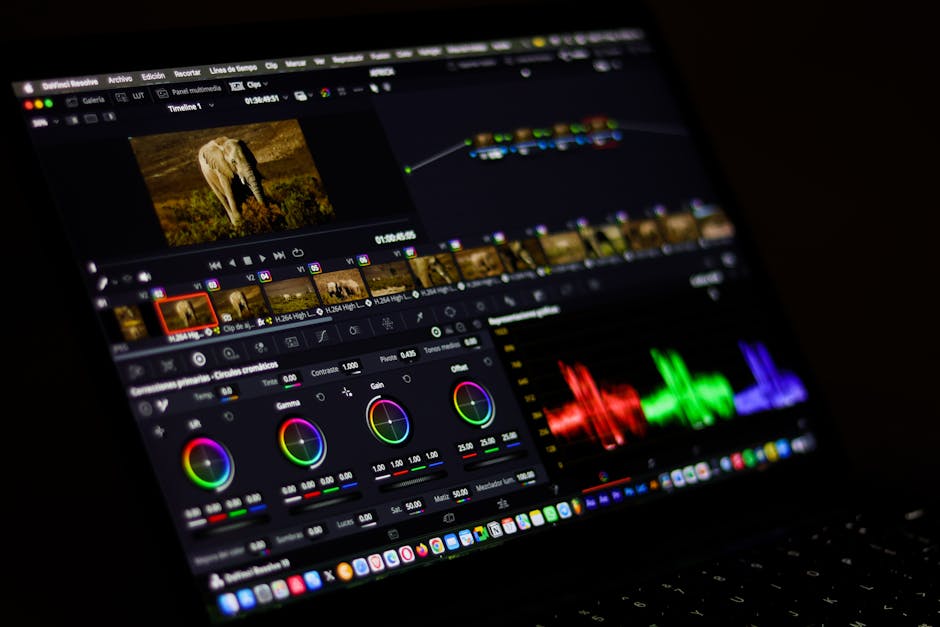
You loaded an iPhone 15 Pro 4K HEVC clip into Premiere. Playback stutters at 8 fps. You have an M2 Max or an i9 with 64 GB of RAM. The machine isn't slow. The codec is.
HEVC (H.265) achieves about half the file size of H.264 at equivalent quality. The cost is roughly 5-10x the decoding effort per frame. That cost is real-time during playback. Editors hold multiple frames in RAM while you scrub the timeline, so the decoding load multiplies.
H.264 is the editing-friendly codec. It decodes faster, plays in real-time on lower-end hardware, and integrates cleanly with most NLE proxy workflows. Converting HEVC to H.264 once at import time eliminates the playback problem.
Our HEVC to MP4 converter handles the path. This post covers when to convert, what settings preserve quality, and how to avoid the common "re-encoded twice" mistake.
What HEVC and H.264 Actually Differ On
| Aspect | H.264 | HEVC (H.265) |
|---|---|---|
| Year ratified | 2003 | 2013 |
| Compression efficiency | Reference | ~1.5x better |
| File size at same quality | Reference | ~50% |
| Encoding speed | Fast | Slow (5-10x slower) |
| Decoding speed | Fast | Slow on older hardware |
| Hardware decode support | Universal | M1+, RTX 20+, Intel 7+ |
| Maximum bit depth (4:2:0) | 10-bit | 12-bit |
| HDR support | Limited | Native (HDR10, Dolby Vision) |
| Patent licensing | Resolved | MPEG LA + HEVC Advance + Velos |
The "decoding speed" row is the production problem. Even on hardware that supports HEVC decode (M1, M2, RTX 30 and 40 series, Intel 11th gen and later), the actual decode runs on the GPU's media engine. Premiere and DaVinci can use this engine for playback, but only if you have the right codec drivers installed and the right project settings.
When the Conversion Is Free Quality-Wise
The lossy step in any HEVC-to-H.264 conversion is the re-encode. The pixel data has to be decoded from HEVC and re-encoded as H.264. Two things matter:
- The decode is lossless (you get exactly the pixel data the camera produced)
- The H.264 encode at high enough bitrate is visually identical
H.264 at CRF 18 is "visually lossless" for editing purposes. It's not mathematically lossless (the bits are different), but no human eye distinguishes it from the source.
For editing intermediate use:
ffmpeg -i input.hevc.mp4 \
  -c:v libx264 -preset slow -crf 16 \
  -c:a copy \
  -movflags +faststart \
  output.h264.mp4
CRF 16 is even more conservative. The output file is roughly 1.5x the source size and 2x the source bitrate. Editing playback runs in real-time on any modern editor.
The "Re-encoded Twice" Mistake
The mistake everyone makes: convert HEVC to H.264 for editing, finish the edit, then export to H.264 again. The export is a second re-encode. You've now lossy-compressed the same footage twice.
Three solutions:
Option 1: Convert HEVC to a high-bitrate intermediate codec like ProRes or DNxHR, edit, then export to H.264 for delivery. Two re-encodes but the first one preserves quality much better than H.264.
Option 2: Use proxy workflow. Premiere's Proxy mode and DaVinci's Optimized Media both let you edit a low-bitrate version while the original HEVC remains the source-of-truth for export.
Option 3: For non-fragile workflows (corporate, social), one HEVC-to-H.264 intermediate is fine. The second re-encode at delivery is unavoidable.
| Workflow | Encodes | Use case |
|---|---|---|
| Direct HEVC editing | 1 | Modern hardware, slow scrubbing OK |
| HEVC to H.264 intermediate | 2 | Convenient, mild quality loss |
| HEVC to ProRes intermediate | 2 | Pro work, file size 4x larger |
| Proxy workflow (HEVC source) | 1 | Best of both worlds, more setup |
For corporate and social work, intermediate H.264 at CRF 16-18 is fine. For weddings, commercial, and broadcast: proxy or ProRes.
Premiere Pro Setup
For HEVC source files in Premiere:
- File > Project Settings > General > Video Rendering and Playback: GPU Acceleration (CUDA on Windows with NVIDIA, Metal on Mac).
- Edit > Preferences > Media: Enable hardware-accelerated decoding for H.264/HEVC.
- Sequence settings: Match source frame rate. For 4K HEVC at 30 fps, sequence at 3840×2160 30fps.
If playback still stutters with these settings, generate proxies:
- Project panel > select clips > right-click > Proxy > Create Proxies
- Format: H.264 or DNxHR LB
- Resolution: Half (1920×1080 from 4K source)
- Premiere swaps to proxies for editing, swaps back to source for export
Pro Tip: Premiere's "Toggle Proxies" button (in the source/program monitor settings cog) is the fastest way to verify your edit looks right against the full-resolution source before export.
DaVinci Resolve Setup
DaVinci has stronger HEVC playback than Premiere on the same hardware. Steps:
- Project Settings > Master Settings: Enable "Decode Quality" auto-switching.
- Preferences > Media Storage > GPU Configuration: Enable hardware-accelerated decoding.
- Studio version (paid): HEVC decode runs on the GPU's media engine. Free version uses CPU.
For free DaVinci with HEVC source: Optimized Media is the answer. Right-click clips, Generate Optimized Media. Resolve creates proxies in DNxHR LB or ProRes 422 Proxy. Use those for editing.
FFmpeg Recipes
For batch HEVC to H.264 conversion of an entire folder:
mkdir converted
for f in *.mov *.mp4; do
  ffmpeg -i "$f" \
    -c:v libx264 -preset slow -crf 18 \
    -c:a copy \
    -movflags +faststart \
    "converted/${f%.*}.mp4"
done
For HEVC to ProRes intermediate (better for color work):
ffmpeg -i input.hevc.mp4 \
  -c:v prores_ks -profile:v 3 \
  -vendor apl0 \
  -pix_fmt yuv422p10le \
  -c:a pcm_s16le \
  output.prores.mov
Profile 3 is ProRes 422 HQ. Profile 2 is ProRes 422. Profile 0 is ProRes 422 Proxy (smaller, lower quality).
For HEVC to DNxHR HQX intermediate:
ffmpeg -i input.hevc.mp4 \
  -c:v dnxhd -profile:v dnxhr_hqx \
  -pix_fmt yuv422p10le \
  -c:a pcm_s16le \
  output.dnxhr.mov
DNxHR HQX is the Avid equivalent of ProRes 422 HQ. Premiere and DaVinci both edit DNxHR cleanly.
Color Space Considerations
iPhone 15 Pro and newer record HEVC in Rec.2020 with HDR (HLG or Dolby Vision). Most editing workflows expect Rec.709. Converting from HDR HEVC to SDR H.264 needs a tone-mapping step:
ffmpeg -i input.hdr.hevc.mp4 \
  -vf "zscale=t=linear:npl=100,format=gbrpf32le,zscale=p=bt709,tonemap=tonemap=hable:desat=0,zscale=t=bt709:m=bt709:r=tv,format=yuv420p" \
  -c:v libx264 -crf 18 \
  -c:a copy \
  output.sdr.mp4
This converts the HDR signal through linear color space, applies Hable tone mapping (preserves shadows and highlights), and outputs SDR Rec.709.
For HDR-to-HDR work, see HDR10 vs Dolby Vision Conversion.
File Size and Bitrate Trade-offs
Converting a 4K iPhone HEVC clip to H.264:
| Settings | Bitrate | File size (10 min clip) |
|---|---|---|
| Source HEVC (iPhone default) | ~85 Mbps | ~6.5 GB |
| H.264 CRF 16 | ~120 Mbps | ~9 GB |
| H.264 CRF 18 | ~85 Mbps | ~6.5 GB |
| H.264 CRF 21 | ~50 Mbps | ~3.8 GB |
| H.264 CRF 24 | ~28 Mbps | ~2.2 GB |
| ProRes 422 HQ | ~880 Mbps | ~66 GB |
| DNxHR HQX | ~440 Mbps | ~33 GB |
ProRes and DNxHR are huge but visually transparent to the source. They're what film and TV use. For YouTube workflows, H.264 CRF 18 is the production sweet spot.
When to Skip the Conversion
If your source is HEVC and you're on:
- M1 Pro / M1 Max / M2 / M3 / M4 Mac with Final Cut Pro
- DaVinci Resolve Studio (paid) on M-series Mac or RTX 30+ PC
- Premiere on Apple Silicon with hardware decode enabled
The hardware media engine handles HEVC decode in real-time. Skip the intermediate. Edit native. Export to H.264 once at delivery.
For everything else (free DaVinci, older hardware, Windows on AMD): convert HEVC to H.264 or DNxHR as an intermediate.
For broader video conversion paths, our video converter hub covers all 27 video formats.
Frequently Asked Questions
Will I lose quality converting HEVC to H.264 at CRF 18?
Visually no. Mathematically yes. The pixels are slightly different but no human will notice. For editing intermediates, this is the sweet spot. For archival, keep the HEVC source as your master.
Why does my converted H.264 look different than the HEVC source?
Color space mismatch. iPhone HEVC is often Rec.2020 HDR. Converting to Rec.709 H.264 without tone mapping shifts the colors. Use the tone mapping FFmpeg recipe above or a tool that handles HDR-to-SDR conversion.
Can I convert HEVC to H.264 on iPhone or in iOS Photos?
iOS doesn't expose codec choices for export. AirDrop transfers HEVC as HEVC. To get H.264 from an iOS source: AirDrop to Mac, use Handbrake or our converter; or Files app > Save to Files > use a third-party converter app.
Why is the converted file bigger than the source?
H.264 is roughly 1.5x larger than HEVC at the same visual quality. If your H.264 export is smaller than the source, your bitrate is too low and quality dropped.
Should I use Handbrake or FFmpeg?
Handbrake has a friendly UI and saner defaults. FFmpeg has more control and scripts cleanly for batch work. Both produce identical output at the same settings. For one-off jobs: Handbrake. For pipelines: FFmpeg.
What about iPhone-specific iPhone-to-MP4 conversion?
For iPhone 4K HEVC clips that won't play on Windows or Android, see HEVC to H.264 iPhone Videos for the consumer-side path.
Related Reading
Bottom Line
For Premiere or DaVinci with HEVC source on older hardware: convert to H.264 CRF 18 as an intermediate, edit, export to H.264 for delivery. Acceptable two-encode workflow. For pro work: ProRes 422 HQ or DNxHR HQX intermediate. For modern Apple Silicon Macs: edit HEVC native via FCP. Our HEVC converter and MP4 converter cover the conversion paths.