Insta360 X4 .insv Files on Windows and Mac: Studio Setup Without the Headaches
Insta360 X4 produces .insv files that confuse most editors. Here's the Studio install path that actually works in 2026, plus the FFmpeg fallback for batch processing.
ConvertIntoMP4 Team·May 8, 2026·9 min read
The .insv Files Your Editor Refuses to Open
You shot a holiday with the Insta360 X4. The microSD has files like IMG_20260508_133405_00_001.insv. You drag one to Premiere. Nothing. You try VLC. Black screen. You try the Insta360 app on your phone. It works. So why doesn't anything else?
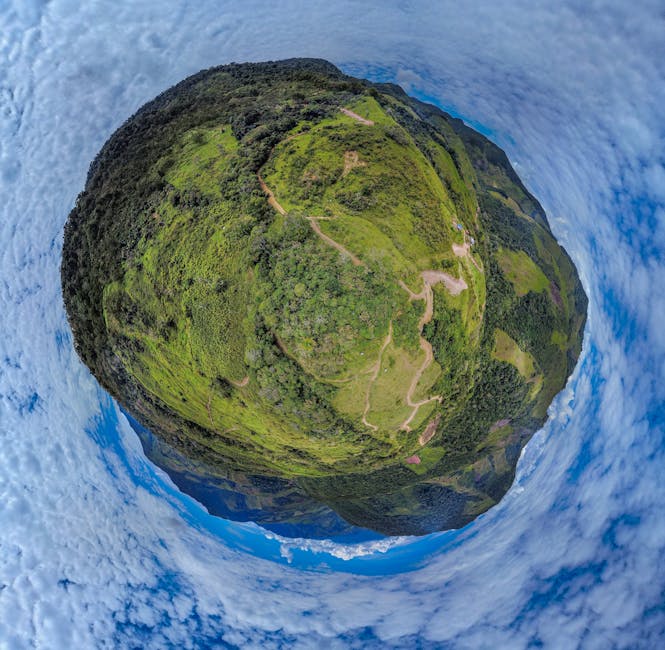
.insv is Insta360's spherical video container format. It's an MP4 internally, but the codec inside (often H.265 or proprietary high-bitrate variants) plus the dual-fisheye stitching info means standard players can't display it correctly. The file plays as a stretched panorama at best, fails to decode at worst.
The path forward: Insta360 Studio (free desktop app) handles the stitching and reframing. Then export to standard MP4 for editing or sharing. Our MP4 converter handles the final encode if you need additional compression.
This post is specifically about Insta360 X4 files on Windows and Mac in 2026, with the Studio installation pitfalls and the FFmpeg fallback for batch work.
The 8K 30p mode produces large files (around 100 Mbps bitrate). Reframed to 1080p, the source detail is preserved well enough that the result looks sharper than native 1080p.
Installing Insta360 Studio in 2026
The Studio installer used to be hostile on Windows (incompatible Visual C++ runtimes, missing codec dependencies). The 2026 release smooths most of this. Steps that work consistently:
Windows:
Download Studio from store.insta360.com
Install Visual C++ 2019 Redistributable (x64) if missing
Disable Windows SmartScreen for the Studio installer (it's not signed in some regions)
Install
First launch: Studio downloads ~500 MB of additional codecs
Mac (Intel and Apple Silicon):
Download from store.insta360.com (universal binary since 2025)
Install
macOS Gatekeeper may block the first launch; right-click > Open
If installation fails on Windows:
Common error: "MSVCP140.dll missing." Install Microsoft Visual C++ 2015-2022 Redistributable. After install, reboot.
What Studio Does
Insta360 Studio handles four jobs:
Stitching: combines the dual-fisheye captures into a sphere
Reframing: pick a virtual camera angle into the sphere
Color adjustment: basic exposure, white balance, saturation
Export: final MP4 in standard codecs
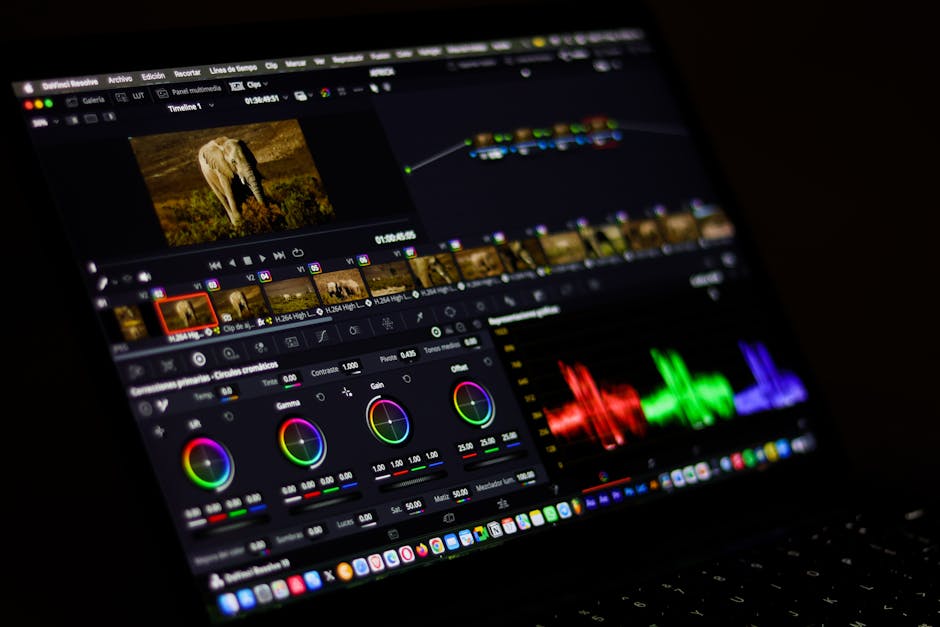
For most workflows, this is sufficient. For complex color grading or motion graphics, export from Studio first, then bring the flat MP4 into Premiere or DaVinci.
Reframing Workflow
In Studio:
Open project, drag .insv files into the timeline
Select clip > Reframe button
The interface shows the spherical view with a movable virtual camera
Set keyframes at moments where the camera should change angle
Use AI Tracking to follow a moving subject
AI Tracking on the X4 is reliable for single-subject content (one rider, one skier). It struggles with crowds or fast scene changes.
For static content (landscapes, architecture), set the angle once and let it ride. Reframing keyframes are unnecessary.
Export Settings
Insta360 Studio export options:
Setting
Recommended
Why
Resolution
4K (3840×2160)
Preserves detail from 8K source
Frame rate
Match source
Avoid frame interpolation artifacts
Codec
H.264
Universal compatibility
Bitrate
50 Mbps for 4K
Above YouTube target, room for re-encode
Container
MP4
Standard
For social platforms (TikTok, Instagram), reframe to 9:16 vertical and export at 1920×1080 vertical equivalent. See TikTok and YouTube Shorts Export Settings for the platform-specific bitrate guidance.
FFmpeg Fallback for Batch Processing
If you have hundreds of .insv files and don't want to reframe each manually, FFmpeg's v360 filter handles the projection conversion programmatically:
This produces a flat 16:9 view looking straight ahead. For varied angles in batch:
# Process a folder, varying yaw angle
i=0
for f in *.insv; do
  yaw=$((i * 30))
  ffmpeg -i "$f" \
    -vf "v360=equirect:flat:h_fov=120:v_fov=80:yaw=${yaw}:pitch=0" \
    -c:v libx264 -preset slow -crf 18 \
    -c:a copy \
    "flat_${i}.mp4"
  i=$((i+1))
done
The FFmpeg path doesn't have stitching intelligence (Studio's algorithms are proprietary), so the seam might be visible. For seam-critical work, use Studio. For "convert this 360 to a flat panorama for archival," FFmpeg works.
Codec Issues on Windows
X4 records H.265 (HEVC). Windows Media Player and File Explorer thumbnails fail without HEVC codecs:
Microsoft Store: search "HEVC Video Extensions" ($0.99 official, free unofficial alternatives)
Or install K-Lite Codec Pack (free, includes HEVC decoder)
Restart File Explorer
After installation, .insv files show thumbnails and play in some Windows tools. Studio works regardless.
Color Profiles on X4
The X4 supports two color profiles:
Standard: punchy colors, ready to share
LOG: flat, requires grading, more dynamic range
LOG mode is similar to GoPro's flat profile. Benefits the same way: more dynamic range, more grading flexibility, more post-production time.
For Insta360 LOG to Rec.709, Insta360 publishes free LUTs. Apply in Studio or in your downstream editor (DaVinci Resolve has LUT support; see DJI D-Log to Rec.709 for the broader LOG-to-Rec.709 workflow which applies similarly).
Stabilization (FlowState)
Insta360 FlowState is on by default and works well for most content. Enabled at recording time, it uses the camera's IMU data to digitally smooth the footage during playback.
For shots that you want to look "shaky on purpose" (action sports aesthetic), disable FlowState in the camera menu before recording. You can't add stabilization back in post if it wasn't enabled at recording (the IMU data is stored, but Studio's stabilization runs at fixed strength).
Pro Tip: Insta360 also offers "Horizon Lock," which keeps the horizon level even when you tilt the camera. Combined with FlowState, footage shot while running or biking looks gimbal-smooth.
Single Lens Mode
X4 also has a "Single Lens" mode that records only the front-facing fisheye. Output is an .insv file but it's flat (not 360). Studio detects this and skips the stitching step automatically.
Single Lens 4K 60p is the X4's "regular video camera" mode. Useful when you don't need 360 capture. Files are smaller than full 360 mode.
File Size Reality
For a 10-minute X4 recording:
Mode
File size
Bitrate
8K 30p 360
~7.5 GB
~100 Mbps
5.7K 60p 360
~5 GB
~67 Mbps
4K 100p 360
~5.5 GB
~73 Mbps
4K 60p Single Lens
~3 GB
~40 Mbps
After reframing to 1080p H.264 export: typically 1.5-2.5 GB per 10 minutes. After our video compressor at CRF 22: around 600-900 MB.
Common Issues
Studio crashes on import: corrupt .insv file or unfinalized recording. Check microSD on the camera before transfer.
Stitch seam visible across frame: low light or fast motion at the seam. Insta360 has manual stitch line tools; or pre-process with the camera's "Optical Flow" stitching (slower but cleaner).
Audio out of sync after long clips: known issue with X4 firmware before 1.0.45. Update camera firmware. For existing files, re-mux with -vsync cfr flag in FFmpeg.
Reframed output is too low resolution: export at 4K from Studio even if you only need 1080p. The extra resolution gives you cropping room and better quality after re-encoding.
Can I edit .insv files directly in Premiere or FCP?
Premiere needs the GoPro VR plugin or Insta360's plugin. FCP can play .insv as flat 360 if you set the project to 360 mode. For most workflows, reframe in Studio first and import the flat MP4.
How do I export a 360 video for YouTube VR?
In Studio: export at 4K equirectangular (3840×1920 or higher). Set the YouTube metadata flag for 360 video before upload. YouTube will detect the spherical metadata and serve as 360.
Is the X4 better than the GoPro Max for 360 work?
Higher resolution (8K vs 5.6K), more battery, better stabilization in 2026 firmware. GoPro Max has stronger waterproofing and a slightly more durable body. Both ship .360 and .insv workflows that are roughly equivalent in difficulty.
Why is my Studio export so much bigger than the source?
Bitrate higher than source. X4 records at ~100 Mbps for 8K. If you export at 50 Mbps for 4K, the file should be smaller. If your 4K export is bigger than the 8K source, check the bitrate setting.
Can I batch-process many .insv files at once?
Studio's batch export handles fixed angles and standard exports. For varied angles or complex reframing, use FFmpeg with the v360 filter. For per-clip tracked reframing, you have to process each clip individually in Studio.
What about Insta360 Pro 2 files?
The Pro 2 records .insp for stills and .insv for video, but at much higher bitrate (300+ Mbps). Same workflow, just slower processing. Studio handles all Insta360 cameras.
For Insta360 X4 .insv files: install Studio (Windows or Mac), stitch and reframe with keyframes or AI tracking, export to H.264 MP4 at 4K. For batch processing, FFmpeg's v360 filter handles fixed-angle reframing. Our MP4 converter and video compressor handle the final encode after Studio export.
Insta360X4insvWindowsMacvideo editing
About the Author
ConvertIntoMP4 Team
The ConvertIntoMP4 editorial team — engineers, designers, and media specialists building the fastest free file converter on the web.