Why ACES Is the Standard the Industry Picked
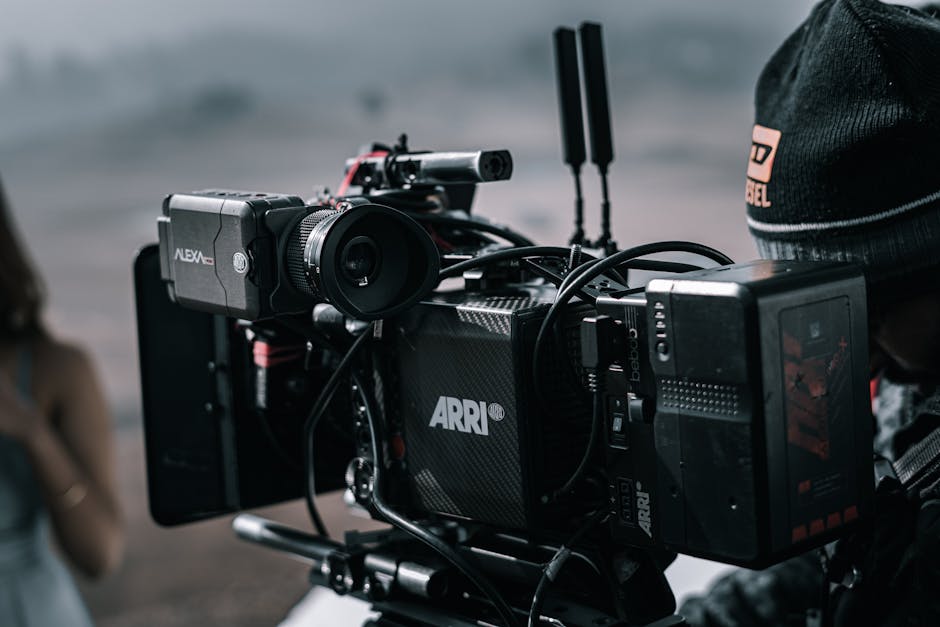
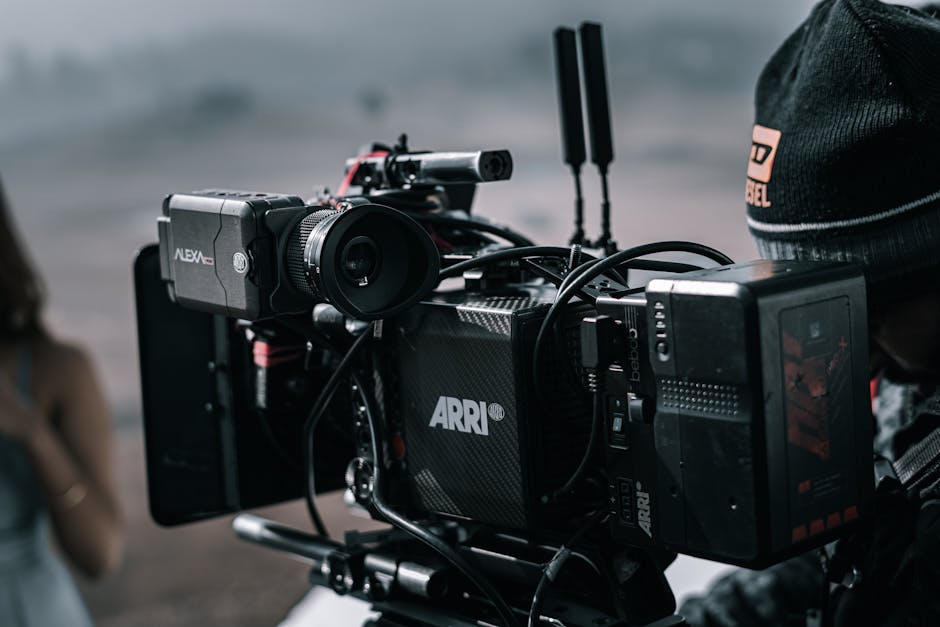
ACES (Academy Color Encoding System) is the color management framework adopted by major Hollywood productions, premium streaming (Netflix, Apple TV+, Disney+), and increasingly indie filmmakers. It solves a specific problem: how to get consistent color across mixed cameras (RED + Sony + ARRI on the same project), through editing and grading, to multiple delivery formats (theatrical DCP, HDR streaming, broadcast SDR).
Without ACES: each camera's footage is interpreted differently, grading decisions don't translate between deliveries, and the colorist has to manually match looks across formats. With ACES: one color science from camera to delivery, automatic conversion to each output format.
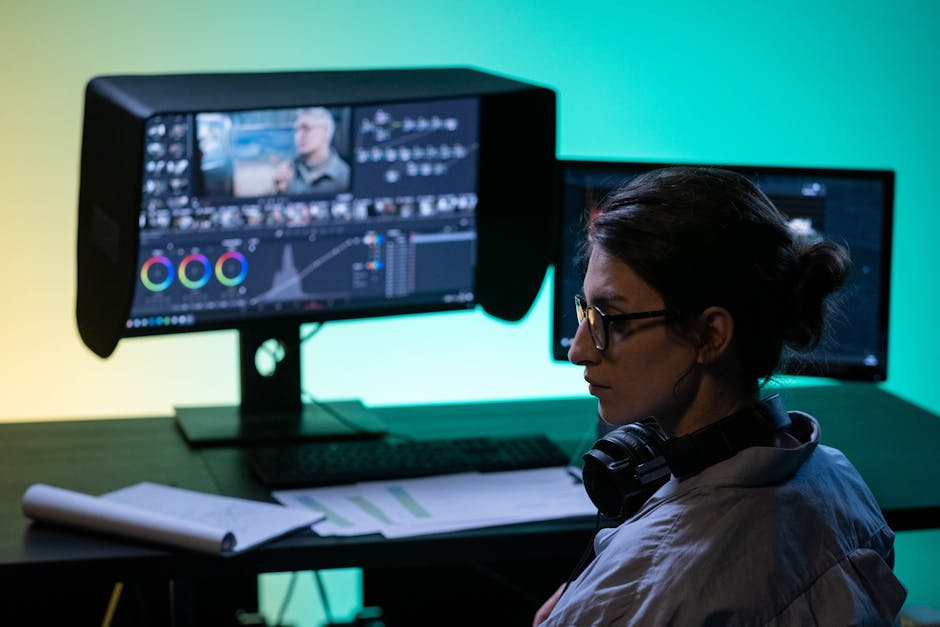
This post covers the ACES setup in DaVinci Resolve Studio (the practical home of ACES for indie and mid-budget productions). For other color workflows, see HDR10 vs Dolby Vision Conversion.
ACES Components
The ACES pipeline has four parts:
- IDT (Input Device Transform): maps each camera's raw color to ACES color space
- ACES working space: device-independent color (huge gamut)
- LMT (Look Modification Transform): optional creative look applied after grading
- ODT (Output Device Transform): maps ACES color to delivery format (Rec.709, Rec.2020, P3 D65, etc.)
The grade happens in ACES working space. Each delivery applies a different ODT to get the appropriate output. Same grade, multiple deliverables.
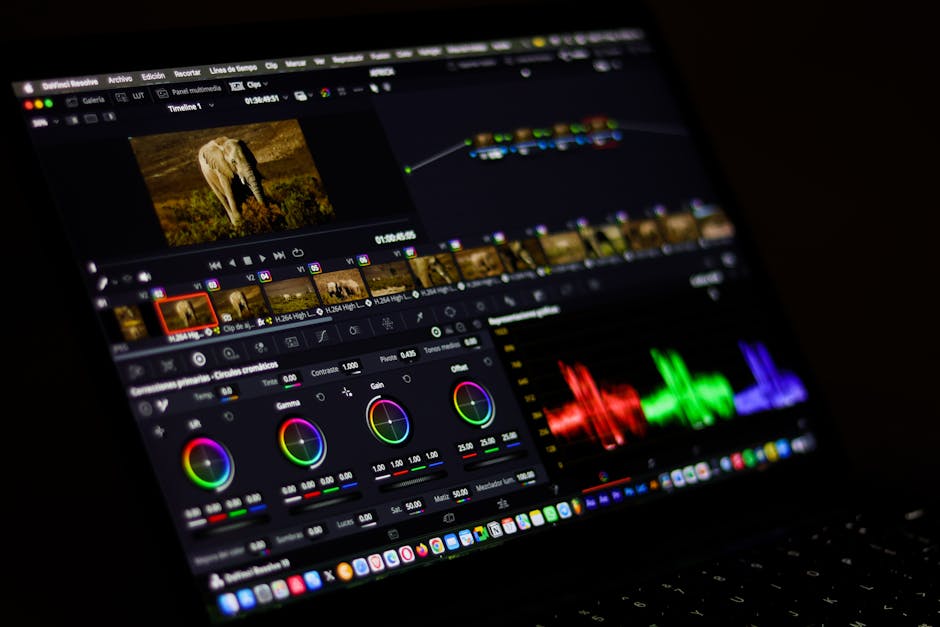
DaVinci Resolve Project Settings
In DaVinci Resolve Studio:
- Project Settings > Color Management > Color Science > ACEScct
- Color Science > ACES Version: ACES 1.3 (current production standard)
- ACES Input Device Transform: choose per source camera (or "ACES IDT" if mixed)
- ACES Output Device Transform: choose for primary delivery target
ACEScct is the editing/grading variant of ACES. It applies a logarithmic curve that's nicer to work with than linear ACES. Most professional grading happens in ACEScct.
For each clip, set the IDT in the clip's color page:
- ARRI Alexa: ARRI Alexa (or ARRI LogC if specific gamma)
- Sony FX9, FX6, FX3: Sony S-Log3 SGamut3
- Canon C300/C500/R5C: Canon CinemaGamut Canon Log 3
- RED V-Raptor: REDWideGamutRGB Log3G10
- iPhone 14 Pro: iPhone 14 (Apple's IDT or "Sony S-Log3" approximation)
- Drone (DJI D-Log): DJI D-Log
- DSLR (most): Rec.709 (your IDT is "as if it were already SDR")
Each camera's footage gets the right IDT. Resolve handles the conversion to ACEScct working space.
ODT Selection
The ODT transforms ACES grade to delivery color space:
| Delivery target | ODT |
|---|---|
| YouTube SDR (Rec.709) | Rec.709 |
| YouTube HDR (Rec.2020 PQ) | Rec.2020 ST.2084 1000 nits |
| Theatrical DCP (P3 D65) | P3 D65 |
| Broadcast SDR (Rec.709) | Rec.709 (standard) |
| Apple TV+ HDR | Rec.2020 ST.2084 1000 nits |
| Netflix HDR (Dolby Vision) | Rec.2020 ST.2084 1000 nits + Dolby Vision metadata |
For mixed delivery (theatrical + streaming + broadcast): set ODT to your primary delivery, render that. Switch ODT to next delivery, render again. The grade stays the same; only the ODT changes between renders.
For HDR-aware grading specifically, see HDR10 vs Dolby Vision Conversion.
ACEScct vs ACEScc vs ACES Linear
DaVinci offers multiple ACES variants:
- ACEScc: log curve, easier than linear for grading. Standard for color managed grading.
- ACEScct: ACEScc with a small linear toe, behaves more like film. Common in 2026 productions.
- ACES Linear: full linear ACES, used for VFX and finishing. Not for grading.
For most projects: ACEScct. Default in modern DaVinci versions.
Color Tools Behavior in ACES
DaVinci's color tools operate within the ACES working space:
- Lift / Gamma / Gain: same controls, but their effect is on log-converted values
- Color Wheels: behave naturally within ACEScct
- Curves: be aware curves operate in log space; use Soft Clip for highlight rolloff
- Saturation: gentler curves needed; reduce saturation 5-10% from your normal habits
If you've grade Rec.709 video, ACES will feel strange at first. Footage looks lifeless before grading because the working space is much wider than monitor display. Trust the ODT to handle the conversion to delivery.
Pro Tip: Set up two viewer scopes when grading in ACES. One showing ACES log scope (your working space), one showing the ODT-applied delivery. Adjust until both look right. The delivery scope tells you what audiences see.
VFX and Compositing
For VFX work, render in ACES Linear (not ACEScct):
- ACEScct: grading
- ACES Linear: compositing, VFX
The conversion between them is automatic in compositing software (Nuke, After Effects with ACES plugin). Maintain ACES throughout the VFX pipeline.
For After Effects, see After Effects Render Queue.
Look Modification Transforms (LMTs)
LMTs are creative looks applied as a transform layer. Examples:
- Print emulation: simulates film stock (Kodak 5219, Portra 400)
- Mood LMTs: cool/warm shifts, contrast bumps, color casts
- Custom looks: developed by colorists for specific projects
LMTs are like LUTs but operate in ACES space. They're more predictable across deliveries than LUTs, which were designed for specific output spaces.
Common LMTs available in Resolve:
- ACES 0.7 RRT (older render transform with film-like aesthetic)
- Resolve's "Film Look" PowerGrade
- Custom LMTs from colorists or third parties
Multi-Camera Match Workflow
The ACES pipeline shines when matching cameras:
- Import all clips
- Set IDT per camera (each clip's color page)
- Apply rough technical correction in the Resolve color page
- Apply consistent grade (it works across all cameras automatically)
- Render with appropriate ODT
The cameras automatically converge in ACES working space. Manual matching (the slow process pre-ACES) is mostly eliminated.
Common Issues
Footage looks too saturated or too contrasty: ODT applied at wrong stage. Verify only one ODT is in the path (Project Settings, not also a node-level effect).
Highlights are clipping in delivery despite ACES: highlights pushed past the ODT's mapped range. Use Resolve's Highlight Recovery or pull exposure -0.5 stops at the front of the chain.
Color match between scenes inconsistent: white balance differences not corrected. Use Resolve's Color Match feature or manually unify white balance early in the pipeline.
Cant render to legacy color space: ODT for the legacy space not supported. Check Resolve's ODT options; some legacy formats (sRGB Gamma 2.2, NTSC SMPTE-C) may need workarounds.
Slow rendering with ACES: ACES processing is GPU-intensive. Modern GPU recommended. ACES adds about 15-25% render time vs non-managed grading.
For underlying grading workflow, see HDR10 vs Dolby Vision Conversion.
Frequently Asked Questions
Is ACES overkill for indie work?
For SD or basic Rec.709 deliveries: probably yes. For HDR delivery, multi-camera shoots, or theatrical deliveries: ACES pays for itself in saved color matching time.
Can free DaVinci Resolve do ACES?
The free version supports ACES but with limitations on certain ODTs and IDTs. For commercial-grade ACES work, the paid Studio version is recommended.
What about CCS or other alternatives?
DaVinci YRGB Color Managed (Resolve's RCM) is a simpler alternative. It works for most non-HDR deliveries. ACES is preferred when matching ARRI, RED, Sony cameras or delivering HDR.
Should I shoot LOG or RAW for ACES workflow?
LOG is acceptable. RAW gives more flexibility but adds storage cost. For most ACES workflows, LOG (S-Log3, ARRI LogC, RED Log3G10) is the production sweet spot.
Does ACES work on iPhone footage?
Yes. iPhone 14 Pro and later record Dolby Vision, which ACES handles. iPhone 13 and earlier record Rec.709, which goes through ACES via the Rec.709 IDT.
What about HDR delivery to YouTube?
YouTube HDR uses Rec.2020 ST.2084 1000 nits (HDR10). Set ODT to that, render, upload. YouTube's player serves HDR to capable devices, falls back to SDR for others.
Related Reading
Bottom Line
For ACES in DaVinci Resolve Studio: project ACEScct color science, set IDT per camera, grade in ACES space, switch ODT for each delivery target. Pays off for multi-camera shoots, HDR delivery, and any project that needs theatrical-quality color. Our video converter hub handles the codec side after ACES grading.