What 12K Actually Means For Your Workflow
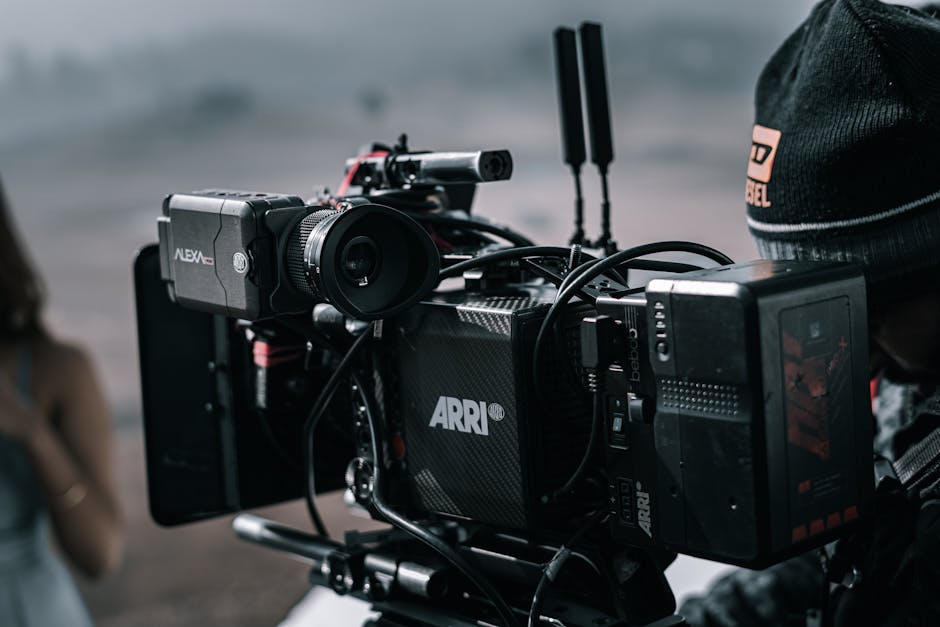
The Blackmagic URSA Mini Pro 12K records 12,288 × 6480 RAW at up to 60 fps. That's 80 megapixels per frame, roughly the resolution of a high-end stills camera, captured at video frame rates. The sensor's 14 stops of dynamic range and Super 35 size produce footage that competes with the most expensive cinema cameras at a fraction of their cost.
The catch is data. At 12K 60p with BRAW 5:1 compression, the camera writes about 880 MB per second. A 1-hour shoot produces 3.2 TB of source footage. A wedding day shoot produces 30+ TB. Your post-production pipeline needs to handle this without becoming the bottleneck.
This post covers the practical URSA 12K BRAW workflow: storage configuration, transfer protocols, DaVinci Resolve project setup, and the proxy strategies that make 12K editing feasible on workstation hardware. For broader RAW workflow context, see RED R3D to ProRes.
BRAW Compression Tiers
Blackmagic RAW has multiple compression ratios:
| Ratio | Bitrate (12K 60p) | Quality | Use case |
|---|---|---|---|
| Q0 | ~13,800 Mbps | Lossless | Visual reference, archival |
| Q1 | ~6,900 Mbps | Visually lossless | High-end production |
| Q3 | ~3,100 Mbps | Excellent | Professional standard |
| Q5 | ~2,200 Mbps | Very good | Most production |
| 3:1 | ~3,500 Mbps | Visually lossless | Constant ratio |
| 5:1 | ~2,200 Mbps | Production sweet spot | Typical work |
| 8:1 | ~1,500 Mbps | Good for non-critical | Long-form, B-roll |
| 12:1 | ~900 Mbps | Acceptable | Run-and-gun |
For most production work: Q5 or 5:1. Q0 and Q1 are reserved for VFX-heavy shots where every pixel matters. 12:1 is for situations where storage absolutely caps the shoot.
Card and Drive Requirements
The URSA's CFast 2.0 slots and external SSD recording have specific speed requirements:
| Recording mode | Card requirement |
|---|---|
| 12K 60p Q5 | CFast 2.0 with 700+ MB/s sustained |
| 12K 60p 5:1 | CFast 2.0 with 700+ MB/s sustained |
| 12K 24p Q1 | CFast 2.0 with 680+ MB/s sustained |
| 8K modes | CFast 2.0 with 400+ MB/s sustained |
| 4K modes | CFast 2.0 with 250+ MB/s sustained |
Sandisk Extreme Pro CFast 2.0 (256 GB and larger) meet 12K specs. Older or smaller cards will cause frame drops at 12K.
External SSD recording (via USB-C) supports up to 8K depending on drive speed. For 12K, internal CFast is the only option. SSDs work fine for 4K-8K.
Capacity Planning
A typical shoot day:
| Capacity | 12K 5:1 60p | 12K 5:1 24p | 8K 5:1 60p | 4K 5:1 60p |
|---|---|---|---|---|
| 1 hour | 970 GB | 390 GB | 430 GB | 105 GB |
| 4 hours | 3.9 TB | 1.5 TB | 1.7 TB | 420 GB |
| 8 hours | 7.7 TB | 3.1 TB | 3.4 TB | 850 GB |
For a 4-hour wedding shoot at 12K 24p: 1.5 TB storage. For an event with 6 hours of multicam: 12+ TB.
Cards needed:
- 256 GB CFast: 16 minutes at 12K 60p
- 512 GB CFast: 32 minutes at 12K 60p
- 1 TB CFast: 64 minutes at 12K 60p
Plan multiple cards for unattended operation. Hot-swap during natural pauses.
Transfer to Working Storage
After the shoot, transfer cards to your working storage. Key considerations:
Card reader speed: USB 3.2 Gen 2 or Thunderbolt 3+ readers handle CFast 2.0's full speed. USB 3.0 readers are too slow; transfer takes 8-12x longer.
Working storage type: NVMe SSD for active editing (12K source needs sequential read of 700+ MB/s). HDD for archival after editing complete.
RAID configuration: a 4-drive NVMe RAID-5 provides ~12 GB/s read, sufficient for 12K editing. 6-drive RAID-0 is faster but no redundancy.
Network attached storage: 10GbE is the floor for 12K editing. 25GbE or 40GbE is the production recommendation. 1GbE is too slow.
For workflow transfer pattern, see Batch Processing Files Guide.
DaVinci Resolve Project Setup
DaVinci Resolve Studio (paid) handles BRAW natively. Steps:
- Project Settings > Master Settings:
- Timeline Resolution: 4K UHD (3840×2160) for editing, switch to 12K for delivery
- Timeline Frame Rate: 24p or 60p (match source)
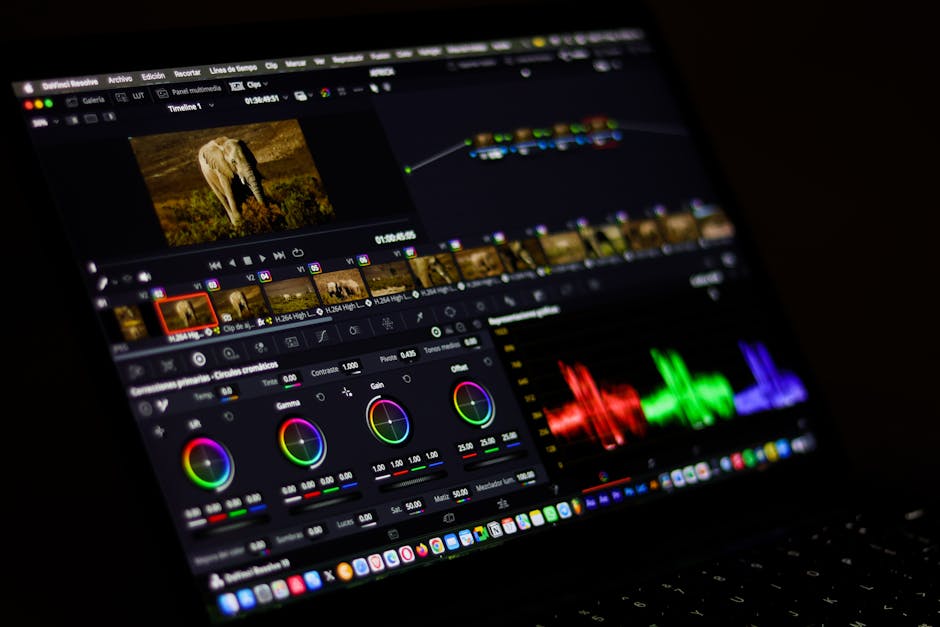
- Project Settings > Color Management: ACEScct (recommended) or DaVinci Wide Gamut
- Optimized Media: Generate at 1/4 resolution (3072×1620) initially
- Media Pool: import BRAW files directly
The trick is editing at 4K UHD timeline resolution while having 12K source available. You scale up for delivery. Most NLE work needs 4K timeline; the 12K source is for cropping, stabilization, and master delivery.
For ACES setup details, see ACES Color Pipeline.
Optimized Media Strategy
Optimized Media (proxies) is essential for 12K editing:
Generate at: 1/4 resolution (3072×1620 for 12K source)
Codec: DNxHR LB or ProRes 422 Proxy
Audio: PCM 24-bit
Resolve generates these in the background while you start editing. After completion, switch to optimized media for editing. Switch back to source for color grading and final render.
Storage for optimized media adds 20-30% on top of source. For a 10 TB shoot: 13 TB total working storage.
BRAW Decode Performance
BRAW is GPU-accelerated. Performance depends on:
| GPU | 12K 24p decode | 8K 60p decode | 4K 60p decode |
|---|---|---|---|
| RTX 4090 | Near realtime | Realtime | Realtime |
| RTX 3090 | Half realtime | Realtime | Realtime |
| RTX 3080 | 1/3 realtime | Half realtime | Realtime |
| M2 Max | Realtime | Realtime | Realtime |
| M1 Max | Half realtime | Realtime | Realtime |
| M3 Max | Realtime+ | Realtime | Realtime |
Apple Silicon Macs handle BRAW efficiently due to the Media Engine. PC workflows benefit from RTX 3090+ GPUs.
For batch BRAW transcoding outside Resolve:
# Using BMD's BRAW Toolkit (separate install)
braw_decoder \
  --input clip.braw \
  --output output.mov \
  --codec prores422hq \
  --resolution 3840 \
  --frames 0 0
The BRAW Toolkit also has Python bindings for integration into custom pipelines.
Pro Tip: Generate optimized media on a separate machine from your editing workstation. The CFast cards are USB-attached; transfer to the secondary machine, generate proxies there, then move proxies to the editing rig. The source media stays on the secondary machine.
Color Grading 12K Footage
The URSA's 14-stop dynamic range needs proper grading:
With ACES:
- IDT: Blackmagic Design 4.6K Generation 5 (or appropriate camera generation)
- ODT: Rec.709 for SDR delivery, Rec.2020 ST.2084 for HDR
- Grade in ACES space; output color is automatic
With DaVinci YRGB Color Managed:
- Input Color Space: Blackmagic Design Wide Gamut Gen5
- Timeline: DaVinci Wide Gamut/Intermediate
- Output: Rec.709 Gamma 2.4 (or HDR variant)
Color management handles the conversion automatically. Grade decisions translate cleanly between SDR and HDR delivery.
Final Delivery
For 12K-source projects, common deliverables:
| Delivery | Resolution | Codec | Bitrate |
|---|---|---|---|
| Theatrical 4K DCP | 4096×2160 | JPEG2000 | per DCI spec |
| YouTube 4K HDR | 3840×2160 | HEVC | 50-80 Mbps |
| YouTube 8K | 7680×4320 | AV1 | 80-150 Mbps |
| Vimeo Pro 4K | 3840×2160 | H.264 or HEVC | 50-100 Mbps |
| Master archival | source resolution | ProRes 422 HQ or BRAW | varies |
For most projects, 4K UHD HEVC delivery is the practical target. The 12K source provides crop-and-zoom flexibility in post.
For underlying delivery encoding, see Apple ProRes Windows Workflow.
Common Issues
Frame drops at 12K 60p: card too slow. Verify card meets 700+ MB/s sustained spec. Consider Sandisk Extreme Pro CFast 2.0 (latest generation).
DaVinci Resolve crashes on import: GPU memory exhausted by BRAW decode. Reduce timeline resolution to 1/2 or 1/4 during editing. Generate optimized media.
Color shift during grading: ACES IDT mismatch. URSA Mini Pro 12K uses Generation 5 color science (most current). Verify in clip's color page.
Stuttering playback even with optimized media: storage bandwidth too low. 12K editing needs 700+ MB/s sustained read; SSD RAID or NVMe required.
Power draw on laptop: 12K BRAW decode is GPU-heavy. Battery editing on a MacBook Pro: about 1.5-2 hours. Plan for AC power.
For broader 8K considerations, see 8K Streaming Codec.
Frequently Asked Questions
Is 12K worth shooting for 4K delivery?
For projects with significant cropping or stabilization needs: yes, the extra resolution gives flexibility. For straight delivery with no reframing: 4K source is adequate and saves storage.
Can I edit URSA 12K on a MacBook Pro?
M2 Max or M3 Max with 32+ GB RAM can edit 12K with optimized media (proxies). The base M2 or M3 will struggle. Apple Silicon's media engine is critical for smooth playback.
Does Premiere support BRAW?
Yes via the Blackmagic RAW Plugin (free). Performance is good but not as smooth as DaVinci Resolve's native handling. For BRAW-centric workflows, Resolve is the cleaner choice.
What about Final Cut Pro?
Final Cut Pro on Apple Silicon has BRAW support. Performance is competitive with Resolve. For Mac-only workflows, FCP is a viable choice.
How do I share BRAW files with a colorist?
Provide the BRAW source files plus your DaVinci Resolve project (.drp). The colorist opens the project, BRAW source loads, edits and color grade decisions are preserved.
Is the URSA 12K still the highest-resolution Blackmagic camera in 2026?
Yes. Blackmagic released a 17K cinema camera prototype in late 2025 but production availability is 2027+. The URSA Mini Pro 12K remains the production sweet spot for high-resolution Blackmagic.
Related Reading
Bottom Line
For URSA 12K BRAW production: CFast 2.0 cards rated 700+ MB/s, NVMe RAID for working storage, DaVinci Resolve Studio with optimized media at 1/4 resolution, ACES color management for HDR-aware projects. Edit at 4K timeline resolution, deliver at 4K HEVC for most use cases. Our video compressor handles the H.264/HEVC delivery encoding once color grading completes.