ACES Color Pipeline in DaVinci Resolve: The Setup That Actually Matches Theatrical
ACES is the industry standard for color managed video workflow. Here's the DaVinci Resolve setup that produces theatrical-grade color and matches deliveries to streaming, broadcast, and DCP.
Alex Thompson·May 8, 2026·7 min read
Why ACES Is the Standard the Industry Picked
ACES (Academy Color Encoding System) is the color management framework adopted by major Hollywood productions, premium streaming (Netflix, Apple TV+, Disney+), and increasingly indie filmmakers. It solves a specific problem: how to get consistent color across mixed cameras (RED + Sony + ARRI on the same project), through editing and grading, to multiple delivery formats (theatrical DCP, HDR streaming, broadcast SDR).
Without ACES: each camera's footage is interpreted differently, grading decisions don't translate between deliveries, and the colorist has to manually match looks across formats. With ACES: one color science from camera to delivery, automatic conversion to each output format.
This post covers the ACES setup in DaVinci Resolve Studio (the practical home of ACES for indie and mid-budget productions). For other color workflows, see HDR10 vs Dolby Vision Conversion.
IDT (Input Device Transform): maps each camera's raw color to ACES color space
ACES working space: device-independent color (huge gamut)
LMT (Look Modification Transform): optional creative look applied after grading
ODT (Output Device Transform): maps ACES color to delivery format (Rec.709, Rec.2020, P3 D65, etc.)
The grade happens in ACES working space. Each delivery applies a different ODT to get the appropriate output. Same grade, multiple deliverables.
DaVinci Resolve Project Settings
In DaVinci Resolve Studio:
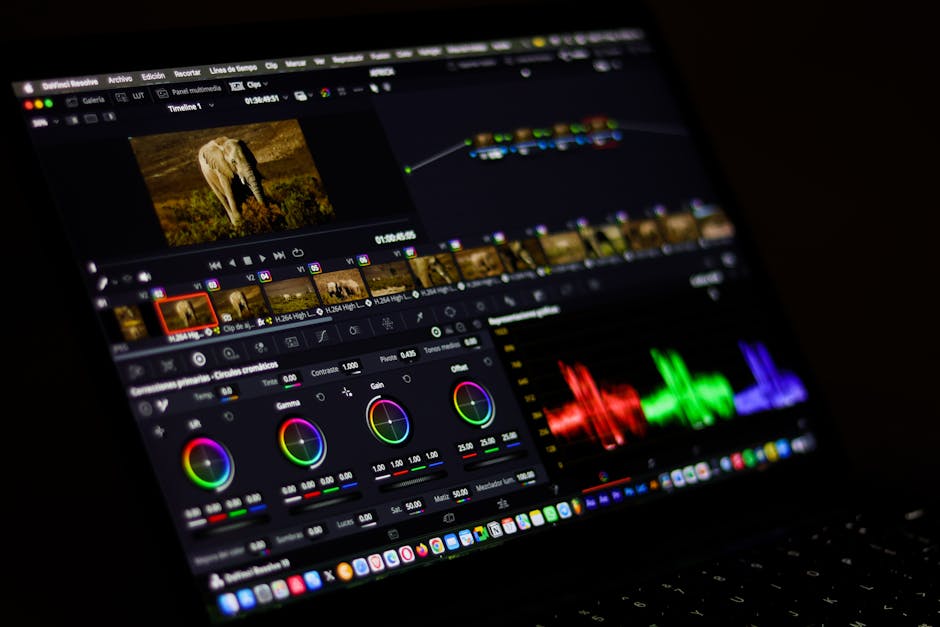
Project Settings > Color Management > Color Science > ACEScct
Color Science > ACES Version: ACES 1.3 (current production standard)
ACES Input Device Transform: choose per source camera (or "ACES IDT" if mixed)
ACES Output Device Transform: choose for primary delivery target
ACEScct is the editing/grading variant of ACES. It applies a logarithmic curve that's nicer to work with than linear ACES. Most professional grading happens in ACEScct.
For each clip, set the IDT in the clip's color page:
ARRI Alexa: ARRI Alexa (or ARRI LogC if specific gamma)
For mixed delivery (theatrical + streaming + broadcast): set ODT to your primary delivery, render that. Switch ODT to next delivery, render again. The grade stays the same; only the ODT changes between renders.
ACEScc: log curve, easier than linear for grading. Standard for color managed grading.
ACEScct: ACEScc with a small linear toe, behaves more like film. Common in 2026 productions.
ACES Linear: full linear ACES, used for VFX and finishing. Not for grading.
For most projects: ACEScct. Default in modern DaVinci versions.
Color Tools Behavior in ACES
DaVinci's color tools operate within the ACES working space:
Lift / Gamma / Gain: same controls, but their effect is on log-converted values
Color Wheels: behave naturally within ACEScct
Curves: be aware curves operate in log space; use Soft Clip for highlight rolloff
Saturation: gentler curves needed; reduce saturation 5-10% from your normal habits
If you've grade Rec.709 video, ACES will feel strange at first. Footage looks lifeless before grading because the working space is much wider than monitor display. Trust the ODT to handle the conversion to delivery.
Pro Tip: Set up two viewer scopes when grading in ACES. One showing ACES log scope (your working space), one showing the ODT-applied delivery. Adjust until both look right. The delivery scope tells you what audiences see.
VFX and Compositing
For VFX work, render in ACES Linear (not ACEScct):
ACEScct: grading
ACES Linear: compositing, VFX
The conversion between them is automatic in compositing software (Nuke, After Effects with ACES plugin). Maintain ACES throughout the VFX pipeline.
LMTs are creative looks applied as a transform layer. Examples:
Print emulation: simulates film stock (Kodak 5219, Portra 400)
Mood LMTs: cool/warm shifts, contrast bumps, color casts
Custom looks: developed by colorists for specific projects
LMTs are like LUTs but operate in ACES space. They're more predictable across deliveries than LUTs, which were designed for specific output spaces.
Common LMTs available in Resolve:
ACES 0.7 RRT (older render transform with film-like aesthetic)
Resolve's "Film Look" PowerGrade
Custom LMTs from colorists or third parties
Multi-Camera Match Workflow
The ACES pipeline shines when matching cameras:
Import all clips
Set IDT per camera (each clip's color page)
Apply rough technical correction in the Resolve color page
Apply consistent grade (it works across all cameras automatically)
Render with appropriate ODT
The cameras automatically converge in ACES working space. Manual matching (the slow process pre-ACES) is mostly eliminated.
Common Issues
Footage looks too saturated or too contrasty: ODT applied at wrong stage. Verify only one ODT is in the path (Project Settings, not also a node-level effect).
Highlights are clipping in delivery despite ACES: highlights pushed past the ODT's mapped range. Use Resolve's Highlight Recovery or pull exposure -0.5 stops at the front of the chain.
Color match between scenes inconsistent: white balance differences not corrected. Use Resolve's Color Match feature or manually unify white balance early in the pipeline.
Cant render to legacy color space: ODT for the legacy space not supported. Check Resolve's ODT options; some legacy formats (sRGB Gamma 2.2, NTSC SMPTE-C) may need workarounds.
Slow rendering with ACES: ACES processing is GPU-intensive. Modern GPU recommended. ACES adds about 15-25% render time vs non-managed grading.
For SD or basic Rec.709 deliveries: probably yes. For HDR delivery, multi-camera shoots, or theatrical deliveries: ACES pays for itself in saved color matching time.
Can free DaVinci Resolve do ACES?
The free version supports ACES but with limitations on certain ODTs and IDTs. For commercial-grade ACES work, the paid Studio version is recommended.
What about CCS or other alternatives?
DaVinci YRGB Color Managed (Resolve's RCM) is a simpler alternative. It works for most non-HDR deliveries. ACES is preferred when matching ARRI, RED, Sony cameras or delivering HDR.
Should I shoot LOG or RAW for ACES workflow?
LOG is acceptable. RAW gives more flexibility but adds storage cost. For most ACES workflows, LOG (S-Log3, ARRI LogC, RED Log3G10) is the production sweet spot.
Does ACES work on iPhone footage?
Yes. iPhone 14 Pro and later record Dolby Vision, which ACES handles. iPhone 13 and earlier record Rec.709, which goes through ACES via the Rec.709 IDT.
What about HDR delivery to YouTube?
YouTube HDR uses Rec.2020 ST.2084 1000 nits (HDR10). Set ODT to that, render, upload. YouTube's player serves HDR to capable devices, falls back to SDR for others.
For ACES in DaVinci Resolve Studio: project ACEScct color science, set IDT per camera, grade in ACES space, switch ODT for each delivery target. Pays off for multi-camera shoots, HDR delivery, and any project that needs theatrical-quality color. Our video converter hub handles the codec side after ACES grading.