A folder full of JPEG photos is just storage until you turn it into a time-lapse video. Whether you shot 3,000 frames of a sunset, captured a plant growing over 90 days, or photographed a construction project from the same angle every morning, the process of assembling those images into a watchable video is fundamentally the same: tell FFmpeg how fast to move through the frames, pick a codec, and let it run.
This guide covers everything from the first FFmpeg command to advanced techniques for reducing flicker, handling variable exposure sequences, and outputting for different platforms.
Naming Your Photo Sequence Correctly
FFmpeg reads image sequences by file naming pattern. The most important thing to get right before running any command is consistent, zero-padded numbering.
Good naming:
frame_0001.jpg
frame_0002.jpg
frame_0003.jpg
...
frame_3847.jpg
Bad naming:
IMG_20240315.jpg
photo_final_v2.jpg
DSC00123.jpg
If your photos came off a camera with non-sequential names, rename them first. On Linux/Mac:
ls -t *.jpg | cat -n | while read n f; do
  mv -n "$f" "$(printf 'frame_%04d.jpg' $n)"
done
On Windows (PowerShell):
$i = 1
Get-ChildItem *.jpg | Sort-Object Name | ForEach-Object {
    Rename-Item $_ "frame_$('{0:D4}' -f $i).jpg"
    $i++
}
Pro Tip: Always sort by capture time, not file name, when renaming. Camera file names reset after 9999 and restart from 0001, which can cause the sort order to be wrong if you rename alphabetically.
Basic Time-Lapse Command
The core FFmpeg command for image sequence to video:
ffmpeg -framerate 30 -i frame_%04d.jpg \
  -c:v libx264 -crf 20 -pix_fmt yuv420p \
  timelapse.mp4
Key parameters explained:
-framerate 30— The input frame rate. This is how many photos per second of video output. 30 photos → 1 second of video at 30fps.-i frame_%04d.jpg— The input pattern.%04dmatches 4-digit zero-padded numbers (0001, 0002, etc.)-c:v libx264— H.264 encoding for broad compatibility-crf 20— Quality level. Lower = better quality, larger file. Range: 0 (lossless) to 51 (worst). 18–22 is visually excellent.-pix_fmt yuv420p— Required for compatibility with most players, browsers, and social platforms
Choosing the Right Frame Rate
The input framerate determines the speed ratio:
| Capture Interval | Photos | Output FPS | Duration of 1000 frames |
|---|---|---|---|
| 1 second | 1000 photos | 30 fps | 33 seconds |
| 5 seconds | 1000 photos | 30 fps | 33 seconds (500× real time) |
| 30 minutes | 100 photos | 24 fps | 4 seconds |
| 24 hours | 365 photos | 24 fps | 15 seconds (over a year) |
There is no single "right" frame rate — it depends on how dramatic you want the motion to appear. A cloud time-lapse looks great at 24fps. A city traffic time-lapse may benefit from 30fps to maintain smoothness. Slow natural subjects like plant growth often work well at 15fps for a slightly dreamlike quality.
Frame Rate Conversion
If you have too many photos and the output is too long, you can skip frames:
ffmpeg -framerate 60 -i frame_%04d.jpg \
  -vf "fps=30" \
  -c:v libx264 -crf 20 -pix_fmt yuv420p \
  timelapse.mp4
The -vf "fps=30" filter drops every other frame from the 60fps input, creating a 30fps output at 2× speed relative to the 60fps version.
Handling Different Image Formats
JPEG (Most Common)
The default case — just use the command above.
PNG Sequences
Replace .jpg with .png in the input pattern:
ffmpeg -framerate 24 -i frame_%04d.png \
  -c:v libx264 -crf 18 -pix_fmt yuv420p \
  timelapse.mp4
PNG files are larger but lossless, so the source quality is better. If you captured RAW photos and converted them to PNG for editing, this preserves more detail in the final video.
RAW Photo Sequences
Cameras that shoot RAW (CR2, NEF, ARW, DNG) need the RAW files converted to JPEG or TIFF first. FFmpeg does not read RAW photo formats directly. Use the image converter to batch-convert your RAW files to JPEG before the time-lapse assembly step.
Mixed Resolutions
If your photos are not all the same resolution (this happens when you mixed camera settings or used different cameras), FFmpeg will error out. Force a consistent output resolution:
ffmpeg -framerate 30 -i frame_%04d.jpg \
  -vf "scale=1920:1080:force_original_aspect_ratio=decrease,pad=1920:1080:(ow-iw)/2:(oh-ih)/2" \
  -c:v libx264 -crf 20 -pix_fmt yuv420p \
  timelapse.mp4
This scales each frame to fit within 1920×1080 while preserving aspect ratio and adds black bars to fill the canvas.
Deflickering: The Most Important Post-Processing Step
Exposure flicker is the number one problem with outdoor time-lapses. As lighting conditions change (clouds passing, the sun moving), your camera's auto-exposure adjusts from frame to frame. The result is a video that strobes and flickers in a way that makes it hard to watch.
Prevention (Better Than Cure)
- Use manual exposure for sequences where lighting is consistent
- Use Auto ISO with a fixed aperture and shutter speed for golden hour
- Enable "exposure ramping" features on cameras that support it
FFmpeg Deflicker Filter
For sequences you have already captured with flicker:
ffmpeg -framerate 30 -i frame_%04d.jpg \
  -vf "deflicker=mode=pm:size=10" \
  -c:v libx264 -crf 20 -pix_fmt yuv420p \
  timelapse_deflickered.mp4
The deflicker filter averages the luminance of nearby frames and adjusts each frame's brightness to reduce rapid changes. size=10 means it considers 10 frames on each side when computing the average.
Advanced: Luminance Smoothing with Python
For stubborn flicker, a preprocessing step in Python with Pillow can normalize the average brightness across all frames before FFmpeg assembly:
from PIL import Image, ImageEnhance
import glob, os

files = sorted(glob.glob("frame_*.jpg"))
brightnesses = []

for f in files:
    img = Image.open(f).convert("L")
    avg = sum(img.getdata()) / len(img.getdata())
    brightnesses.append(avg)

target = sum(brightnesses) / len(brightnesses)

for i, f in enumerate(files):
    img = Image.open(f)
    factor = target / brightnesses[i]
    enhanced = ImageEnhance.Brightness(img).enhance(factor)
    enhanced.save(f"normalized/frame_{i:04d}.jpg", quality=95)
Run this script first, then run FFmpeg on the normalized/ directory.
Adding Music to Your Time-Lapse
Time-lapse videos almost always benefit from a soundtrack. Add an audio file during the FFmpeg assembly step:
ffmpeg -framerate 30 -i frame_%04d.jpg \
  -i soundtrack.mp3 \
  -c:v libx264 -crf 20 -pix_fmt yuv420p \
  -c:a aac -b:a 128k \
  -shortest \
  timelapse_with_music.mp4
The -shortest flag stops encoding when the shorter of the two inputs (video or audio) ends. If the music is longer than the video, it will be cut off. If the video is longer, the audio will loop silently — you may want to trim the music with the audio trimmer first to match the video length exactly.
Output Settings for Different Platforms
| Platform | Resolution | FPS | Codec | Notes |
|---|---|---|---|---|
| YouTube | Up to 4K | 24/30/60 | H.264 or H.265 | -b:v 0 -crc 18 for quality |
| Instagram Reels | 1080×1920 (9:16) | 30 | H.264 | Portrait crop required |
| Twitter/X | 1280×720 | 30 | H.264 | Max 140 seconds |
| Vimeo | Up to 4K | 24/30/60 | H.264 or ProRes | Highest quality allowed |
| 1280×720 | 30 | H.264 | Under 16 MB for smooth send |
For Instagram's vertical format, crop your landscape time-lapse to 9:16:
ffmpeg -framerate 30 -i frame_%04d.jpg \
  -vf "crop=ih*9/16:ih" \
  -c:v libx264 -crf 22 -pix_fmt yuv420p \
  timelapse_instagram.mp4
If you need to reduce the file size for any platform, run the output through the video compressor after assembly.
Creating a GIF from Your Time-Lapse
Short time-lapses (under 10 seconds) work well as GIFs for sharing on social media or embedding in emails:
ffmpeg -framerate 30 -i frame_%04d.jpg \
  -vf "fps=15,scale=640:-1:flags=lanczos,split[s0][s1];[s0]palettegen[p];[s1][p]paletteuse" \
  -loop 0 \
  timelapse.gif
The palette generation step (palettegen/paletteuse) dramatically improves GIF quality by using an optimized 256-color palette per file. For more detail on GIF optimization, see the GIF optimization guide.
Frequently Asked Questions
How many photos do I need for a good time-lapse?
For a 10-second video at 24fps, you need 240 photos. A typical professional time-lapse might use 500–3,000 photos for a 20–120 second clip. More photos give you more flexibility in choosing the output speed.
Why is there a gap/stutter in my time-lapse?
Gaps in the frame numbering cause FFmpeg to stop at the gap. If you deleted some frames, re-number the remaining ones sequentially before running FFmpeg.
Can I convert the time-lapse to a different format after export?
Yes. The assembled MP4 can be converted to any supported format through the video converter. Common secondary conversions: MP4 to WebM for web embedding, MP4 to GIF for short loops, MP4 to MOV for Final Cut Pro import.
What frame interval should I use for star trails?
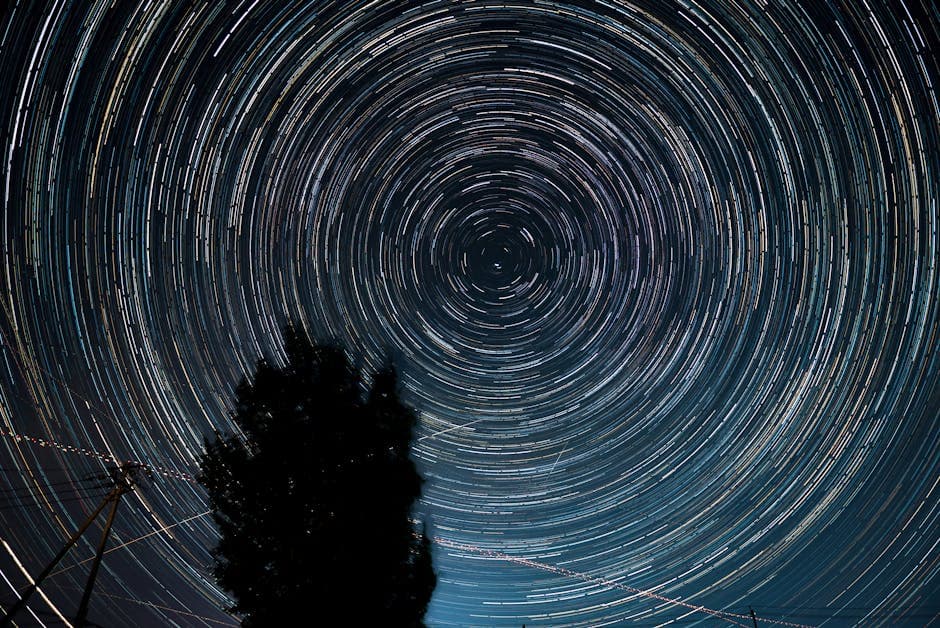
Star trail photography typically uses 20–30 second intervals over 4–6 hours, producing 500–1,000 frames. At 24fps output, that is 20–40 seconds of video. Use a lower CRF (16–18) to preserve the subtle point-star detail.
Does the image quality of the photos affect the final video quality?
Yes. Higher resolution and better-exposed photos produce sharper video. JPEG compression artifacts in source photos can become visible in the video, especially in uniform areas like sky gradients. Use the highest JPEG quality setting on your camera for time-lapse sequences.
Conclusion
The image sequence to time-lapse pipeline is straightforward once you have consistent file naming and the right FFmpeg flags. The most impactful step after the basic assembly is deflickering — it is what separates professional-looking time-lapses from amateur ones. For RAW-to-JPEG preprocessing before the FFmpeg step, the image converter handles batch RAW conversion. For platform-specific output optimization, check the frame rate guide for the right fps setting and the video compressor for getting file sizes down for upload.