Why Convert EPUB to PDF?
EPUB is the standard format for ebooks. It is supported by Apple Books, Google Play Books, Kobo, and virtually every ebook reader except Amazon Kindle. EPUB files are reflowable -- the text adapts to the screen size, font preferences, and display settings of whatever device the reader uses.
This flexibility is EPUB's greatest strength for reading, but it becomes a problem when you need the content in a fixed format. You want to print chapters from an ebook. You need to submit an ebook manuscript for review in a standard document format. You want to annotate an ebook using PDF tools. You need to share ebook content with someone who does not have an EPUB reader.
PDF solves all of these problems by rendering the ebook's content into fixed pages with consistent typography, layout, and formatting that looks the same everywhere. The conversion from a reflowable format (EPUB) to a fixed-layout format (PDF) involves making decisions about page size, font rendering, margins, and how to handle responsive layout elements.
This guide covers the complete conversion process: understanding the challenges, choosing the right tools, configuring output settings, and handling edge cases that trip up most converters.
EPUB vs PDF: Understanding the Fundamental Difference
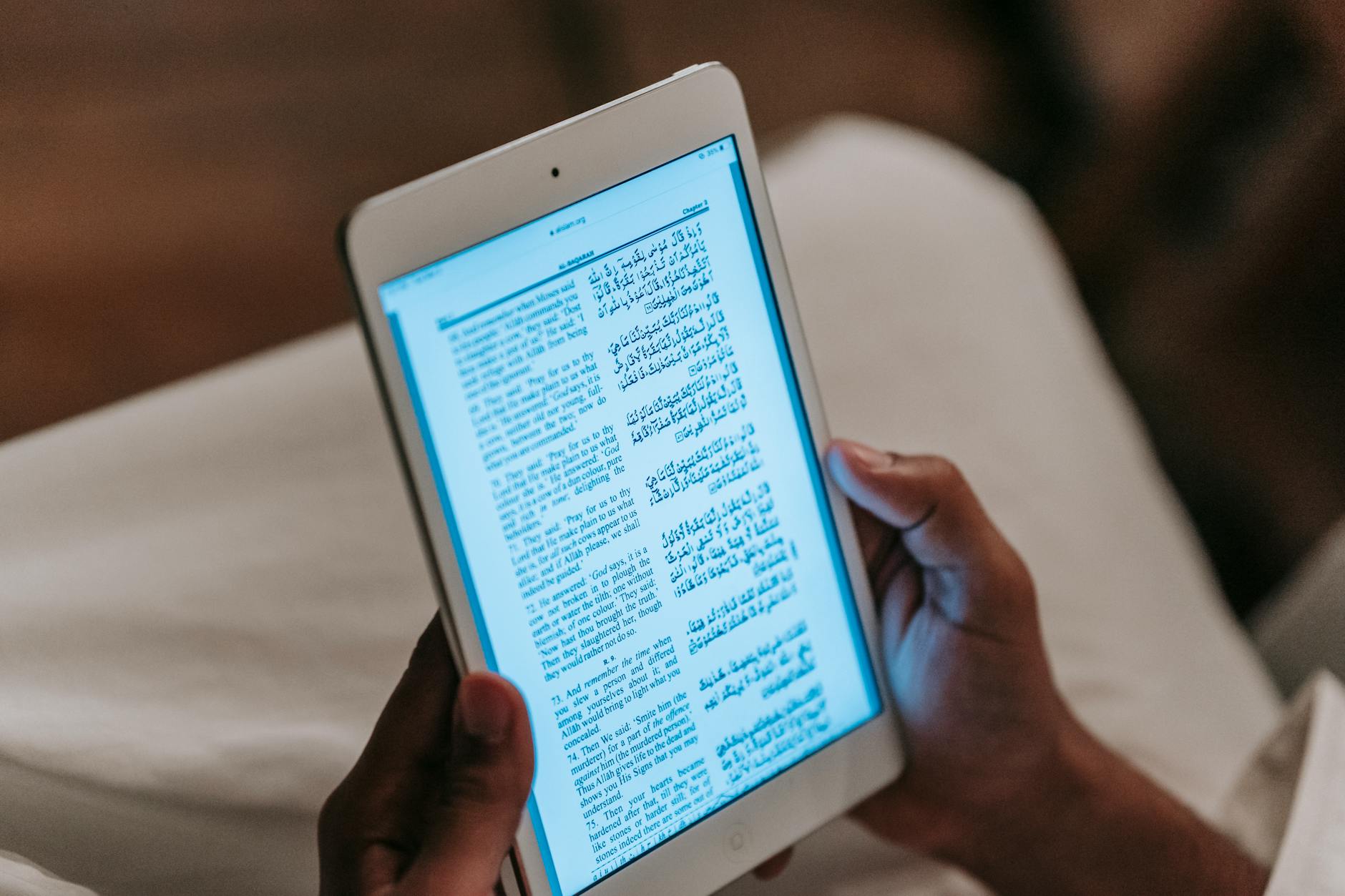
Before converting, it helps to understand why this conversion is non-trivial. EPUB and PDF represent documents in fundamentally different ways.
| Aspect | EPUB | |
|---|---|---|
| Layout model | Reflowable (content adapts to screen) | Fixed (content locked to page coordinates) |
| Page concept | No pages -- continuous scrolling | Fixed pages with defined dimensions |
| Font handling | References fonts, reader can override | Embeds fonts, appearance fixed |
| Text size | User-adjustable | Fixed at conversion time |
| Images | Scale with text flow | Fixed position and size |
| Internal structure | HTML + CSS in a ZIP container | Binary stream with object references |
| Reading experience | Optimized for screens of any size | Optimized for paper and fixed screens |
| File size | Generally smaller | Generally larger |
The conversion challenge is that EPUB has no concept of pages. Content flows continuously, and the "pages" you see in an ebook reader are created dynamically by the reading software based on screen size and font settings. Converting to PDF means making permanent decisions about where every page break falls.
Method 1: Using Calibre (Desktop)
Calibre is the most powerful and widely used ebook management tool, and its EPUB-to-PDF conversion produces excellent results.
Installation
Calibre is free and open source, available for Windows, macOS, and Linux from calibre-ebook.com.
Basic Conversion
- Open Calibre and add your EPUB file (drag and drop or click "Add books")
- Select the book in your library
- Click "Convert books" in the toolbar
- In the top-right corner, set the output format to PDF
- Click OK to convert with default settings
- When complete, click "Click to open" to view the PDF
Configuring PDF Output
Calibre's conversion dialog has several tabs with settings that significantly affect the output quality:
Page Setup tab:
- Output profile: Choose "Generic" for standard printing, or select a specific device
- Paper size: Letter (8.5 x 11"), A4 (210 x 297mm), or custom dimensions
- Margins: Top, bottom, left, right (in points or millimeters)
PDF Output tab:
- Default font size: Controls the base text size (12pt is standard)
- Monospace font size: Size for code blocks and preformatted text
- Serif family / Sans family: Override the ebook's fonts with your preferred typefaces
- Insert page breaks before: Tags that force a page break (typically
<h1>for chapter starts)
Look & Feel tab:
- Font size rescaling: Adjust the overall text size
- Line height: Control spacing between lines
- Text justification: Left-aligned or justified
Advanced Calibre Settings
For precise control over the conversion, Calibre supports custom CSS injection:
/* Custom stylesheet for EPUB to PDF conversion */
body {
  font-family: "Georgia", serif;
  font-size: 12pt;
  line-height: 1.6;
}

h1 {
  font-size: 18pt;
  page-break-before: always;
  margin-top: 2em;
}

h2 {
  font-size: 15pt;
  margin-top: 1.5em;
}

img {
  max-width: 100%;
  page-break-inside: avoid;
}
Paste this into the "Extra CSS" field in the Look & Feel tab to override the ebook's default styling.
Pro Tip: Before converting, open the EPUB in Calibre's built-in viewer to see how the content is structured. Look for chapter breaks, image placement, and any unusual formatting. This preview helps you anticipate conversion issues and configure settings accordingly. If chapters do not start on new pages in the PDF, add h1 or h2 to the "Insert page breaks before" setting.
Method 2: Online Conversion Tools
For quick conversions without installing software, online tools handle the conversion in the cloud.
Using ConvertIntoMP4
- Navigate to the PDF converter tool
- Upload your EPUB file
- Select your preferred page size and margins
- Click Convert
- Download the resulting PDF
The document converter also handles EPUB files as part of its broad format support, and provides additional output options.
Online Conversion Considerations
Online tools are convenient but have limitations compared to Calibre:
| Factor | Online Tools | Calibre |
|---|---|---|
| Setup required | None (browser-based) | Install application |
| Customization | Basic (page size, margins) | Extensive (fonts, CSS, page breaks) |
| Font handling | Server-side font fallbacks | Full font library access |
| Complex EPUBs | May struggle with advanced CSS | Handles most EPUB features |
| File size limits | Varies by service | No limit |
| Privacy | File uploaded to server | Local processing only |
| Batch processing | Limited | Full support |
| Speed for single files | Fast | Fast |
For simple ebooks with standard formatting, online tools produce results comparable to Calibre. For complex ebooks with custom fonts, advanced layouts, or embedded media, Calibre provides the control needed for a clean conversion.
Method 3: Command-Line Conversion
Using Calibre's CLI
Calibre includes a command-line tool called ebook-convert that is ideal for scripting and automation:
# Basic conversion
ebook-convert input.epub output.pdf

# With page size and margins
ebook-convert input.epub output.pdf \
  --paper-size a4 \
  --pdf-default-font-size 12 \
  --pdf-page-margin-top 72 \
  --pdf-page-margin-bottom 72 \
  --pdf-page-margin-left 72 \
  --pdf-page-margin-right 72

# With custom fonts
ebook-convert input.epub output.pdf \
  --pdf-serif-family "Georgia" \
  --pdf-sans-family "Helvetica" \
  --pdf-mono-family "Courier New" \
  --pdf-default-font-size 12

# With chapter page breaks
ebook-convert input.epub output.pdf \
  --chapter "//*[name()='h1' or name()='h2']" \
  --page-breaks-before "//*[name()='h1']"
Using Pandoc
Pandoc, the universal document converter, supports EPUB-to-PDF conversion through LaTeX:
# Basic conversion (requires LaTeX installation)
pandoc input.epub -o output.pdf

# With custom settings
pandoc input.epub -o output.pdf \
  --pdf-engine=xelatex \
  -V geometry:margin=1in \
  -V fontsize=12pt \
  -V mainfont="Georgia"
Pandoc produces typographically excellent PDFs because it renders through LaTeX, but requires a LaTeX distribution (TeX Live or MiKTeX) to be installed. For more on LaTeX-based PDF generation, see our guide on LaTeX to PDF for academic papers.
Layout Preservation Challenges
The EPUB-to-PDF conversion is not always straightforward. Several common issues can affect the output quality:
Reflowable Content Becoming Fixed
EPUB's reflowable layout means the content has no inherent page structure. When the converter creates PDF pages, it must decide where to break content. This can result in:
- Headings appearing at the bottom of a page with the body text on the next page
- Images separated from their captions
- Tables split awkwardly across pages
- Footnotes disconnected from their references
Most converters handle these cases reasonably well by applying page-break rules (keep headings with following content, avoid breaking images and tables). However, complex layouts may need manual adjustment after conversion.
Font Substitution
EPUBs reference fonts that may or may not be available on the conversion system. If the specified font is not found, the converter substitutes a fallback font. This can change line lengths, paragraph spacing, and page breaks throughout the document.
To minimize font issues:
- Use Calibre's font override settings to specify fonts you know are available
- Embed fonts in the EPUB before conversion (if you control the source file)
- Check the converted PDF for unexpected font changes
Images and Graphics
Images in EPUB files are typically sized relative to the text flow. In PDF, they must have absolute dimensions. The converter scales images to fit the page width while maintaining aspect ratios, but very large or very small images may not look right without manual size adjustments.
Images intended to fill a full screen in the ebook reader might appear too large or too small on a standard page. Conversely, small inline images might look fine on a phone screen but be barely visible on a printed page.
Pro Tip: If your EPUB contains many images, set the PDF page size to match the image aspect ratio rather than forcing standard paper sizes. For example, an illustrated ebook designed for tablet reading might convert better to a custom page size of 7 x 10 inches than to standard Letter or A4, which can leave excessive white space around images.
Table of Contents and Navigation
EPUB files include a navigation structure (NCX or navigation document) that provides the table of contents. Most converters translate this into PDF bookmarks, which appear in the PDF reader's sidebar. Some converters also generate a visual table of contents page with clickable page number links.
If the table of contents is missing from the converted PDF, check whether the converter has a "generate TOC" option, or manually add the TOC using the EPUB's navigation data.

Optimizing the Output
For Screen Reading
If the PDF will primarily be read on screens (computers, tablets), optimize for the reading experience:
- Use a page size that matches common screen ratios (A5 or 6x9" reads well on tablets)
- Set generous margins for comfortable reading
- Use 11-12pt font size for body text
- Enable hyperlinks for internal cross-references
- Generate PDF bookmarks from the EPUB's table of contents
For Printing
If the PDF will be printed:
- Use standard paper sizes (Letter or A4)
- Set margins appropriate for binding (wider left margin for bound documents)
- Use 11-12pt font size with at least 1.4 line height
- Verify that images meet the print resolution requirements (300 DPI minimum)
- Check our best file formats for printing guide for detailed print specs
For Archiving
If the PDF is for long-term storage:
- Embed all fonts to ensure future readability
- Use PDF/A format if supported by the converter
- Include metadata (title, author, publication date) from the EPUB
- Generate a table of contents for navigation
- Keep the original EPUB as a source file alongside the PDF
Batch Converting Multiple EPUBs
If you have a library of EPUB files that need PDF conversion:
Using Calibre's Bulk Convert
- Select multiple books in the Calibre library
- Click "Convert books" (it detects the bulk selection)
- Configure settings once -- they apply to all selected books
- Click OK and let Calibre process the batch
Using the Command Line
#!/bin/bash
# Batch convert all EPUB files in a directory
for epub in /path/to/ebooks/*.epub; do
  filename=$(basename "$epub" .epub)
  ebook-convert "$epub" "/path/to/output/${filename}.pdf" \
    --paper-size a4 \
    --pdf-default-font-size 12
done
For more on batch processing workflows, see our batch processing files guide.
The Reverse: PDF to EPUB
Converting PDF to EPUB is significantly harder than EPUB to PDF because you are converting from fixed layout to reflowable layout. The converter must analyze the PDF's absolute positioning and reconstruct a flowing text structure. For most PDFs, this is possible but imperfect -- complex layouts, multi-column text, and mixed content types challenge every converter.
For a detailed comparison of EPUB and PDF as ebook formats, including when each is appropriate, see our guide on EPUB vs PDF for ebooks.
Common EPUB Types and Conversion Quality
| EPUB Type | Example | Conversion Quality | Notes |
|---|---|---|---|
| Text-only novel | Fiction, non-fiction prose | Excellent | Simple content converts cleanly |
| Illustrated ebook | Cookbooks, travel guides | Good | Images may need size adjustment |
| Technical manual | Programming books, textbooks | Good | Code blocks and tables may need attention |
| Fixed-layout EPUB | Comics, children's books | Variable | Already page-based, can convert directly |
| Academic text | Research papers, dissertations | Good | Footnotes and citations usually preserve |
| Magazine-style | Multi-column, complex layouts | Fair | Complex layouts may not convert cleanly |
Wrapping Up
Converting EPUB to PDF bridges the gap between the ebook world and the document world. The conversion is straightforward for most ebooks -- upload the file, choose your page size, and download the result. The quality of the output depends on the complexity of the source EPUB, the conversion tool's capabilities, and the settings you choose.
For simple, text-heavy ebooks, any conversion tool produces a clean PDF. For complex ebooks with custom layouts, embedded fonts, and extensive imagery, Calibre's detailed configuration options provide the control needed to get the output right. And for batch conversions or automated workflows, command-line tools like ebook-convert and Pandoc handle any volume.
The PDF converter and document converter on ConvertIntoMP4 handle the most common EPUB-to-PDF conversions through a simple upload-and-download workflow, making the process accessible without any software installation.