LaTeX to PDF: Converting Academic Papers and Research Documents
Master the LaTeX to PDF conversion workflow for academic papers, theses, and research documents. Compare LaTeX engines, troubleshoot common errors, and optimize your PDF output.
LaTeX remains the gold standard for academic and scientific document preparation. Thirty-eight years after its creation, it still produces the highest-quality typeset output available — superior mathematical equations, precise bibliography management, automated cross-referencing, and consistent formatting across hundreds of pages. Virtually every peer-reviewed journal in mathematics, physics, computer science, and engineering accepts (or requires) LaTeX submissions.
But LaTeX does not produce a directly viewable document. It produces a PDF — and the path from .tex source to finished PDF involves compilation engines, package dependencies, font configurations, bibliography processors, and a host of settings that can produce subtly different output depending on how you configure them.
This guide covers the complete LaTeX-to-PDF workflow: choosing the right compilation engine, configuring output for different submission requirements, troubleshooting the errors that derail every graduate student at 2 AM before a deadline, and optimizing your PDF for both digital distribution and print.
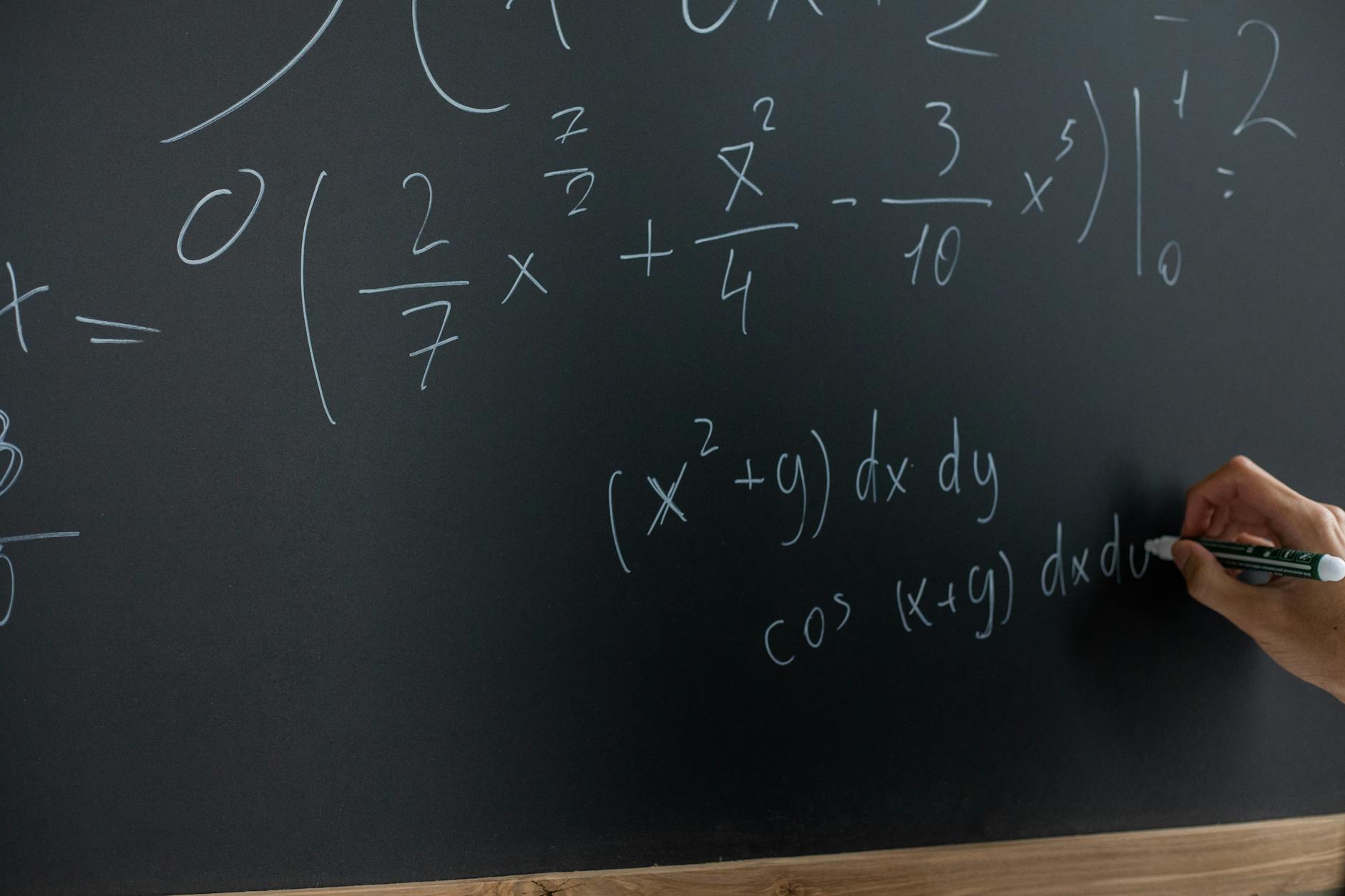
LaTeX source code being compiled into a formatted academic PDF
LaTeX Compilation Engines Compared
The first decision in your LaTeX-to-PDF workflow is which compilation engine to use. Each engine processes your .tex source differently and supports different features.
Engine
Font Support
Unicode Support
Speed
PDF Output
Package Compatibility
Best For
pdfLaTeX
Type 1, TrueType (limited)
Partial (via inputenc)
Fast
Native PDF
Excellent (widest)
English-language papers, legacy documents
XeLaTeX
OpenType, TrueType, Type 1
Full native Unicode
Moderate
Native PDF
Very good
Multilingual documents, custom fonts
LuaLaTeX
OpenType, TrueType, Type 1
Full native Unicode
Slower
Native PDF
Very good
Advanced scripting, OpenType features
LaTeX + dvipdfmx
Type 1, some TrueType
Via inputenc
Moderate
DVI → PDF
Good
Legacy workflows, Japanese typesetting
pdfLaTeX: The Default Choice
pdfLaTeX is the most widely used engine and the default in most LaTeX installations and online editors (including Overleaf). It compiles .tex files directly to PDF without intermediate formats.
Advantages:
Fastest compilation speed — critical when iterating on a long document
Widest package compatibility — virtually every LaTeX package works with pdfLaTeX
Most examples, templates, and documentation assume pdfLaTeX
microtype package support for advanced microtypographic features (character protrusion, font expansion)
Limitations:
Limited Unicode support — non-Latin scripts require special packages and workarounds
Cannot use system OpenType fonts directly — limited to fonts available as LaTeX packages
Input encoding must be explicitly declared (\usepackage[utf8]{inputenc})
Use pdfLaTeX when: Your document is primarily in English (or a language using the Latin alphabet), you do not need custom fonts, and you want maximum compatibility with journal templates and existing packages.
XeLaTeX: Unicode and Custom Fonts
XeLaTeX was designed to solve pdfLaTeX's font and Unicode limitations. It compiles .tex to PDF with full Unicode support and the ability to use any OpenType or TrueType font installed on your system.
Advantages:
Full native Unicode — write in any script without special packages
Direct access to system fonts via fontspec package
OpenType features (ligatures, small caps, stylistic alternates) controlled through fontspec
Ideal for documents mixing multiple scripts (Arabic with English, Chinese with French, etc.)
Limitations:
Slightly slower compilation than pdfLaTeX
The microtype package has limited functionality with XeLaTeX (character protrusion works, font expansion does not)
Some legacy packages assume pdfLaTeX and may not work correctly
Font caching can cause issues on first compilation
Use XeLaTeX when: Your document includes non-Latin scripts, you need specific OpenType fonts, or your institution's template requires it.
LuaLaTeX: The Programmable Engine
LuaLaTeX embeds the Lua scripting language into the TeX engine, providing programmatic control over nearly every aspect of typesetting. It shares XeLaTeX's Unicode and font capabilities while adding Lua scripting for advanced customization.
Advantages:
Full Unicode support and OpenType font access (via fontspec)
Lua callbacks allow manipulation of the typesetting process at a low level
Full microtype support (including font expansion, unlike XeLaTeX)
Can integrate with external Lua libraries for data processing, computation, and more
Better handling of complex OpenType font features
Limitations:
Slowest compilation of the three main engines — significantly so for long documents
Higher memory usage
Some niche packages may have compatibility issues
Lua code in documents can make debugging harder
Use LuaLaTeX when: You need advanced typographic control, full microtype features with custom fonts, or programmatic manipulation of the typesetting process.
Pro Tip: If you are unsure which engine to use, start with pdfLaTeX. Switch to XeLaTeX only if you need custom fonts or non-Latin scripts. Switch to LuaLaTeX only if you need its specific scripting capabilities. Most academic papers are perfectly served by pdfLaTeX with its standard font packages.
Document Classes for Academic Writing
LaTeX document classes define the overall structure and formatting of your document. Choosing the right class saves hours of manual formatting.
Document Class
Purpose
Typical Use
Key Features
article
Short documents
Journal papers, conference papers
Sections (no chapters), abstract environment
report
Medium documents
Technical reports, theses (simple)
Chapters, title page, table of contents
book
Long documents
Books, dissertations
Chapters, parts, front/back matter, two-sided
memoir
Flexible long documents
Theses, books, reports
Combines book features with extensive customization
Most academic journals provide a LaTeX template (.cls or .sty file) that implements their specific formatting requirements. Always start from the journal's template rather than trying to format a generic document class to match their specifications.
Where to find templates:
The journal's "Author Guidelines" or "Submission Guidelines" page
The publisher's author resources page (Elsevier, Springer, IEEE, ACM, etc.)
CTAN (Comprehensive TeX Archive Network) for class files
Important: Use the latest version of the template. Journals update their formatting requirements periodically, and submitting with an outdated template can trigger desk rejection.
Comparison of different LaTeX document classes and their formatted output
The Compilation Workflow
Basic Compilation
The simplest LaTeX-to-PDF compilation is a single command:
pdflatex paper.tex
This produces paper.pdf along with several auxiliary files (.aux, .log, .out, etc.). For documents with cross-references, citations, or a table of contents, you need multiple compilation passes.
Full Compilation with Bibliography
A complete compilation workflow for a document with BibTeX citations:
pdflatex paper.tex      # First pass: generate .aux file with citation keys
bibtex paper            # Process bibliography database
pdflatex paper.tex      # Second pass: incorporate bibliography
pdflatex paper.tex      # Third pass: resolve cross-references and page numbers
This three-pass (or four-command) workflow is necessary because LaTeX processes the document sequentially and cannot resolve forward references (like "see Section 5" appearing on page 2 when Section 5 has not been typeset yet). Each pass resolves more references until the document stabilizes.
Using latexmk for Automated Compilation
latexmk automates the multi-pass compilation process, running as many passes as needed until all references are resolved:
latexmk -pdf paper.tex
This is the recommended approach. latexmk detects which passes are needed (pdfLaTeX, BibTeX or Biber, makeindex, etc.) and runs them in the correct order. It also supports continuous compilation mode, which recompiles whenever you save the source file:
latexmk -pdf -pvc paper.tex
Using Biber Instead of BibTeX
Modern LaTeX documents should use biblatex with the Biber backend instead of the legacy BibTeX system. Biber offers full Unicode support, sophisticated sorting, and more flexible citation styles.
pdflatex paper.tex
biber paper
pdflatex paper.tex
pdflatex paper.tex
Or, with latexmk (which detects Biber automatically):
latexmk -pdf paper.tex
Pro Tip: Configure latexmk to use your preferred engine by creating a .latexmkrc file in your project directory. For XeLaTeX: $pdf_mode = 5;. For LuaLaTeX: $pdf_mode = 4;. For pdfLaTeX (default): $pdf_mode = 1;.
Online LaTeX Editors
If you prefer not to install a local LaTeX distribution, online editors provide a complete compilation environment in the browser.
Overleaf
Overleaf is the dominant online LaTeX editor, used by over 15 million researchers and students. It provides real-time collaboration (multiple authors editing simultaneously), a visual preview alongside the source code, thousands of journal templates, and a complete TeX Live installation with all standard packages.
Direct submission to journals (Elsevier, Springer, IEEE, etc.)
Comment and track changes for collaborative writing
TeXShop (macOS) and TeXworks (Cross-Platform)
These lightweight desktop editors provide a source editor and PDF previewer. They use your local TeX Live or MiKTeX installation for compilation. TeXShop is macOS-native and well-integrated with the system. TeXworks is cross-platform and included with most TeX distributions.
VS Code with LaTeX Workshop
For developers and technically inclined researchers, VS Code with the LaTeX Workshop extension provides a powerful editing environment: syntax highlighting, auto-completion, real-time error detection, forward and inverse SyncTeX support (click in the PDF to jump to the source, and vice versa), and integrated terminal for manual compilation.
Troubleshooting Common Compilation Errors
Missing Package Errors
! LaTeX Error: File `somepackage.sty' not found.
Cause: The required LaTeX package is not installed in your TeX distribution.
Solutions:
TeX Live: Run tlmgr install somepackage (or sudo tlmgr install somepackage on Linux)
MiKTeX: The package manager usually installs missing packages automatically on first compilation. If not, open the MiKTeX Console and install manually.
Overleaf: All standard packages are pre-installed. If you see this error, the package name may be misspelled or it may be a custom package that needs to be uploaded to your project.
Undefined Control Sequence
! Undefined control sequence.
l.42 \somecommand
Cause: A command is used that LaTeX does not recognize — either because the required package is not loaded, the command name is misspelled, or you are using a command from a different engine (e.g., a XeLaTeX command in a pdfLaTeX document).
Solution: Check the spelling, verify the package providing the command is loaded in your preamble (\usepackage{...}), and confirm you are using the correct engine.
Font Errors with XeLaTeX/LuaLaTeX
! fontspec error: "font-not-found"
Cause: The requested font is not installed on your system or not available to the TeX engine.
Solutions:
Verify the font is installed system-wide (not just in an application)
Use the exact font name as it appears in your system's font manager
On Linux, run fc-cache -fv to refresh the font cache after installing new fonts
On Overleaf, upload the font files (.otf or .ttf) to your project and use \setmainfont{...}[Path=./]
Bibliography Not Appearing
Cause: The bibliography compilation step was skipped, the .bib file is missing or has syntax errors, or the citation keys in your document do not match those in the .bib file.
Solution: Run the full compilation sequence (pdfLaTeX → BibTeX/Biber → pdfLaTeX → pdfLaTeX). Check the .blg log file for BibTeX errors. Verify citation keys match exactly (they are case-sensitive in BibTeX).
Overfull/Underfull Hbox Warnings
Overfull \hbox (5.2pt too wide) in paragraph at lines 120--135
Cause: LaTeX cannot break the text to fit within the line width. Common with long URLs, unbreakable technical terms, or narrow columns.
Solutions:
Add \usepackage[hyphens]{url} for URL line breaking
Use \sloppy locally or adjust \tolerance and \emergencystretch
Manually insert \- hyphenation points in problematic words
For two-column layouts, check that figures and tables are not too wide
Pro Tip: Treat warnings as errors during final preparation. An overfull hbox means text is protruding into the margin — which some journals will reject. Run your final compilation with \documentclass[draft]{...} to visualize all overfull boxes as black bars in the margin.
Optimizing PDF Output
PDF Metadata
Set your PDF metadata in the preamble using the hyperref package:
\usepackage{hyperref}
\hypersetup{
  pdftitle={Your Paper Title},
  pdfauthor={Author Name},
  pdfsubject={Research Topic},
  pdfkeywords={keyword1, keyword2, keyword3},
  pdfproducer={LaTeX with hyperref},
  pdfcreator={pdfLaTeX}
}
This metadata appears in PDF readers' document properties and is indexed by search engines — improving discoverability of your paper.
Font Embedding
All fonts in your PDF must be embedded for reliable display and print output. pdfLaTeX embeds fonts by default with the standard Computer Modern and Latin Modern families. To verify all fonts are embedded, check the PDF properties in Adobe Acrobat (File > Properties > Fonts) — every font should show "(Embedded)" or "(Embedded Subset)."
If you encounter "Type 3" fonts (bitmap fonts), add to your preamble:
\usepackage{lmodern}  % Use Latin Modern vector fonts
\usepackage[T1]{fontenc}  % Use T1 font encoding
PDF/A for Archival
Some institutions and repositories require PDF/A — an archival PDF standard that ensures long-term readability. Generate PDF/A output with:
\usepackage[a-1b]{pdfx}
This requires a metadata file (paper.xmpdata) with Dublin Core metadata. PDF/A restricts certain features (no JavaScript, no external dependencies, all fonts embedded, device-independent color).
Reducing PDF File Size
Academic PDFs with many figures can become very large. Optimize file size without compromising quality:
Compress raster images before including them. Convert high-resolution screenshots and photographs to optimized JPEG or PNG before placing them in your document. See our guide on how to reduce PDF file size.
Use vector graphics (PDF, EPS, or TikZ) instead of raster images wherever possible. Plots, diagrams, and flowcharts should be vector.
Set appropriate image resolution. For print output, 300 DPI is sufficient. For screen-only distribution, 150 DPI is adequate. Higher resolutions increase file size without visible benefit.
Use the pdfcompresslevel primitive in pdfLaTeX to control the compression level of the output PDF (0 = no compression, 9 = maximum).
You can also post-process your PDF using our PDF compressor, which reduces file size while preserving text sharpness and image quality.
Optimized PDF output settings for academic papers
Alternative Paths: Converting Other Formats to PDF
Markdown to PDF via Pandoc
Not every academic document needs the full power of LaTeX. For shorter documents — course notes, informal reports, blog posts, documentation — Markdown offers a simpler authoring experience. Pandoc converts Markdown to PDF using LaTeX as an intermediate step, giving you LaTeX's typesetting quality with Markdown's simplicity.
pandoc paper.md -o paper.pdf --pdf-engine=xelatex
Pandoc supports YAML metadata blocks, citations (via CSL or BibLaTeX), cross-references (via pandoc-crossref), and LaTeX math notation inline within Markdown. For a detailed guide on this workflow, see our article on Markdown to PDF conversion.
Word to PDF
Some collaborators insist on Microsoft Word. When you receive a Word document that needs to become a properly formatted PDF, our document converter handles the conversion while preserving layout, fonts, and formatting. For existing PDFs that need size reduction, our PDF compressor optimizes them without quality loss.
For collaborative writing where some authors use LaTeX and others use Word, Pandoc can convert between formats: pandoc paper.docx -o paper.tex produces a (rough) LaTeX source from a Word document, and pandoc paper.tex -o paper.docx goes the other direction. The results require manual cleanup but provide a starting point.
EPUB and Other Formats
Academic papers are occasionally distributed as EPUB (for e-readers) or HTML (for web). Pandoc handles these conversions from LaTeX source:
Use Git for version control of your LaTeX source. Every .tex, .bib, .cls, .sty, and .bst file should be tracked. Exclude generated files (.aux, .log, .pdf, .bbl, .blg, etc.) via .gitignore.
Store all figures in a figures/ subdirectory. Use \graphicspath{{figures/}} in your preamble so you can reference images by filename without the path prefix. Use vector formats (PDF, EPS) for plots and diagrams, and raster formats (JPEG, PNG) only for photographs and screenshots.
Naming convention: Use descriptive, hyphenated names: results-accuracy-comparison.pdf, architecture-overview.pdf, dataset-distribution.png. Avoid spaces, special characters, and generic names like figure1.png.
Modular Document Structure
For documents longer than 10-15 pages, split the source into multiple files:
This modular structure makes collaboration easier (each author edits their section), reduces merge conflicts in version control, and keeps individual files manageable.
Reproducible Builds
Ensure your document compiles identically on any system by:
Pinning the TeX Live version. Different TeX Live years may produce slightly different output due to package updates. Note the TeX Live year in your README.
Including all custom packages in the repository rather than relying on the system installation.
Using a Docker image for compilation. The texlive/texlive Docker image provides a consistent, reproducible environment. Your CI/CD pipeline can compile the document in this container.
Documenting the compilation command. Include a Makefile or build script that runs the exact compilation sequence.
Pro Tip: Use a Makefile for your LaTeX project. Even a simple one saves time and eliminates "it works on my machine" problems. A minimal Makefile for LaTeX: paper.pdf: paper.tex refs.bib followed by latexmk -pdf paper.tex. Run make and the PDF builds correctly every time, with all necessary passes.
Submitting to Journals and Conferences
arXiv Submission
arXiv requires either a PDF or the LaTeX source files. Submitting source is preferred because arXiv compiles it to ensure consistent formatting. Package your submission as a .tar.gz containing:
All .tex files
The .bbl file (compiled bibliography — not the .bib file)
All figure files
Any custom .cls or .sty files
Do not include .aux, .log, or other generated files
arXiv uses a fixed TeX Live installation that may lag behind the latest version. Test your submission with arXiv's compilation environment (they provide error logs) and adjust if needed.
Journal Submission
Follow the journal's submission guidelines exactly. Common requirements:
Specific document class (IEEEtran, REVTeX, elsarticle, etc.)
Single-column or double-column layout for review
Line numbering enabled (\usepackage{lineno} and \linenumbers)
Figures submitted as separate high-resolution files in addition to the embedded PDF
Separate cover letter as a PDF
Conflict of interest declarations
Data availability statement
Use our PDF converter if you need to convert supplementary materials or supporting documents to PDF format for submission.
Final Thoughts
The LaTeX-to-PDF workflow is the backbone of academic publishing. Once you have a working setup — the right engine for your needs, a clean project structure, automated compilation with latexmk, and version control with Git — the technical friction disappears and you can focus on what matters: the research itself.
For the vast majority of academic papers, pdfLaTeX with standard packages produces excellent output. Use XeLaTeX when you need custom fonts or multilingual support. Use LuaLaTeX when you need programmable typesetting. And regardless of engine, always compile multiple passes, always embed fonts, and always verify the final PDF before submission.
The resulting PDF is a standalone, portable, perfectly typeset document that will render identically on every device and in every viewer — exactly what academic communication requires.