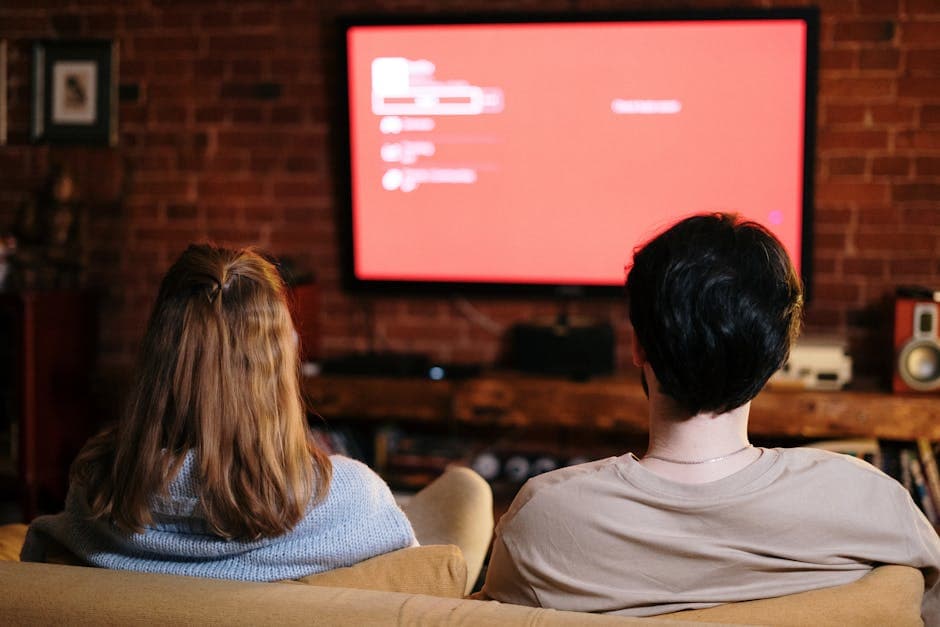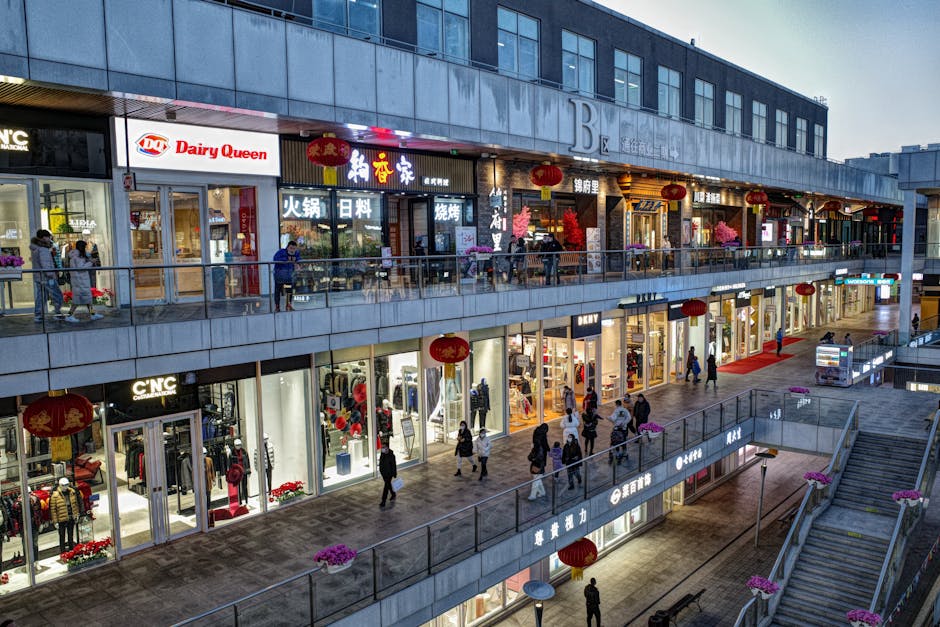
Digital signage has become ubiquitous — retail stores, hotel lobbies, airports, restaurants, and conference rooms all rely on displays playing looped video content. Getting the video format right is critical: a video that stutters or fails to play on a signage player is visible to every person in the space.
The challenge is that digital signage hardware is more constrained than a typical computer. Media players like BrightSign, Samsung MagicINFO players, and LG webOS-based screens have specific codec support, bitrate limits, and file format requirements that aren't always obvious. Getting a file formatted correctly for the specific player you're using is the difference between smooth playback and hours of troubleshooting.
The Signage Ecosystem: Hardware Determines Format
Before deciding on video settings, identify the playback hardware. Different systems have meaningfully different capabilities.
| Hardware Platform | Preferred Format | Max Resolution | Notes |
|---|---|---|---|
| BrightSign (HD/XD) | MP4 H.264 | 1080p / 4K | Broad codec support, excellent reliability |
| BrightSign (4K series) | MP4 H.264 or H.265 | 4K 60fps | HEVC support varies by model |
| Samsung Smart Signage | MP4 H.264 | 1080p / 4K | MagicINFO manages playback |
| LG webOS Signage | MP4 H.264 | 4K | SuperSign content manager |
| Raspberry Pi (Pi Signage) | MP4 H.264 | 1080p | Pi 4 handles 4K with limitations |
| Windows media players | MP4, WMV, AVI | 4K+ | Most codecs via DXVA |
| Android-based players | MP4 H.264 | 1080p / 4K | Wide variation by chipset |
| Chrome OS (Signagelive) | MP4 H.264 | 1080p | Limited format support |
The general rule: MP4 container with H.264 video codec plays everywhere. When you need H.265/HEVC for 4K efficiency, verify hardware support first.
Core Format Recommendation: MP4 H.264
For the broadest hardware compatibility, use:
- Container: MP4 (
.mp4) - Video codec: H.264 (AVC), High Profile, Level 4.1 or 4.2
- Frame rate: Match your display's native rate — typically 30fps for most signage, 60fps for fluid motion content
- Bitrate: 8–15 Mbps for 1080p; 25–40 Mbps for 4K H.264
- Audio: AAC at 48kHz, 192kbps (or omit audio if screens don't need it)
- Color space: BT.709 for standard SDR content
This combination plays reliably on every major signage platform without hardware acceleration concerns.
Pro Tip: Many digital signage players have USB or network storage access. For files that will loop continuously, keep file sizes reasonable — a 30-second clip at 15 Mbps runs about 56MB. If your player reads from USB, this is fine; if playing from a 4G-connected player with limited bandwidth, smaller files matter.
When to Use H.265/HEVC
H.265 (HEVC) provides roughly 50% smaller file sizes at equivalent quality compared to H.264. For 4K content especially, this difference matters substantially — a 4K 60fps clip at H.264 might run 8–12GB/hour, while H.265 equivalent quality is 3–5GB/hour.
Use H.265 when:
- You have 4K content: The file size savings are most significant here
- Storage is constrained: Players with 32–64GB flash storage benefit from smaller files
- Network delivery: Streaming to player over limited bandwidth
Avoid H.265 when:
- Hardware support is uncertain: Not all signage players support HEVC, particularly older or budget models
- Software CMS compatibility: Some signage management software doesn't handle H.265 transcoding or playback preview
- Safety-critical installations: If a player falls back incorrectly, H.264 is more reliable as a "known good" format
To convert existing video to the appropriate format, use the /video-converter with explicit codec settings, or the /video-compressor for optimizing bitrate without changing format.
Resolution Settings for Signage
Standard Landscape Displays
Most commercial signage runs at 1920×1080 (Full HD). Despite 4K displays being available, the majority of deployed digital signage infrastructure plays 1080p content — the screens are often too far from viewers for 4K to matter perceptually.
1080p signage settings:
- Resolution: 1920×1080
- Frame rate: 30fps (or 60fps for motion-heavy content)
- Bitrate: 8–15 Mbps H.264 | 4–8 Mbps H.265
4K signage settings:
- Resolution: 3840×2160
- Frame rate: 30fps (for most signage) or 60fps (retail/video walls)
- Bitrate: 25–40 Mbps H.264 | 12–20 Mbps H.265
Portrait Mode Displays
Portrait orientation (vertical screens, common for menus, wayfinding, retail endcaps) is a common source of confusion. The correct approach depends on how the display is configured:
Hardware rotation (display set to portrait): Record and deliver the video in landscape orientation (1920×1080) and let the display hardware rotate it. This is the cleanest approach — no re-encoding needed.
Software rotation (video is portrait): Record or export as 1080×1920 (or 2160×3840 for 4K). Not all players handle this gracefully — some re-rotate the already-rotated video. Test on your specific hardware.
Rotated landscape with cropping: Export 1080×1920 by recording landscape at wider angle and cropping the sides. Works consistently but loses horizontal content.
Pro Tip: When your content includes text, check it in portrait orientation before deployment. Text that looks fine in landscape sometimes becomes awkwardly proportioned or illegible at portrait aspect ratios.
For rotating video that was shot in the wrong orientation, use /rotate-video before final export.
Loop Playback Best Practices
Digital signage loops endlessly — a 30-second video might play 2,880 times per day. This creates requirements that don't apply to normal video playback:
Seamless looping: The transition from the last frame back to the first frame should be invisible. Use a black frame at the start and end, or design the content to loop naturally (a slow pan that returns to the starting position).
Avoid hard cuts at loop points: An abrupt cut is visually jarring when looping. Fade to black or a smooth transition at the end/beginning creates seamless loops.
File header optimization: MP4 files can be optimized for network streaming with the "fast start" flag, which moves the file metadata to the beginning. This also helps players that read ahead for smoother looping. Run: ffmpeg -i input.mp4 -movflags faststart output.mp4, or use a conversion tool that supports this flag.
Short clips vs. long clips: Short loops (15–60 seconds) are better for system memory and network/storage management. Long files (15 minutes of content) are fine for players with large local storage but not ideal for network-streamed content.
Audio Considerations for Signage
Many digital signage deployments run muted — retail environments, waiting rooms, and lobbies often don't want audio. For these cases, encoding without an audio track at all reduces file size slightly and eliminates any risk of unexpected audio.
When audio is required:
- Format: AAC at 48kHz, stereo
- Bitrate: 192kbps for quality, 128kbps is acceptable for speech content
- Normalization: Normalize audio to –14 LUFS (broadcast standard) for consistent volume across different clips in a rotation
See our audio normalization guide for details on LUFS targeting for consistent loudness.
Content Types and Specific Recommendations
Static-Like Content (Slideshows, Announcements)
Content that's mostly static with occasional transitions can be encoded at very low bitrates — 2–4 Mbps for 1080p is sufficient. No need for high bitrates on essentially still images.
Consider encoding these as image sequences (JPEG or PNG) rather than video if the signage platform supports it. Still images are simpler to update without re-encoding.
Motion Graphics and Animation
Logo animations, particle effects, and kinetic typography benefit from higher bitrates (12–20 Mbps for 1080p) to preserve smooth gradients and fine detail in motion. Complex animated backgrounds are a common source of visible compression artifacts in under-encoded signage content.
Product/Promotional Videos
Full-motion video with people, products, and environments should be encoded at broadcast-level quality: 12–15 Mbps for 1080p H.264. These are the clips that define the quality perception of your signage.
Menu Boards
Restaurants and retail spaces with menu board displays typically use a mix of static text, images, and looping video highlights. The menu content itself is often managed by a CMS that handles the final output format, but any video clips embedded in menus follow the same rules: H.264 MP4, 1080p, 8–12 Mbps.
Troubleshooting Common Issues
Video stutters or drops frames: Bitrate too high for the player's hardware. Reduce bitrate or downscale resolution. Check player specifications for maximum supported bitrate.
Video doesn't play at all: Wrong codec. Convert to H.264 MP4 — this is the universal fallback. Also check that the file isn't corrupt (test on a computer first).
Colors look wrong on the display: Possible color space mismatch. Commercial displays often have different factory color profiles than consumer TVs. Check that content is in BT.709 color space, and that the display is calibrated for the installation environment.
Portrait video displays sideways: The video file has orientation metadata but the player is reading the raw frame orientation. Use /rotate-video to bake the rotation into the video stream, removing the metadata flag.
File won't upload to CMS: Size limit. Check the CMS's maximum upload size. Compress with /video-compressor or split long playlists into shorter clips.
Also see the video formats guide for smart TVs for related display compatibility information.
FAQ
What's the maximum bitrate most signage players handle?
Entry-level players (Raspberry Pi, budget Android sticks) top out at 20–25 Mbps for H.264 1080p. Mid-range BrightSign players handle 40 Mbps. Professional 4K players support 60+ Mbps. When in doubt, 15 Mbps for 1080p H.264 plays on almost everything.
Should digital signage video include audio tracks?
Include audio tracks if any screens will play audio. For silent deployments, either include a silent audio track (the CMS may require it) or omit audio entirely. Encoding without audio reduces file size slightly and avoids accidental audio playback.
How do I create seamlessly looping video content?
Design the content to return to its starting state — a rotating product shot that completes a 360°, an animated background that cycles, or a timeline that loops back. Add a brief dissolve or fade at the loop point in your editing software. Export as MP4 and test on the target player.
Can I use WebM or H.265 for signage?
WebM is uncommon in dedicated signage hardware — most players don't support it. H.265 (HEVC) is supported by modern BrightSign, Samsung, and LG hardware but not on legacy players. H.264 MP4 remains the reliable universal choice.
What frame rate should I use?
Match your display's native refresh rate. Most commercial signage displays run at 60Hz. Delivering 30fps content on a 60Hz display works fine (it's displayed at 60Hz via frame duplication). For ultra-smooth motion (retail window displays, high-end hospitality), 60fps content is worth the larger file size.
Final Recommendations
Digital signage video formatting comes down to this: MP4, H.264, 1080p at 8–15 Mbps covers virtually every deployment scenario reliably. Add H.265 only when you've verified hardware support and 4K is justified by viewing distances.
Use /video-compressor to hit the right bitrate targets, /video-converter to switch between codecs, and /rotate-video to fix orientation issues. Test on the actual hardware before deployment — what looks perfect in a preview may play differently on the target player.