Complete guide to converting Windows Media Video (WMV) to MP4. Learn about WMV limitations on non-Windows platforms, recommended encoding settings, and how to maintain quality during conversion.
Alex Thompson·February 19, 2026·9 min read
Why WMV Does Not Work Outside Windows
Windows Media Video (WMV) was Microsoft's proprietary video format, developed as part of the Windows Media framework in the late 1990s. For over a decade, it was the default output format for Windows Movie Maker, webcam recordings, and enterprise video systems running on Windows Server.
The problem? WMV is a Windows-centric format that struggles everywhere else. macOS can play some WMV files through third-party codecs, but with unreliable results. iPhones and iPads will not open them at all. Android support is inconsistent across manufacturers. Linux requires installing extra codecs. And no modern web browser supports WMV playback natively.
If you have WMV files from the Windows XP/Vista/7 era — corporate training videos, old home movies, webcam recordings, or screen captures — converting them to MP4 is the only practical way to ensure they play on every device and platform in 2026.
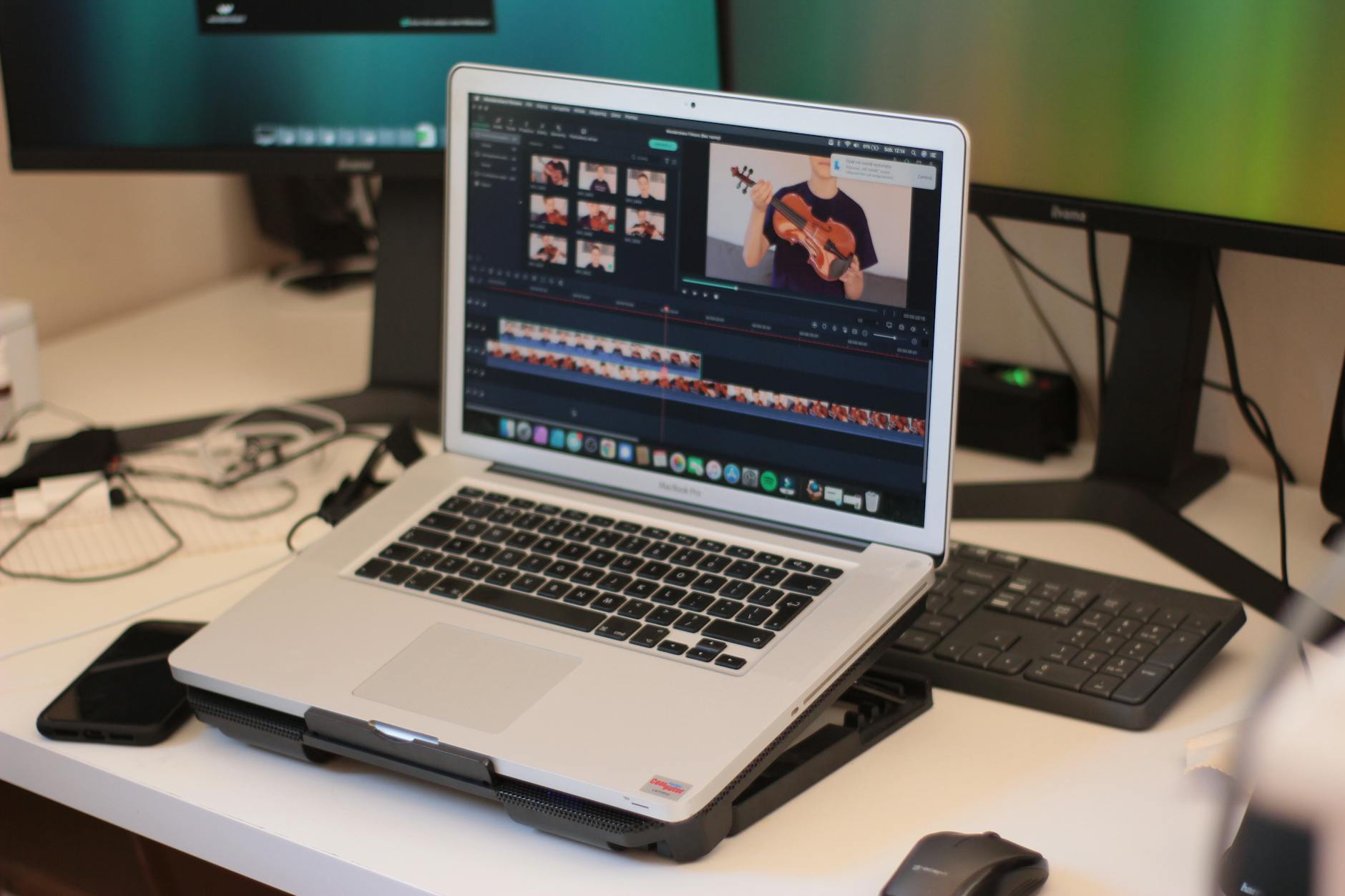
Windows computer showing WMV file being prepared for conversion to MP4
Try these conversions
Free, in your browser — no signup, files auto-delete in 2 hours.
WMV files typically contain video encoded with Windows Media Video 7, 8, 9, or WMV Advanced Profile (VC-1), paired with Windows Media Audio (WMA). Understanding these codecs helps you choose the right conversion settings.
WMV Version
Codec
Typical Era
Max Resolution
Quality Level
WMV 7
WMV1
2000-2003
352x288
Low
WMV 8
WMV2
2002-2005
720x480
Medium
WMV 9
WMV3
2003-2010
1920x1080
Good
WMV Advanced
VC-1 (WVC1)
2006-2013
1920x1080
Excellent
None of these codecs are natively compatible with the MP4 container, which means every WMV-to-MP4 conversion requires full re-encoding. Unlike converting MKV to MP4 where remuxing is often possible, WMV files always need their video and audio streams decoded and re-encoded.
Pro Tip: WMV 9 and VC-1 files are the highest quality WMV variants. When converting these, use a lower CRF value (16-18) to preserve the quality that was already captured. For older WMV 7/8 files, a CRF of 20-22 is sufficient since the source quality is inherently limited.
Method 1: Convert WMV to MP4 Online
The fastest way to convert a WMV file is using an online tool. Our video converter supports all WMV versions and produces optimized MP4 output.
Upload your WMV file — drag and drop works, or click to browse your files.
The converter automatically detects the optimal settings for your file.
Click Convert and download the MP4.
No software to install, no codecs to configure. The conversion runs on our servers, so it works on any device — even a Mac or Chromebook that cannot play the original WMV file.
If the WMV file is larger than you need, run it through our video compressor to reduce the file size. Need to trim out sections? The video trimmer lets you cut before or after conversion.
Method 2: Convert WMV to MP4 with FFmpeg
For full control over the conversion process, FFmpeg is the professional's choice. It handles every WMV variant, including DRM-free files with unusual configurations.
The yadif filter is FFmpeg's best deinterlacer. The =1 parameter outputs one frame per field, effectively doubling the frame rate for smoother motion.
Terminal showing FFmpeg converting WMV file with encoding parameters
Method 3: Convert WMV to MP4 with VLC
VLC Media Player is already installed on many computers and includes conversion capabilities:
Open VLC and go to Media > Convert / Save (or press Ctrl+R).
Click Add and select your WMV file.
Click Convert / Save at the bottom.
Under Profile, select Video - H.264 + MP3 (MP4).
Choose the destination file and click Start.
VLC's conversion quality is decent but does not offer the fine-grained control of FFmpeg. For critical conversions, FFmpeg or our online converter will produce better results.
Choosing the Right Encoding Settings
The optimal settings depend on what you plan to do with the converted MP4:
Pro Tip: When converting corporate training videos or screen recordings from WMV to MP4, use the -tune stillimage flag in FFmpeg. Screen recordings have large static areas that this tuning parameter handles more efficiently, resulting in smaller file sizes with no visible quality difference.
Handling DRM-Protected WMV Files
Some WMV files downloaded from services like Windows Media DRM (also called PlayReady) are encrypted and cannot be converted directly. FFmpeg will report an error like "This file is DRM protected."
Important points about DRM-protected WMV:
You cannot directly decrypt and convert DRM WMV files with standard tools.
If you purchased the content, contact the original provider for a DRM-free version or an alternative format.
Some older DRM licenses have expired and may no longer validate, making the files permanently inaccessible.
If you own the original source material, re-export it from the original project.
AV1: The newest codec with even better compression, but slower encoding. Best for archival.
# Convert WMV to MP4 with H.265 for 50% smaller files
ffmpeg -i input.wmv -c:v libx265 -crf 22 -preset slow \
  -c:a aac -b:a 192k -tag:v hvc1 -movflags +faststart output.mp4
The -tag:v hvc1 flag ensures compatibility with Apple devices.
Pro Tip: After converting your WMV archive to MP4, use our video compressor to squeeze files even further. For videos you plan to share online, the image converter can generate thumbnail images from key frames for social media previews.
Summary
Converting WMV to MP4 is a one-way upgrade. You gain universal compatibility, better compression efficiency, and a format that will remain supported for decades. Whether you use our online video converter for quick single-file conversions or FFmpeg for batch processing an entire WMV archive, the conversion process is straightforward.
The key decision is your CRF value: use 16-18 for archival quality, 20 for general viewing, and 22-24 for space-efficient conversions. Every WMV file requires full re-encoding (remuxing is not possible), so allow extra time for large collections — but the result is worth it.