
What Is 3GP and Why Does It Still Exist on Your Phone?
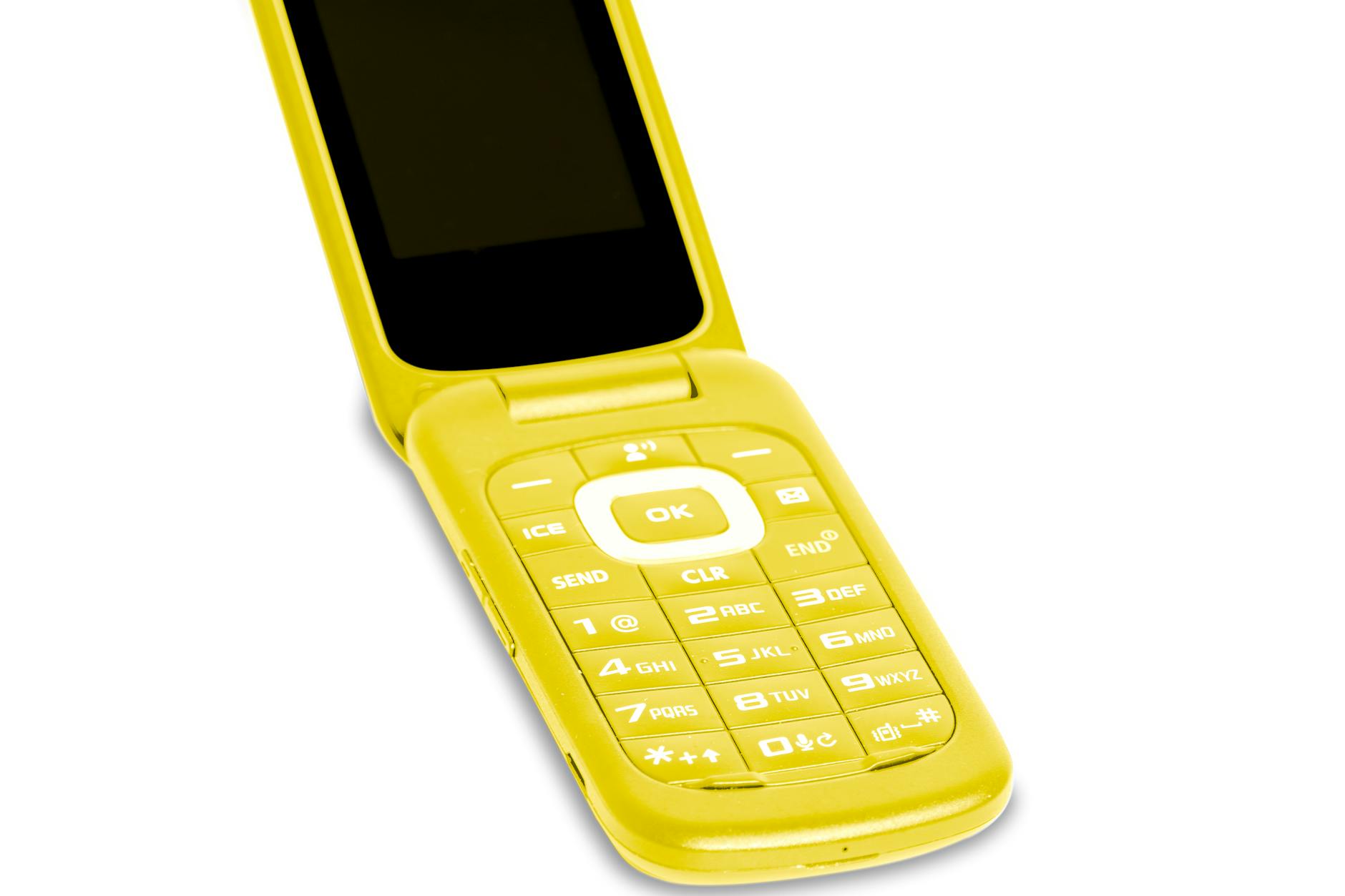
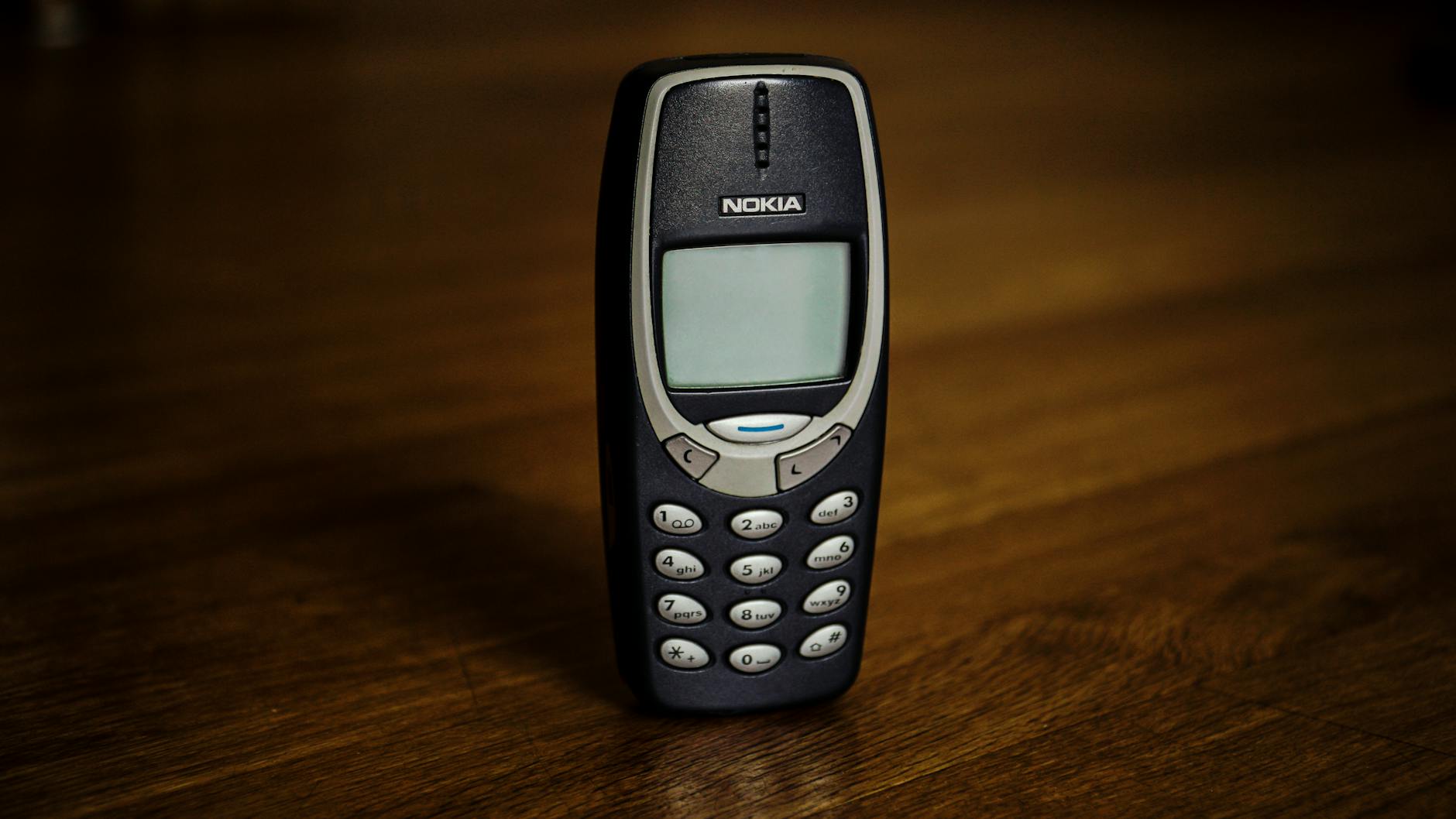
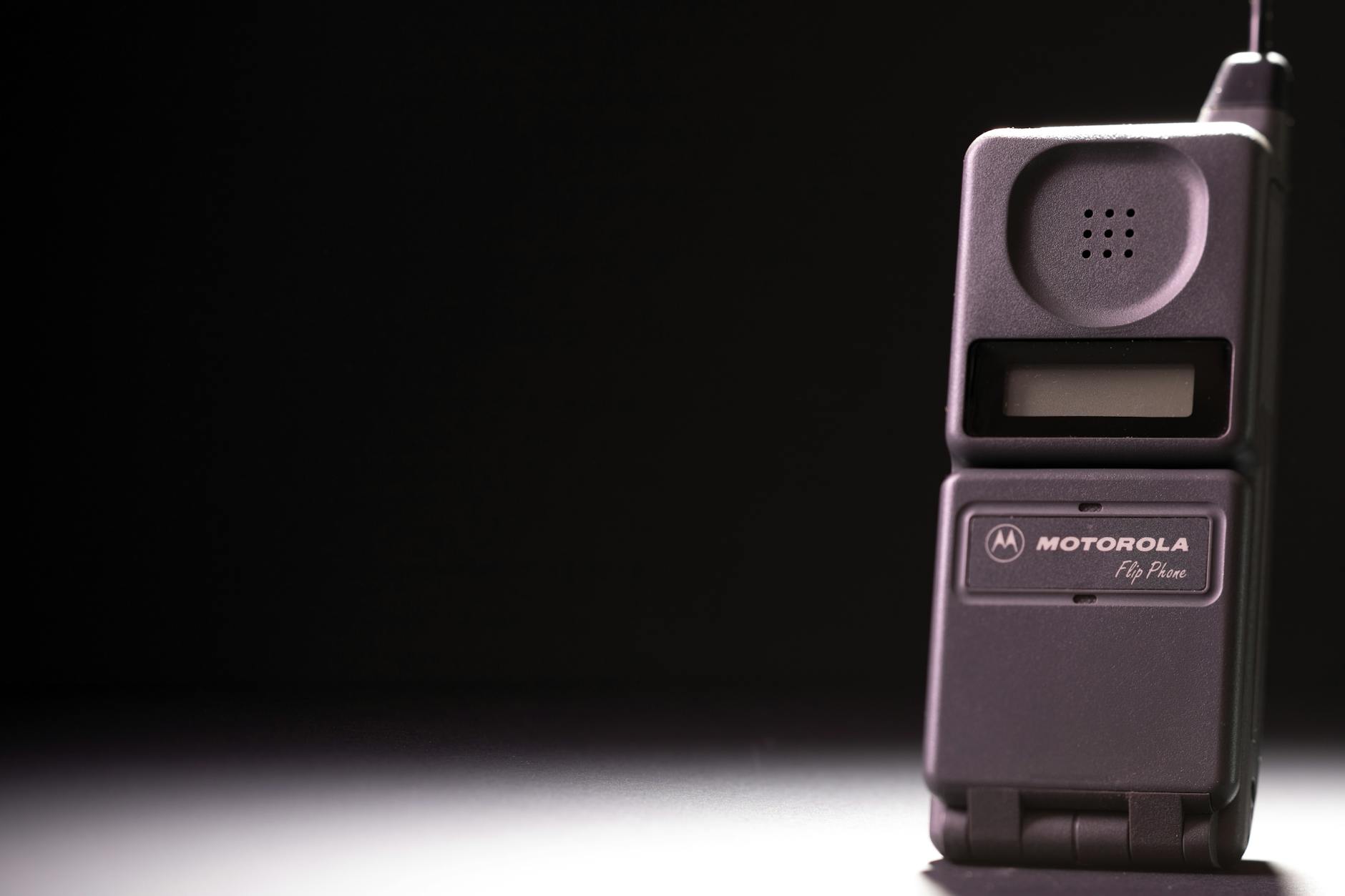
3GP (3rd Generation Partnership Project) is a multimedia container format designed for 3G mobile phones. In the early-to-mid 2000s, before smartphones had the processing power to handle high-resolution video, 3GP was the standard format for recording and playing video on mobile devices. Nokia, Sony Ericsson, Motorola, and Samsung phones from roughly 2003 to 2012 all used 3GP as their default video recording format.
If you are finding 3GP files today, they are almost certainly from one of these sources:
- Old phone backups — files from feature phones or early smartphones
- MMS messages — video clips sent via multimedia messaging
- Legacy data archives — corporate or personal archives from the pre-smartphone era
- Recovered media — files rescued from old SD cards or phone memory
These files are precious memories: birthdays, weddings, first steps, school events, and everyday moments captured during an era when phone cameras were the only camera most people carried. The problem is that modern devices and software often struggle with 3GP files due to their outdated codecs and extremely low resolutions.
3GP Technical Specifications
Understanding what is inside a 3GP file helps you choose the right conversion settings:
| Specification | 3GP | Modern MP4 |
|---|---|---|
| Video Codecs | H.263, MPEG-4 Part 2, H.264 (Baseline) | H.264, H.265, AV1 |
| Audio Codecs | AMR-NB (8 kHz), AMR-WB (16 kHz), AAC-LC | AAC, MP3, Opus, AC-3 |
| Typical Resolution | 176x144 (QCIF) to 352x288 (CIF) | 1080p to 4K |
| Typical Frame Rate | 10-15 fps | 24-60 fps |
| Typical Bitrate | 50-200 kbps | 5,000-50,000 kbps |
| File Size (1 min) | 500 KB - 2 MB | 50-200 MB |
| Device Support (2026) | Limited | Universal |
The most important thing to understand is that 3GP files are extremely low quality by modern standards. A typical 3GP video is 176x144 pixels — that is about 0.025 megapixels, compared to 2 megapixels for a 1080p video. Converting to MP4 does not add detail, but it ensures the file plays on modern devices and can be viewed, shared, and preserved.
Pro Tip: Before converting, back up your original 3GP files to a separate location. Even though the quality is low, these files are irreplaceable memories. Store originals on cloud storage or an external drive so you always have the source files. Check our guide on cloud storage file formats for recommendations.
Method 1: Convert 3GP to MP4 Online
The quickest method for individual files. Our video converter handles all 3GP variants:
- Open the MP4 converter.
- Upload your 3GP file.
- Choose your desired output quality.
- Click Convert and download the MP4.
Since 3GP files are tiny (usually under 10 MB), the upload and conversion are nearly instant. No software to install, and it works from any device — including your phone.
Method 2: Convert 3GP to MP4 with FFmpeg
FFmpeg provides full control over the conversion process. Here are the most useful commands for 3GP conversion:
Basic Conversion (Preserve Original Quality)
ffmpeg -i input.3gp -c:v libx264 -crf 18 \
  -c:a aac -b:a 128k -movflags +faststart output.mp4
Since 3GP files are already very low quality, using CRF 18 ensures you preserve every bit of detail from the original. The resulting MP4 will be roughly the same size or slightly larger than the 3GP (because H.264 at CRF 18 is generous with bitrate), but it will play everywhere.
Conversion with Upscaling
Upscaling does not add detail, but it makes the video fill more of the screen on modern devices instead of appearing as a tiny stamp-sized box:
# Upscale to 480p (reasonable for 3GP sources)
ffmpeg -i input.3gp -c:v libx264 -crf 20 \
  -vf "scale=640:480:flags=lanczos" \
  -c:a aac -b:a 128k -movflags +faststart output.mp4
# Upscale to 720p (maximum reasonable upscale for 3GP)
ffmpeg -i input.3gp -c:v libx264 -crf 22 \
  -vf "scale=1280:720:flags=lanczos,unsharp=5:5:0.5:5:5:0.5" \
  -c:a aac -b:a 128k -movflags +faststart output.mp4
The lanczos filter produces the sharpest upscaling results, and the unsharp filter adds a subtle sharpening that helps compensate for the softness introduced by scaling.
Fix Frame Rate
Many 3GP files have variable frame rates (10-15 fps). Normalize to a standard rate for smoother playback:
ffmpeg -i input.3gp -c:v libx264 -crf 18 -r 24 \
  -c:a aac -b:a 128k -movflags +faststart output.mp4
Method 3: Convert 3GP to MP4 on Your Phone
Since 3GP files often come from old phone backups, you might want to convert them right on your current phone:
Android
Use a file converter app from the Play Store, or upload files to our video converter in Chrome.
iPhone
Safari on iPhone supports our web-based converter. Upload the 3GP file and download the converted MP4 directly to your Photos library.
For more on mobile file conversion, see our guide on how to convert files on mobile.
Handling 3GP Audio (AMR Codec)
The audio in 3GP files is typically encoded with AMR (Adaptive Multi-Rate), which uses an 8 kHz sample rate — telephone quality. When converting, re-encoding to AAC at 128 kbps is more than sufficient since the source audio is inherently limited:
# Extract audio only from 3GP
ffmpeg -i input.3gp -vn -c:a aac -b:a 128k output.m4a

# Convert to MP3 instead
ffmpeg -i input.3gp -vn -c:a libmp3lame -b:a 128k output.mp3
Our audio converter can also extract and convert the audio track. For more on AMR audio, see our guide on extracting audio from video.
Pro Tip: If you have standalone .amr voice recordings from old phones (not inside 3GP video files), you can convert them with: ffmpeg -i recording.amr -c:a aac -b:a 128k output.m4a. AMR files are often voice notes, dictation recordings, or call recordings from the Nokia/Motorola era.
Batch Converting a 3GP Archive
If you recovered an old SD card or phone backup with hundreds of 3GP files, batch conversion is essential:
Bash (macOS/Linux)
for f in *.3gp; do
  ffmpeg -i "$f" -c:v libx264 -crf 18 -r 24 \
    -c:a aac -b:a 128k -movflags +faststart \
    "${f%.3gp}.mp4"
done
PowerShell (Windows)
Get-ChildItem *.3gp | ForEach-Object {
  $output = $_.BaseName + ".mp4"
  ffmpeg -i $_.FullName -c:v libx264 -crf 18 -r 24 `
    -c:a aac -b:a 128k -movflags +faststart $output
}
Batch with Upscaling
for f in *.3gp; do
  ffmpeg -i "$f" -c:v libx264 -crf 20 \
    -vf "scale=640:480:flags=lanczos" -r 24 \
    -c:a aac -b:a 128k -movflags +faststart \
    "${f%.3gp}.mp4"
done
For comprehensive batch processing techniques, read our batch processing files guide. If you want to automate this through an API, our file conversion API guide covers programmatic workflows.
Upscaling Expectations: What Is Realistic?
It is important to set realistic expectations when upscaling 3GP content. Here is what you can and cannot achieve:
| Original 3GP Resolution | Maximum Useful Upscale | Result Quality | Notes |
|---|---|---|---|
| 128x96 (Sub-QCIF) | 320x240 | Very soft, pixelated | Barely usable but preserves content |
| 176x144 (QCIF) | 480x360 | Soft, watchable | Good for sharing on phones |
| 320x240 (QVGA) | 640x480 | Decent, slight softness | Looks okay on tablets |
| 352x288 (CIF) | 720x576 | Reasonable | Comparable to DVD quality |
| 640x480 (VGA) | 1280x720 | Good | These are rare in 3GP files |
As a general rule, upscaling beyond 2x the original resolution produces diminishing returns — the image becomes softer without gaining meaningful detail. If you need the best possible upscaling, AI-based tools can sometimes produce slightly sharper results than traditional algorithms, but for 3GP source material, the improvements are marginal.
Preserving Metadata and Timestamps
Old 3GP files often contain valuable metadata — the date and time the video was recorded. Preserve this during conversion:
ffmpeg -i input.3gp -c:v libx264 -crf 18 \
  -c:a aac -b:a 128k -map_metadata 0 \
  -movflags +faststart output.mp4
The -map_metadata 0 flag copies all metadata from the input to the output, including creation timestamps.
If the metadata was lost, you can set it manually:
ffmpeg -i input.3gp -c:v libx264 -crf 18 \
  -c:a aac -b:a 128k \
  -metadata creation_time="2007-06-15T14:30:00" \
  -movflags +faststart output.mp4
Creating a Photo Slideshow from 3GP Stills
If some of your old 3GP videos are very short clips (2-3 seconds was common on early phones), you might want to extract the best frame from each and create a photo compilation:
# Extract the best frame from a 3GP file
ffmpeg -i input.3gp -vf "select=eq(pict_type\,I)" \
  -vframes 1 -q:v 2 still.jpg
Our image converter can help prepare these still frames for sharing or printing. You can also use the GIF maker to create animated GIFs from your 3GP clips for easy sharing on social media.
Using the Converted MP4 Files
Once converted, your old mobile videos are ready for:
- Sharing on social media: Upload directly to Instagram, Facebook, or WhatsApp. See our social media video specs guide for platform-specific requirements.
- Creating compilations: Combine multiple clips into a montage using our video trimmer to cut the best moments from each.
- Cloud backup: Upload to Google Drive, iCloud, or OneDrive. The MP4 format is universally supported. See our video compressor if storage space is a concern.
- Family sharing: The MP4 files play on any device — share via AirDrop, email, or messaging apps.
- Adding to a video editor: Import the MP4 files into any modern video editor (iMovie, DaVinci Resolve, Adobe Premiere) for proper editing, color correction, and stabilization.
3GP2 vs 3GP: What Is the Difference?
You might also encounter .3g2 files. 3GP2 (3GPP2) is a variant developed for CDMA networks (Verizon, Sprint in the US). The conversion process is identical:
ffmpeg -i input.3g2 -c:v libx264 -crf 18 \
  -c:a aac -b:a 128k -movflags +faststart output.mp4
Summary
Converting 3GP to MP4 rescues irreplaceable memories from an obsolete format. The conversion itself is straightforward — these files are small and process quickly. Use our online video converter for individual files, or FFmpeg for batch processing entire archives.
Key recommendations:
- Use CRF 18 to preserve maximum quality from the already-limited source.
- Upscale to 480p (640x480) for comfortable viewing on modern screens, but do not go beyond 720p.
- Normalize frame rate to 24 fps for smooth playback.
- Always preserve metadata with
-map_metadata 0to retain recording timestamps. - Back up original 3GP files before converting — these are irreplaceable.
The tiny file sizes of 3GP (usually under 5 MB per clip) mean batch converting even thousands of files takes minutes, not hours. Do not wait until those old SD cards and phone backups become unreadable — convert them now.


