How to Convert Files on Mobile: iOS and Android Guide
Complete guide to converting files on iPhone and Android. Covers native conversion features, browser-based tools, recommended apps, share sheet integration, and mobile storage management.
There was a time when converting file formats required a desktop computer with specialized software. That time is over. Modern smartphones are powerful enough to handle the vast majority of file conversions, from resizing images and converting videos to transforming documents and compressing PDFs.
Whether you are converting a HEIC photo to JPEG to share with a colleague, turning a Word document into a PDF for a client, or extracting audio from a video for your podcast, your phone can handle it. The question is which approach to use: native OS features, browser-based tools, or dedicated apps.
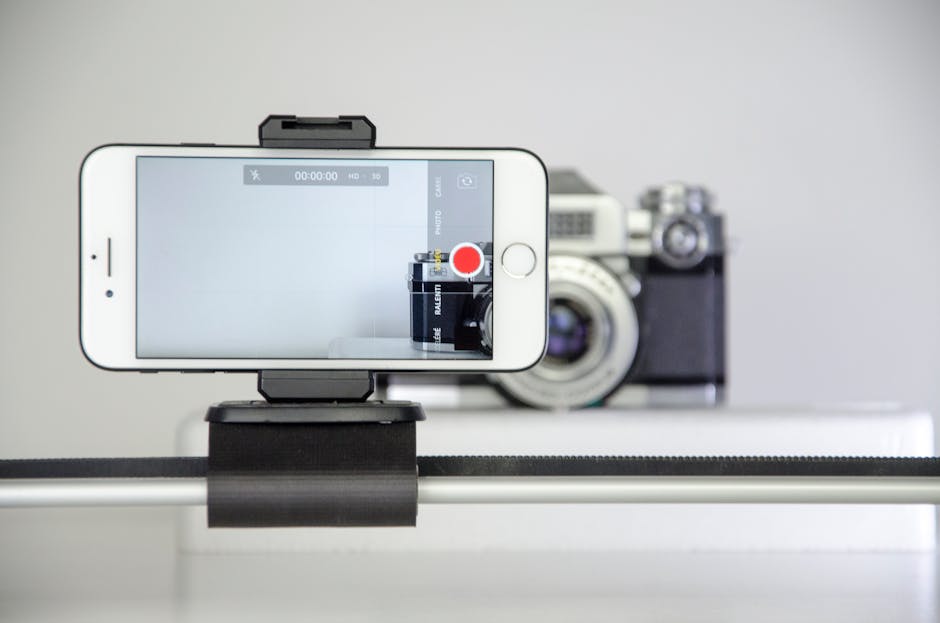
Smartphone displaying file conversion options with various format icons
This guide covers all three approaches for both iOS and Android, with specific recommendations for every common conversion scenario.
Native iOS Conversion Features
Apple has built several conversion capabilities directly into iOS. These work without installing any additional apps.
HEIC to JPEG (Automatic)
iPhones capture photos in HEIC format by default, which offers better quality at smaller file sizes than JPEG. But HEIC is not universally supported, especially on older Windows computers and some web platforms.
iOS handles this automatically in most cases:
Sharing via Messages, Mail, or AirDrop: iOS converts HEIC to JPEG automatically when sharing with non-Apple devices
Transferring to PC: In Settings > Photos > Transfer to Mac or PC, selecting "Automatic" converts to JPEG during transfer
Third-party apps: Most social media apps receive JPEG-compatible versions even when the original is HEIC
To always shoot in JPEG instead of HEIC: go to Settings > Camera > Formats and select Most Compatible.
Images: Long-press an image > Quick Actions > Convert Image. Choose JPEG, PNG, or HEIF, and select a size (Small, Medium, Large, Actual Size).
Documents: Open a document, tap the Share button, and select Print. Then pinch-zoom on the print preview to create a PDF.
Videos: Not natively supported in Files (requires an app or browser tool)
Shortcuts App (Automation)
Apple's Shortcuts app is the most powerful native conversion tool on iOS. Pre-built shortcuts and custom automations can handle complex conversions:
Useful pre-built shortcuts:
Convert images between formats (JPEG, PNG, HEIF, TIFF, BMP, GIF)
Convert Live Photos to GIF or video
Extract audio from video files
Resize images to specific dimensions
Create PDFs from multiple images
Example: Batch image conversion shortcut
Open the Shortcuts app
Tap + to create a new shortcut
Add actions: Select Photos (allow multiple) > Convert Image (to JPEG, quality 80%) > Save to Photo Album
Name it "Batch Convert to JPEG"
Run from the Shortcuts widget or Share Sheet
iOS Native Conversion Summary
Conversion
Method
Quality
Ease
HEIC to JPEG
Automatic on share
Excellent
Effortless
Image format change
Files app or Shortcuts
Good
Easy
Any document to PDF
Print > Pinch to PDF
Good
Easy
Live Photo to GIF
Shortcuts
Good
Moderate
Video to audio
Shortcuts
Good
Moderate
Video format conversion
Not natively supported
N/A
N/A
Batch image resize
Shortcuts
Good
Moderate (setup)
Pro Tip: The iOS "Print to PDF" trick works with almost any file that can be printed. Open the file, tap Share > Print, then pinch-zoom on the print preview with two fingers. iOS creates a PDF that you can then share or save to Files. This works with web pages, emails, documents, and even some app content.
Native Android Conversion Features
Android's open architecture gives it different native capabilities than iOS.
Built-In Features
Google Photos: Automatically backs up photos in a "Storage saver" quality that converts HEIC, RAW, and other formats to compressed JPEG. Also allows exporting edited photos as JPEG.
Google Files: The Files by Google app can compress images and clean up storage, though it does not do format conversion.
Share Sheet: When sharing files to apps like Gmail, Google Drive, or social media, Android may automatically convert formats for compatibility.
Samsung-Specific Features
Samsung Galaxy devices include additional conversion tools:
Gallery app: Export images in JPEG format regardless of capture format
My Files: Basic file management with format recognition
Samsung Notes: Export notes as PDF, Word, or image files
Google Docs Conversion
The Google Docs mobile app can open and convert Office documents:
Open Google Docs, Sheets, or Slides
Tap the + button and select a file from your device
The file opens in Google's editor
Tap the three-dot menu > Share & export > Save as and choose the output format (DOCX, PDF, EPUB, etc.)
Android Native Conversion Summary
Conversion
Method
Quality
Ease
HEIC to JPEG
Google Photos export
Good
Easy
Document to PDF
Google Docs > Save as PDF
Good
Easy
Spreadsheet to PDF
Google Sheets > Save as PDF
Good
Easy
Image compression
Google Files
Moderate
Easy
Video format change
Not natively supported
N/A
N/A
Audio extraction
Not natively supported
N/A
N/A
Batch processing
Limited
Varies
Moderate
Browser-Based Conversion (Both Platforms)
The most versatile approach to mobile file conversion is using browser-based tools. They work on both iOS and Android, require no app installation, and handle formats that native tools cannot.
Using ConvertIntoMP4 on Mobile
Our tools are fully optimized for mobile browsers:
Open your mobile browser and navigate to the relevant tool:
Tap Choose File or drag and drop from your Files app
Select the output format and any options
Tap Convert
Download the converted file to your device
Mobile browser showing ConvertIntoMP4 converter interface with upload and format selection
Browser-Based Conversion Advantages
Advantage
Details
No installation
Works immediately in any browser
No storage usage
No app taking up device space
Always current
No updates to install
Cross-platform
Same tool on iOS, Android, desktop
Wide format support
Hundreds of format combinations
Privacy options
Files can be processed and deleted automatically
Browser-Based Conversion Limitations
Requires an internet connection
Upload/download uses mobile data (if not on WiFi)
Very large files (1 GB+) may be impractical on mobile networks
Browser tab must stay active during processing on some tools
Pro Tip: Before converting large files on mobile, connect to WiFi to avoid consuming your mobile data allowance. A 5-minute 1080p video can be 500 MB or more, which would make a significant dent in most mobile data plans.
Recommended Mobile Apps
When you need offline conversion or handle files frequently, a dedicated app is the best option.
iOS Apps
Documents by Readdle (Free)
A comprehensive file manager with built-in conversion:
VLC (Free)
The legendary media player also handles conversion:
Convert video between formats (MP4, MKV, AVI, MOV)
Extract audio from video
Stream conversion in real-time
Supports virtually every media format
PDF Expert (Paid)
The gold standard for PDF work on iOS:
Convert images, web pages, and documents to PDF
Merge, split, compress, and annotate PDFs
Fill and sign PDF forms
OCR scanned documents
Android Apps
File Converter (Free, Open Source)
A lightweight, ad-free converter that integrates with the Android Share Sheet:
Image conversion (JPEG, PNG, WebP, GIF, BMP)
Audio conversion (MP3, AAC, FLAC, WAV, OGG)
Video conversion (MP4, MKV, AVI, WebM)
Document conversion (PDF from images)
Appears directly in the Share menu for quick access
VLC for Android (Free)
Same powerful media handling as the iOS version:
Video and audio playback in all formats
Stream conversion
Audio extraction from video
Network stream support
Adobe Acrobat Reader (Free)
PDF operations on Android:
Create PDFs from photos and documents
Scan documents with OCR
Fill and sign forms
Compress PDFs
Export PDF to Word or Excel (requires subscription)
App Comparison
Feature
Documents (iOS)
File Converter (Android)
VLC (Both)
Adobe Acrobat (Both)
Image conversion
Yes
Yes
No
No
Video conversion
No
Yes
Yes
No
Audio conversion
No
Yes
Yes
No
PDF creation
Yes
Yes (from images)
No
Yes
PDF editing
Basic
No
No
Yes
Document conversion
Limited
No
No
PDF export
Offline support
Yes
Yes
Yes
Partial
Price
Free
Free
Free
Free (basic)
Ads
No
No
No
No
Share Sheet Integration
Both iOS and Android support Share Sheet integration, which lets you convert files without opening a separate app.
iOS Share Sheet Workflow
Open the file you want to convert in any app (Photos, Files, Mail, etc.)
Tap the Share button
Select a conversion app from the Share Sheet (like Shortcuts or a converter app)
The file is sent to the app, converted, and returned or saved
To add a Shortcuts conversion to your Share Sheet:
Create a shortcut (e.g., "Convert to PDF")
Ensure "Show in Share Sheet" is enabled in the shortcut settings
Select the accepted file types (images, documents, etc.)
The shortcut appears in your Share Sheet automatically
Android Share Sheet Workflow
Open any file or select it in a file manager
Tap the Share button
Select a conversion app (File Converter, VLC, etc.)
The app opens with the file pre-loaded for conversion
Apps like File Converter are designed specifically for Share Sheet integration. They appear as conversion options whenever you share a compatible file type, making the workflow nearly seamless.
Share sheet menu showing conversion options integrated into the file sharing workflow
Common Mobile Conversion Scenarios
Scenario 1: Convert iPhone Photos for Email
HEIC photos from your iPhone may not display correctly when emailed to Windows users or uploaded to older web platforms.
Quick method:
In the Photos app, select the images
Tap Share > Mail
iOS automatically converts to JPEG for email
For more control:
Use the Files app > Convert Image > JPEG
Choose the quality/size setting
Share the JPEG version
Scenario 2: Turn a Document into PDF on the Go
You receive a DOCX file and need to send it as a PDF immediately.
On iOS:
Open the DOCX in Files or a compatible app
Tap Share > Print
Pinch-zoom on the preview to create a PDF
Share the PDF
On Android:
Open the DOCX in Google Docs
Tap three-dot menu > Share & export > Save as > PDF
You need to combine several photos of a document, whiteboard, or receipt into a single PDF.
On iOS (Files app):
Select multiple images in the Files app
Long press > Quick Actions > Create PDF
A multi-page PDF is created automatically
On Android (Google Drive):
Open Google Drive and tap the + button
Select Scan to use the camera, or upload existing photos
Google Drive creates a PDF from the scanned images
Mobile Storage Management
File conversion often intersects with storage management, especially on devices with limited space.
Managing Conversion Storage
Strategy
iOS
Android
Delete originals after conversion
Manual (Files app)
Manual (file manager)
Offload unused apps
Settings > General > iPhone Storage
Settings > Storage > Free up space
Cloud backup before deleting
iCloud, Google Drive
Google Drive, cloud apps
Clear conversion cache
Settings > [App] > Clear Cache
Settings > Apps > [App] > Storage
Use streaming conversion
Browser tools (no local file)
Browser tools (no local file)
Checking Available Space
Before converting large files (especially video), check your available storage:
iOS: Settings > General > iPhone Storage
Android: Settings > Storage
If space is tight, use a browser-based converter like our video converter or image converter. The conversion happens in the cloud, so you only need space for the output file, not both the input and output simultaneously.
Tips for Reliable Mobile Conversion
Keep your browser open. If using a browser-based tool, switching to another app or letting your phone lock may interrupt the conversion. Some browsers pause background tabs.
Use WiFi for large files. Video conversions can involve hundreds of megabytes of upload and download. WiFi is faster, more reliable, and does not consume mobile data.
Check the output before deleting the original. Always verify that the converted file is correct (plays properly, looks right, opens without errors) before deleting the source file.
Use the right quality setting. Higher quality means larger files. For sharing via messaging apps, medium quality is usually sufficient. For archival or professional use, keep maximum quality.
Batch when possible. If you need to convert multiple files, use a tool or app that supports batch processing rather than converting one file at a time. Our batch processing guide covers strategies for efficient multi-file operations.
Mind your battery. Video conversion is CPU-intensive and will drain your battery faster than normal use. Plug in or ensure you have sufficient charge before starting a large conversion.
Consider privacy. When using online conversion tools, your files are uploaded to a server. For sensitive documents, use an offline app or our privacy-focused converter that deletes files after processing. Our guide on data privacy in file conversion covers this topic in depth.
Platform Feature Comparison Summary
Capability
iOS (Native)
Android (Native)
Browser Tools
Dedicated Apps
Image format conversion
Good (Files + Shortcuts)
Limited (Google Photos)
Excellent
Excellent
Video conversion
Limited (Shortcuts)
Not supported
Excellent
Good (VLC)
Audio conversion
Limited (Shortcuts)
Not supported
Excellent
Good
Document to PDF
Good (Print trick)
Good (Google Docs)
Excellent
Good
PDF operations
Basic
Basic (Google Drive)
Excellent
Excellent
Batch processing
Shortcuts
Limited
Depends on tool
App-dependent
Offline support
Yes
Yes
No
Yes
Ease of use
Easy-Moderate
Easy
Easy
Varies
The best approach depends on your specific needs. For occasional conversions, browser-based tools provide the broadest format support without any setup. For frequent conversions, a dedicated app with Share Sheet integration makes the process seamless. And for simple format changes like HEIC to JPEG, your phone's built-in features often handle it automatically.
Whichever method you choose, the days of needing a desktop computer for file conversion are firmly in the past.
mobile file conversionios conversionandroid conversioniphonefile converter appmobile tools
About the Author
Sarah Chen
Technical writer specializing in multimedia formats and digital workflows. Covers file conversion, video encoding, and document processing.