How to Create a GIF from Video: Step-by-Step Guide
Learn how to create high-quality GIFs from video clips. Master frame rate, resolution, color palettes, and optimization techniques for perfect animated GIFs every time.
Despite the rise of short-form video platforms, GIFs remain one of the most versatile media formats on the internet. They autoplay silently, loop endlessly, and work everywhere — from Slack messages and GitHub pull requests to email newsletters and social media posts. Unlike video embeds, GIFs require no player, no JavaScript, and no user interaction to start playing.
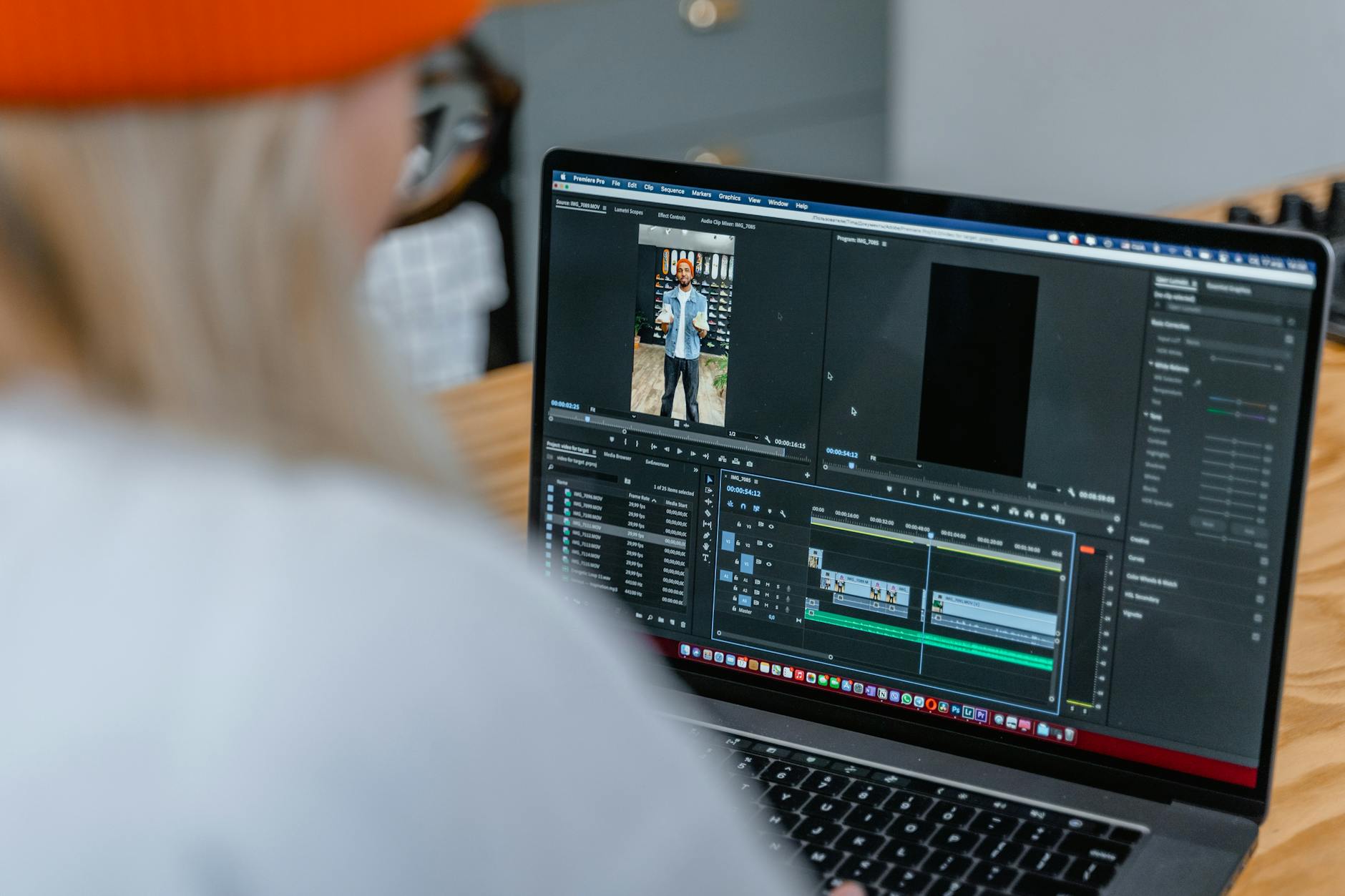
Video to GIF conversion workflow overview
The challenge? Creating GIFs that look sharp without ballooning to unreasonable file sizes. A poorly optimized GIF can easily exceed 20 MB, while a well-crafted one delivers the same visual impact at under 2 MB. This guide walks you through every step of the process, from selecting your source video to exporting a polished, optimized GIF.
Whether you are building product demos, reaction GIFs, tutorial snippets, or social content, understanding the fundamentals of GIF creation will save you hours of trial and error.
Understanding the GIF Format
Before diving into creation, it helps to understand what makes GIFs tick — and where their limitations lie.
How GIFs Work
GIF (Graphics Interchange Format) stores a sequence of frames, each containing a color-indexed bitmap image. Unlike modern video codecs that use inter-frame compression (predicting changes between frames), GIF stores each frame mostly independently. This is why GIF files tend to be large relative to their visual quality.
Key technical constraints of the GIF format:
256-color palette — Each frame can use at most 256 colors from a 24-bit color space
1-bit transparency — A pixel is either fully transparent or fully opaque (no alpha blending)
LZW compression — Lossless within each frame, but no temporal compression across frames
No audio — GIFs are silent by design
When to Use GIF vs Video
Understanding when GIF is the right choice — and when a short video clip would serve better — is critical for making smart format decisions.
Feature
GIF
MP4 (H.264)
WebM (VP9)
APNG
Max colors
256 per frame
Millions
Millions
Millions
Compression
LZW (lossless)
Inter-frame (lossy)
Inter-frame (lossy)
Lossless
Transparency
1-bit
None
Alpha channel
Full alpha
Audio
No
Yes
Yes
No
Autoplay
Yes (everywhere)
Varies by platform
Varies by platform
Limited support
File size (10s clip)
5-30 MB
0.5-3 MB
0.3-2 MB
3-15 MB
Browser support
Universal
Universal
~96%
~95%
Email support
Excellent
Poor
Poor
Poor
Pro Tip: If your target platform supports inline video (like Twitter or Discord), consider using a short MP4 instead of a GIF. You will get better quality at a fraction of the file size. Use our GIF to MP4 converter to convert existing GIFs back to video format when needed.
Step 1: Choose and Prepare Your Source Video
The quality of your GIF depends heavily on the source material. Starting with the right video clip makes every subsequent step easier.
Selecting the Right Clip
For the best GIF results, look for source video that has:
Short duration — Aim for 2-6 seconds. Anything longer will produce massive files
Clear subject — Simple compositions with a single focal point translate better to 256 colors
Minimal camera movement — Panning and zooming create more unique frames, increasing file size
Good lighting — Well-lit scenes compress better and look cleaner at reduced color depth
High contrast — Strong contrast between subject and background survives the color reduction process
Trimming Your Video
Before converting to GIF, trim your video to include only the exact frames you need. Every extra second adds significant file size.
Use our video trimmer to cut your clip down to the precise segment you want. Set your start and end points to the millisecond for tight, purposeful loops.
If your video has letterboxing or unwanted borders, use the crop video tool to remove them before conversion. Cropping reduces the frame dimensions, which directly reduces GIF file size.
Resolution Considerations
Source video resolution matters, but bigger is not always better for GIFs:
1080p source — Ideal starting point; gives you room to downscale
4K source — Overkill for GIFs; downscale to 720p or lower
480p source — May look soft when converted; best used at native size or smaller
Step 2: Convert Video to GIF
With your source clip trimmed and ready, it is time to perform the actual conversion. The settings you choose here have the biggest impact on your final output.
GIF creation settings panel
Using ConvertIntoMP4's GIF Maker
Our GIF maker handles the entire conversion process in your browser. Upload your video clip, adjust the settings, and download your optimized GIF — no software installation required.
Here is the recommended workflow:
Upload your trimmed video — Drag and drop or click to select your file
Set the output dimensions — Choose a width (height adjusts automatically to preserve aspect ratio)
Adjust frame rate — Select the FPS that balances smoothness and file size
Choose your color palette — Opt for a global or per-frame palette depending on your content
Preview and download — Review the output before downloading
GIF Settings Deep Dive
The relationship between settings and output quality is not always intuitive. Here is a comprehensive breakdown:
Setting
Low Quality / Small
Medium Quality
High Quality / Large
Width
320px
480px
640px
Frame rate
10 fps
15 fps
20-24 fps
Colors
64
128
256
Dithering
None
Bayer
Floyd-Steinberg
Duration
2-3 seconds
3-5 seconds
5-8 seconds
Typical file size
200 KB - 1 MB
1 MB - 4 MB
4 MB - 15 MB
Best for
Thumbnails, reactions
Social media, tutorials
Presentations, portfolios
Frame Rate: The Most Important Setting
Frame rate has a direct, linear relationship with file size. Doubling the frame rate roughly doubles the file size. Most viewers perceive smooth motion at 12-15 fps, so going higher provides diminishing returns.
Recommended frame rates by content type:
Reactions / memes — 10-12 fps (choppy is part of the aesthetic)
UI demonstrations — 15 fps (smooth enough to follow interactions)
Product showcases — 20 fps (fluid motion for professional appearance)
Cinematic clips — 24 fps (only when quality is paramount and file size is secondary)
Pro Tip: If your source video is 30 fps or 60 fps, choose a frame rate that divides evenly into it. Converting 30 fps video to 10 fps or 15 fps produces smoother results than converting to 12 fps, because frames align cleanly without interpolation.
Resolution and Dimensions
GIF width is the primary driver of file size after frame count. Every pixel must be stored in every frame, so doubling the width quadruples the pixel count (width times height both double).
The 256-color limit is the GIF format's most significant constraint. How you handle it determines whether your GIF looks professional or posterized.
Global palette — One set of 256 colors shared across all frames. Produces smaller files and smoother transitions but struggles with scenes where colors change significantly.
Per-frame palette — Each frame gets its own optimized 256 colors. Produces better color accuracy but larger files and potential flickering between frames.
Dithering simulates colors outside the palette by mixing adjacent pixels. Floyd-Steinberg dithering creates the most natural-looking results but adds visual noise. Bayer dithering creates a more structured pattern that compresses better.
Step 3: Optimize Your GIF
Raw video-to-GIF conversion often produces files that are larger than necessary. Optimization can typically reduce file size by 30-60% with minimal visual impact.
Lossy Compression
Unlike the GIF format's internal lossless compression, lossy GIF optimization introduces controlled degradation to reduce file size. This works by:
Reducing color variation in areas where the eye will not notice
Combining similar colors across the palette
Simplifying frame differences to enable better LZW compression
Our GIF compressor applies these optimizations automatically, letting you balance quality against file size with a simple slider.
Transparency optimization — Marks unchanged pixels between frames as transparent, so the LZW compressor can encode long runs of identical values
Frame coalescing — Merges frames that are nearly identical, reducing total frame count
Crop optimization — Only updates the rectangular region that changed between frames, leaving the rest untouched
Target File Sizes by Platform
Different platforms impose different GIF size limits. Optimize with your target in mind:
Slack — 25 MB maximum, but GIFs over 5 MB may not autoplay
Discord — 25 MB for Nitro users, 8 MB for free accounts
Twitter/X — 15 MB maximum, recommends under 5 MB
GitHub — 10 MB for comments, 25 MB for releases
Email — Keep under 1 MB for reliable delivery; many clients block GIFs over 2 MB
GIPHY — 100 MB upload limit, but aims for under 8 MB for distribution
Pro Tip: When targeting multiple platforms, create your GIF at the highest quality you need, then use the GIF compressor to produce smaller variants for platforms with stricter limits.
Step 4: Perfect Your Loop
A well-crafted loop is what separates amateur GIFs from professional ones. The goal is to make the transition from last frame to first frame feel seamless — or at least intentional.
Perfect GIF loop transition
Types of GIF Loops
Hard cut loops — The GIF simply restarts. Works well for content where the action has a clear beginning and end (a person waving, a button being clicked).
Seamless loops — The last frame transitions smoothly into the first frame. Requires careful planning during the trimming phase. Look for moments in the video where the scene returns to a similar state.
Ping-pong loops — The GIF plays forward then backward, creating a boomerang effect. Doubles the frame count but eliminates the loop transition entirely.
Cinemagraph-style loops — Most of the frame is frozen (a still image), with only a small region animated. Creates an elegant, eye-catching effect.
Tips for Seamless Loops
Find natural loop points — Look for moments where the subject returns to approximately the same position
Match first and last frames — The closer these frames are visually, the smoother the loop
Use cross-fading — Blend the last few frames with the first few frames to smooth the transition
Stabilize the footage — Camera shake makes loops jarring; stabilize before converting
Test at full speed — A loop that looks smooth frame-by-frame may still feel off at playback speed
Advanced Techniques
Creating GIFs from Screen Recordings
Screen recordings make excellent GIFs for tutorials, bug reports, and product demos. For the best results:
Record at 2x your target GIF resolution (e.g., record at 1280px wide for a 640px GIF)
Use a consistent frame rate (30 fps is ideal for screen content)
Keep mouse movements smooth and deliberate
Pause briefly at important moments to give viewers time to read
High-Quality Palette Generation
For critical GIFs where color accuracy matters, consider a two-pass approach:
First pass — Analyze the entire video to generate an optimal global palette
Second pass — Apply that palette while converting, using dithering to approximate out-of-palette colors
This approach produces significantly better results than single-pass conversion, especially for video with rich, varied colors.
Batch GIF Creation
If you need to create multiple GIFs from the same video (different segments, different sizes), prepare all your clips first using the video trimmer, then convert them in sequence. This saves time and ensures consistent settings across your GIF set.
Too many frames — Reduce duration or lower frame rate
Resolution too high — Scale down width to 480px or less
Too many colors — Reduce palette to 128 or 64 colors
Complex scene — Choose a simpler clip with less motion and fewer color changes
No optimization — Run through the GIF compressor after initial creation
Problem: Colors Look Wrong or Banded
Causes and fixes:
Insufficient palette — Increase to 256 colors
No dithering — Enable Floyd-Steinberg dithering
Global palette on varied content — Switch to per-frame palette
Gradient-heavy source — GIFs struggle with smooth gradients; consider using MP4 instead
Problem: Animation Looks Choppy
Causes and fixes:
Frame rate too low — Increase to at least 15 fps
Frame timing inconsistent — Ensure uniform delay between frames
Frame rate mismatch — Choose an fps that divides evenly into source fps
Dropped frames during conversion — Use a higher-quality conversion tool
Problem: Loop Transition Is Jarring
Causes and fixes:
First and last frames differ too much — Retrim to find better loop points
Abrupt motion — Use ping-pong looping as a workaround
Color palette shifts — Use global palette to prevent color jumps between frames
GIF Accessibility Considerations
When publishing GIFs, keep accessibility in mind:
Provide alt text — Describe what the GIF shows for screen reader users
Avoid strobing effects — Rapid flashing can trigger seizures in people with photosensitive epilepsy
Offer a pause mechanism — Autoplaying animations can be distracting for users with attention disorders
Include text alternatives — If the GIF conveys important information, provide that information in text form as well
Respect prefers-reduced-motion — On web pages, consider replacing GIFs with static images for users who have enabled this setting
GIF Format Alternatives
While GIFs remain useful, several modern alternatives offer better quality at smaller sizes:
Animated WebP
WebP supports animation with both lossy and lossless compression, full alpha transparency, and millions of colors. File sizes are typically 30-50% smaller than equivalent GIFs. Browser support is now above 97%.
Animated AVIF
AVIF offers even better compression than WebP, with support for HDR and wide color gamut. Browser support is growing but not yet universal — around 92% as of early 2026.
Short-Form Video (MP4/WebM)
For web use, a muted, autoplaying, looping video element (<video autoplay muted loop playsinline>) delivers dramatically better quality at a fraction of the file size. This is how platforms like Twitter and Imgur actually display "GIFs" — they convert uploads to MP4 behind the scenes.
Browse all supported formats on our GIF converter page to explore your options.
Pro Tip: When sharing GIFs in professional contexts (presentations, documentation, portfolios), create both a GIF version for maximum compatibility and a short MP4 version for platforms that support it. The MP4 will look significantly better at the same file size.
Best Practices Summary
Creating great GIFs is a balance of art and technical optimization. Here are the key takeaways:
Start with clean, well-lit source video — Quality in, quality out
Trim ruthlessly — Every unnecessary frame costs file size
Target 480px wide and 15 fps as your starting point — Adjust from there based on needs
Use dithering for photographic content — It makes the 256-color limit far less noticeable
Optimize after creation — A compression pass can cut file size by 30-60%
Test your loops — Watch the GIF cycle several times to catch jarring transitions
Consider alternatives — Sometimes a short MP4 or WebP animation is simply the better choice
GIFs have survived for nearly four decades because they solve a specific problem better than any alternative: silent, autoplaying, universally supported animation. Master the creation process, and you will have a powerful tool in your content toolkit.
Ready to get started? Head to our GIF maker and create your first optimized GIF in minutes.
gif makervideo to gifcreate gifanimated gifgif optimization
About the Author
Emma Wilson
Digital media specialist with expertise in audio engineering, podcast production, and ebook publishing workflows.