How to Convert Images to PDF: JPG, PNG, and More to PDF
Learn how to convert single or multiple images to PDF. Cover page sizing, OCR text layers, compression, multi-image PDFs, and batch conversion methods.
Marcus Rivera·February 19, 2026·13 min read
Try these conversions
Free, in your browser — no signup, files auto-delete in 2 hours.
Converting images to PDF is one of the most versatile file operations you will encounter. The use cases range from simple (turning a single photo into a shareable document) to complex (combining hundreds of scanned pages into a searchable, OCR-enabled PDF with bookmarks and a table of contents).
Whether you are digitizing paper documents, creating photo portfolios, assembling image-based reports, or preparing files for legal or government submission, this guide covers every approach from basic online tools to advanced command-line automation.
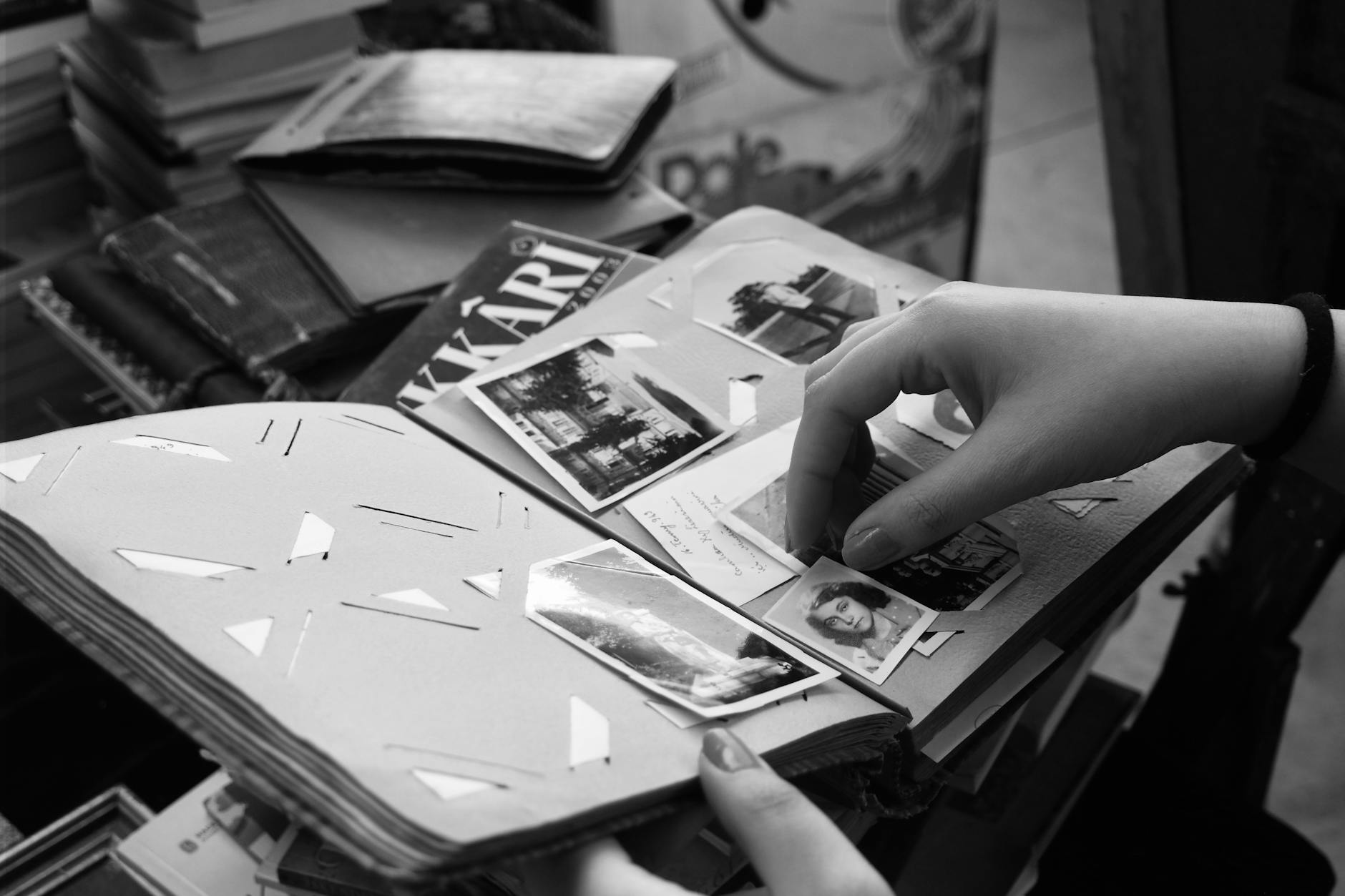
Multiple image files (JPG, PNG, TIFF) being combined into a single multi-page PDF document
Single Image to PDF
The simplest case: you have one image file and need it as a PDF.
The converter automatically sizes the PDF page to match the image dimensions, ensuring no cropping or distortion.
Method 2: macOS Preview
Open the image in Preview
Click File > Export as PDF
Choose your save location
Method 3: Windows Print to PDF
Right-click the image file
Select Print
Choose Microsoft Print to PDF as the printer
Adjust sizing options (Fit, Fill, or actual size)
Click Print and choose a save location
Method 4: Chrome Browser
Open the image in Chrome (drag it into the browser window)
Press Ctrl+P (or Cmd+P)
Set Destination to Save as PDF
Click Save
Multiple Images to PDF
Combining multiple images into a single multi-page PDF is more common than single-image conversion. This is essential for:
Scanned documents (one image per page)
Photo portfolios and lookbooks
Image-based reports
Receipt and invoice archives
Legal document packages
Method 1: ConvertIntoMP4 Online
The image converter on ConvertIntoMP4 supports multi-image PDF creation:
Upload multiple images at once (drag and drop works)
Reorder images by dragging them into the desired sequence
Select PDF as the output format
Click Convert
Method 2: macOS Preview
Open the first image in Preview
Show the sidebar (View > Thumbnails)
Drag additional images into the sidebar to add pages
Reorder by dragging thumbnails
Click File > Export as PDF
Method 3: ImageMagick
# Combine multiple images into one PDF
magick img1.jpg img2.jpg img3.jpg output.pdf

# Combine all JPGs in a directory (sorted by name)
magick *.jpg combined.pdf

# Combine with specific page size (Letter)
magick *.jpg -page Letter combined.pdf

# Combine with specific page size and image fitting
magick *.jpg -resize 2550x3300 -gravity center -extent 2550x3300 combined.pdf
Method 4: Python with Pillow
from PIL import Image
import os

def images_to_pdf(image_paths, output_pdf):
    images = []
    for path in image_paths:
        img = Image.open(path)
        if img.mode == 'RGBA':
            # Convert RGBA to RGB (PDF doesn't support transparency)
            background = Image.new('RGB', img.size, (255, 255, 255))
            background.paste(img, mask=img.split()[3])
            images.append(background)
        else:
            images.append(img.convert('RGB'))

    if images:
        images[0].save(
            output_pdf,
            save_all=True,
            append_images=images[1:],
            resolution=150
        )
        print(f"Created {output_pdf} with {len(images)} pages")

# Usage
image_files = ['scan_001.jpg', 'scan_002.jpg', 'scan_003.jpg']
images_to_pdf(image_files, 'document.pdf')
Method 5: Python with img2pdf (Lossless)
The img2pdf library is special because it embeds JPEG images directly into the PDF without re-encoding them. This means zero quality loss and faster processing.
pip install img2pdf
import img2pdf

# Simple conversion
with open("output.pdf", "wb") as f:
    f.write(img2pdf.convert(["page1.jpg", "page2.jpg", "page3.jpg"]))

# With specific page size (A4)
a4_layout = img2pdf.get_layout_fun(
    pagesize=(img2pdf.mm_to_pt(210), img2pdf.mm_to_pt(297))
)
with open("output.pdf", "wb") as f:
    f.write(img2pdf.convert(
        ["page1.jpg", "page2.jpg"],
        layout_fun=a4_layout
    ))
Pro Tip: When combining scanned document pages into a PDF, use img2pdf instead of Pillow or ImageMagick. It embeds JPEG data directly without re-compression, preserving the original scan quality. Re-encoding scanned images through another JPEG compression pass visibly degrades text readability.
Page Sizing Options
How the image maps to the PDF page is one of the most important decisions in the conversion. There are several approaches:
Page Fits Image (Default)
The PDF page is sized to match the image dimensions exactly. A 3000x2000 pixel image at 300 DPI produces a 10x6.67 inch page.
This is ideal for photographs and artwork where you want the entire image visible without any margins or cropping.
Image Fits Standard Page
The image is scaled to fit a standard page size (Letter, A4, Legal, etc.) with optional margins.
Page Size
Dimensions (inches)
Dimensions (mm)
Best For
Letter
8.5 x 11
216 x 279
US business documents
A4
8.27 x 11.69
210 x 297
International standard
Legal
8.5 x 14
216 x 356
Legal documents
A3
11.69 x 16.54
297 x 420
Large format, posters
A5
5.83 x 8.27
148 x 210
Booklets, small prints
Image-to-Page Mapping Options
Option
Behavior
Best For
Fit
Scale to fit within page, maintaining aspect ratio
General use
Fill
Scale to fill page, cropping edges if needed
Full-bleed printing
Stretch
Distort to fill page exactly
Rarely appropriate
Center
Place at original size, centered on page
Small images
Tile
Repeat image to fill page
Patterns, backgrounds
# ImageMagick: fit image to A4 page with margins
magick input.jpg -resize 2380x3368 -gravity center \
  -extent 2480x3508 -units PixelsPerInch -density 300 output.pdf
Adding an OCR Text Layer
Scanned documents stored as images are not searchable -- you cannot select text, copy it, or find specific words. Adding an OCR (Optical Character Recognition) layer to your PDF makes the text selectable and searchable while keeping the original image as the visual layer.
Using Tesseract
# Install Tesseract
brew install tesseract  # macOS
sudo apt install tesseract-ocr  # Ubuntu/Debian

# Convert image to searchable PDF
tesseract scan.jpg output pdf

# Multiple languages
tesseract scan.jpg output -l eng+fra pdf

# Multiple images to searchable PDF
for img in scan_*.jpg; do
  tesseract "$img" "${img%.jpg}" pdf
done
Using OCRmyPDF
ocrmypdf is a specialized tool that adds OCR layers to existing PDFs. First convert images to PDF, then apply OCR:
pip install ocrmypdf

# Convert images to PDF first
magick scan_*.jpg document.pdf

# Add OCR layer
ocrmypdf document.pdf document_searchable.pdf

# With specific language and optimization
ocrmypdf -l eng --optimize 2 document.pdf document_searchable.pdf
Scanned text documents -- Use high-quality JPEG (85-95%) or PNG. Text must remain readable.
Photographs -- JPEG 70-80% is usually sufficient
Line art, diagrams, signatures -- Use PNG or high-quality JPEG. Lossy compression creates artifacts around sharp edges.
Mixed content -- Default to higher quality (JPEG 85%+) to accommodate both text and images
Pro Tip: For multi-page scanned documents, process each page individually and then combine them. Some pages (like text-heavy pages) benefit from higher quality, while photo pages can use more aggressive compression. The overall PDF size drops significantly compared to using a single quality setting for all pages.
After creating your PDF, you can further optimize it using ConvertIntoMP4's PDF compressor. Our guide on how to reduce PDF file size provides additional strategies.
Common Conversion Scenarios
Scanned Documents
The most common image-to-PDF workflow. Typically involves multi-page documents scanned as individual image files.
Recommended pipeline:
Scan at 300 DPI in color or grayscale
Save as TIFF or PNG (lossless for archival) or JPEG at 90%+ quality
Apply deskew correction if pages are rotated
Combine into a single PDF using img2pdf (lossless JPEG embedding)
Convert an entire directory structure where each folder becomes a separate PDF:
import img2pdf
import os

def directory_to_pdfs(base_dir, output_dir):
    os.makedirs(output_dir, exist_ok=True)

    for folder_name in sorted(os.listdir(base_dir)):
        folder_path = os.path.join(base_dir, folder_name)
        if not os.path.isdir(folder_path):
            continue

        image_files = sorted([
            os.path.join(folder_path, f)
            for f in os.listdir(folder_path)
            if f.lower().endswith(('.jpg', '.jpeg', '.png', '.tiff'))
        ])

        if not image_files:
            continue

        pdf_path = os.path.join(output_dir, f"{folder_name}.pdf")
        with open(pdf_path, "wb") as f:
            f.write(img2pdf.convert(image_files))

        print(f"Created {pdf_path} ({len(image_files)} pages)")

directory_to_pdfs("./scanned_documents", "./pdfs")
Watch Folder Automation
Set up a folder that automatically converts new images to PDF:
import time
import os
import img2pdf

def watch_and_convert(watch_dir, output_dir, interval=5):
    os.makedirs(output_dir, exist_ok=True)
    processed = set()

    print(f"Watching {watch_dir} for new images...")

    while True:
        current_files = set(
            f for f in os.listdir(watch_dir)
            if f.lower().endswith(('.jpg', '.jpeg', '.png'))
        )
        new_files = current_files - processed

        for filename in sorted(new_files):
            input_path = os.path.join(watch_dir, filename)
            pdf_name = os.path.splitext(filename)[0] + '.pdf'
            pdf_path = os.path.join(output_dir, pdf_name)

            with open(pdf_path, "wb") as f:
                f.write(img2pdf.convert([input_path]))

            print(f"Converted: {filename} -> {pdf_name}")
            processed.add(filename)

        time.sleep(interval)

watch_and_convert("./inbox", "./pdfs")
Cause: Page size is smaller than the image, or margins are cutting into the image.
Fix: Use page-fits-image sizing or increase the page size.
PDF Is Extremely Large
Cause: Uncompressed images (PNG, BMP) or very high resolution.
Fix: Convert source images to JPEG at 80% quality before creating the PDF, or use the PDF compressor.
Text in Scanned Images Is Not Selectable
Cause: No OCR layer was added.
Fix: Run ocrmypdf on the PDF to add a searchable text layer.
Colors Look Different in PDF
Cause: Color profile mismatch between the image and PDF viewer.
Fix: Embed the sRGB color profile in the images before conversion.
Images Appear Rotated
Cause: EXIF orientation metadata is not being honored.
Fix: Auto-rotate images based on EXIF data before conversion:
magick mogrify -auto-orient *.jpg
Wrapping Up
Converting images to PDF is a fundamental operation with applications across personal organization, business documentation, legal archival, and creative portfolios. Start with ConvertIntoMP4's PDF converter for quick single or multi-image conversions, use img2pdf for lossless JPEG embedding in automated pipelines, and add OCR with ocrmypdf when you need searchable text.
The key decisions are page sizing (image-fits-page vs page-fits-image), compression quality, and whether to add an OCR layer. Get those right, and your image PDFs will be professional, efficient, and universally readable.