How to OCR Scanned Documents: Extract Text from PDFs and Images
Learn how to extract text from scanned PDFs and images using OCR. Step-by-step guide covering online tools, accuracy tips, language support, and best practices for document digitization.
Optical Character Recognition (OCR) is the technology that converts images of text into actual, editable, searchable text data. When you scan a paper document or receive a PDF that was created from a scanned image, the text you see on screen is not really "text" at all -- it is a picture of text. You cannot select it, copy it, search within it, or edit it. OCR bridges that gap by analyzing the visual patterns in the image and recognizing individual characters, words, and paragraphs.
The practical applications are enormous. Businesses digitize paper archives to make decades of records searchable. Law firms process thousands of scanned contracts for e-discovery. Researchers extract data from historical documents. Individuals convert printed recipes, handwritten notes, or photographed whiteboards into editable text. Healthcare organizations digitize patient records. Government agencies make public documents accessible.
This guide walks you through the process of OCR -- from preparing your source documents to extracting accurate text, with specific attention to the tools, settings, and techniques that produce the best results.
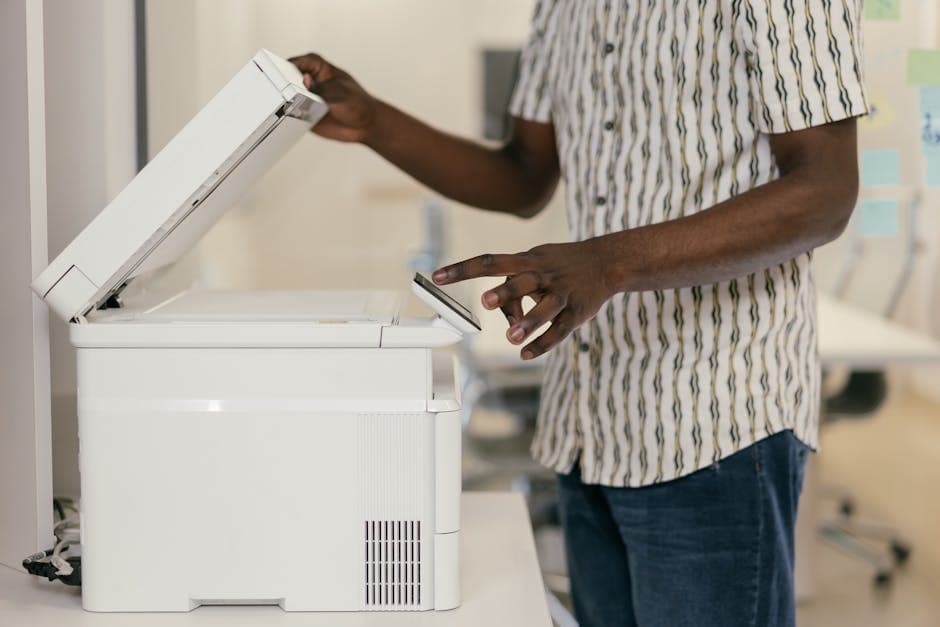
OCR scanning a document to extract text
How OCR Technology Works
The Recognition Pipeline
Modern OCR systems process documents through several stages:
Preprocessing. The image is cleaned up: deskewed (straightened), denoised (speckles removed), binarized (converted to black and white), and contrast-enhanced. This stage has an outsized impact on accuracy -- a well-preprocessed image can improve recognition rates by 20-30%.
Layout analysis. The system identifies regions of the page: text blocks, columns, images, tables, headers, footers. This determines the reading order and separates text from non-text elements.
Character segmentation. Individual characters are isolated within each text region. For well-spaced printed text this is straightforward, but for kerned, overlapping, or handwritten text it becomes more challenging.
Character recognition. Each segmented character is classified using pattern matching, feature extraction, or neural network inference. Modern OCR engines use deep learning models trained on millions of text samples across hundreds of fonts and writing styles.
Post-processing. The recognized text is refined using language models, dictionary lookups, and contextual analysis. This catches errors like confusing "rn" with "m" or "l" with "1" -- mistakes that are common at the character level but obvious in context.
Traditional vs Neural OCR
Early OCR engines relied on template matching -- comparing character shapes against a library of known fonts. This worked well for clean, standard-font documents but struggled with unusual typefaces, degraded scans, or handwriting.
Modern OCR engines use neural networks, particularly convolutional neural networks (CNNs) and recurrent neural networks (RNNs) with attention mechanisms. These models learn to recognize characters from training data rather than hardcoded templates, making them far more robust to variations in font, size, orientation, and quality.
Tesseract, the most widely-used open-source OCR engine, transitioned to an LSTM (Long Short-Term Memory) neural network architecture in version 4. This dramatically improved its accuracy, particularly for non-Latin scripts and degraded documents. ConvertIntoMP4's PDF OCR tool and image to text tool use an LSTM neural OCR engine with optimized preprocessing.
OCR Language Support
One of the most important factors in OCR accuracy is language support. OCR engines need language-specific models that understand the character set, common letter combinations, and dictionary of each language.
Supported Languages
The following table lists the languages supported by ConvertIntoMP4's OCR engine, along with their script type and typical accuracy range on well-scanned documents:
Language
Script
ISO Code
Typical Accuracy (Clean Scan)
Notes
English
Latin
eng
98-99%
Highest accuracy, largest training set
French
Latin
fra
97-99%
Excellent with accented characters
German
Latin
deu
97-99%
Handles umlauts and eszett well
Spanish
Latin
spa
97-99%
Good with tildes and accented vowels
Portuguese
Latin
por
97-98%
Includes Brazilian variant
Italian
Latin
ita
97-99%
Strong diacritical mark support
Dutch
Latin
nld
97-98%
Handles digraphs (ij) correctly
Polish
Latin
pol
96-98%
Good with special characters (ł, ą, ę)
Russian
Cyrillic
rus
96-98%
Full Cyrillic character set
Ukrainian
Cyrillic
ukr
95-97%
Distinct from Russian model
Arabic
Arabic
ara
90-95%
Right-to-left, connected script
Chinese (Simplified)
CJK
chi_sim
92-96%
Large character set, context-dependent
Chinese (Traditional)
CJK
chi_tra
91-95%
More complex characters than simplified
Japanese
CJK + Kana
jpn
91-95%
Mixed script (kanji, hiragana, katakana)
Korean
Hangul
kor
93-96%
Syllabic block structure
Hindi
Devanagari
hin
90-94%
Connected headline (shirorekha)
Turkish
Latin
tur
96-98%
Handles dotted/undotted I distinction
Pro Tip: When scanning multilingual documents, specify the primary language for best results. If a document contains text in multiple languages (for example, an English document with French quotations), select the dominant language. The OCR engine will still recognize common Latin-script words from other languages, though specialized characters may have slightly lower accuracy.
Step-by-Step Guide: OCR a Scanned PDF
Step 1: Assess Your Source Document
Before running OCR, evaluate the quality of your source material. The single biggest factor in OCR accuracy is input quality.
Good candidates for OCR:
Clean scans at 300 DPI or higher
Black text on white background
Standard fonts (serif or sans-serif)
Well-aligned pages without significant skew
Documents without heavy watermarks or background patterns
Challenging inputs:
Photos taken at an angle (perspective distortion)
Low-resolution scans (below 200 DPI)
Faded or yellowed paper
Handwritten text
Documents with complex layouts (multiple columns, tables, callout boxes)
Text overlapping images or decorative elements
Step 2: Prepare the Document
If your source document needs improvement, preprocessing makes a significant difference:
Increase resolution. If the scan is below 300 DPI, rescan at 300 or 600 DPI if possible. Higher resolution gives the OCR engine more detail to work with.
Straighten skewed pages. Even a 1-2 degree tilt can reduce accuracy. Most scanning software has an auto-deskew option.
Improve contrast. Increase the contrast between text and background. For very faded documents, consider converting to grayscale and adjusting levels.
Remove noise. Speckles, dust marks, and scanner artifacts confuse OCR engines. A gentle noise reduction filter can help without blurring the text.
Crop unnecessary borders. Remove dark scan borders, binding shadows, and blank margins.
Document preprocessing for better OCR accuracy
Step 3: Upload and Configure
Navigate to the PDF OCR tool on ConvertIntoMP4. Upload your scanned PDF or image file. The tool accepts PDF, JPEG, PNG, TIFF, and BMP inputs.
Configure the OCR settings:
Language selection. Choose the language of the document text. This loads the appropriate recognition model.
Output format. Select your preferred output: searchable PDF (original layout with invisible text overlay), plain text (.txt), Word document (.docx), or other formats.
Page range. For multi-page PDFs, you can OCR specific pages rather than the entire document.
Step 4: Review and Correct
After OCR processing completes, review the output for errors. Common issues to look for:
Confused characters: "0" vs "O", "1" vs "l" vs "I", "rn" vs "m", "5" vs "S"
Broken words: Words split across lines or columns that were incorrectly separated
Missing punctuation: Periods and commas that were too small or faint to detect
Table formatting: OCR engines often struggle with table cell boundaries
Headers and footers: Page numbers, headers, and footnotes may be mixed into body text
For critical documents (legal, medical, financial), always proofread the OCR output against the original.
Pro Tip: If you need to OCR a large batch of scanned documents, process a sample of 5-10 pages first to evaluate quality. This lets you identify systematic issues (wrong language model, preprocessing needed, consistent misrecognitions) before processing the entire batch.
OCR Accuracy by Document Type
Accuracy varies significantly depending on the type of document being processed. This table provides realistic expectations.
Document Type
Expected Accuracy
Common Issues
Recommendations
Modern printed documents
98-99%
Very few errors on clean scans
300 DPI, auto-deskew
Business letters and memos
97-99%
Letterhead logos may confuse layout
Crop headers if problematic
Books and publications
96-98%
Footnotes, page numbers, columns
Specify reading order
Legal contracts
95-98%
Dense text, small font, numbered clauses
High resolution (600 DPI)
Historical documents (pre-1960)
85-95%
Faded ink, yellowed paper, old typefaces
High contrast preprocessing
Handwritten text (neat)
70-85%
Inconsistent letterforms, connected strokes
Moderate expectations
Handwritten text (cursive)
50-75%
Highly variable, overlap between characters
Manual review essential
Receipts and invoices
90-96%
Thermal paper fade, small fonts, mixed layouts
Scan promptly before fading
Medical records
90-95%
Specialized terminology, abbreviations
Medical dictionary post-processing
Engineering drawings
60-80%
Mixed text/graphics, rotated labels, annotations
Extract text regions manually
Photographs of documents
85-95%
Perspective distortion, uneven lighting, shadows
Flatten and correct perspective first
Faxed documents
80-92%
Low resolution, compression artifacts, moiré
Rescan original if available
Advanced OCR Techniques
Improving Accuracy with Custom Dictionaries
If your documents contain specialized terminology (medical, legal, technical), a custom dictionary can dramatically improve accuracy. The OCR engine's post-processing step uses dictionary lookup to correct ambiguous recognitions. When the dictionary includes domain-specific terms, words that would otherwise be "corrected" to common alternatives are preserved correctly.
For example, a medical OCR dictionary would include terms like "brachytherapy," "angioplasty," and "metformin" that a general dictionary might try to "correct" into more common words.
Multi-Pass OCR for Difficult Documents
For particularly challenging documents, a multi-pass approach can improve results:
First pass with default settings to get a baseline recognition
Second pass with adjusted preprocessing (different binarization threshold, different noise reduction level)
Compare and merge results -- take the higher-confidence recognition for each word
This technique is most useful for historical or degraded documents where a single set of preprocessing parameters does not work well for the entire page.
Table Extraction
Tables are one of the most challenging elements for OCR because the engine must understand both the text content and the spatial relationships between cells. Tips for better table OCR:
Ensure table gridlines are visible and complete
Use a higher scan resolution (600 DPI) for tables with small text
Consider extracting tables as images and processing them separately from the body text
For critical data tables, verify every cell against the original
If you need to convert entire PDF documents while preserving layout including tables, the PDF converter can help maintain document structure.
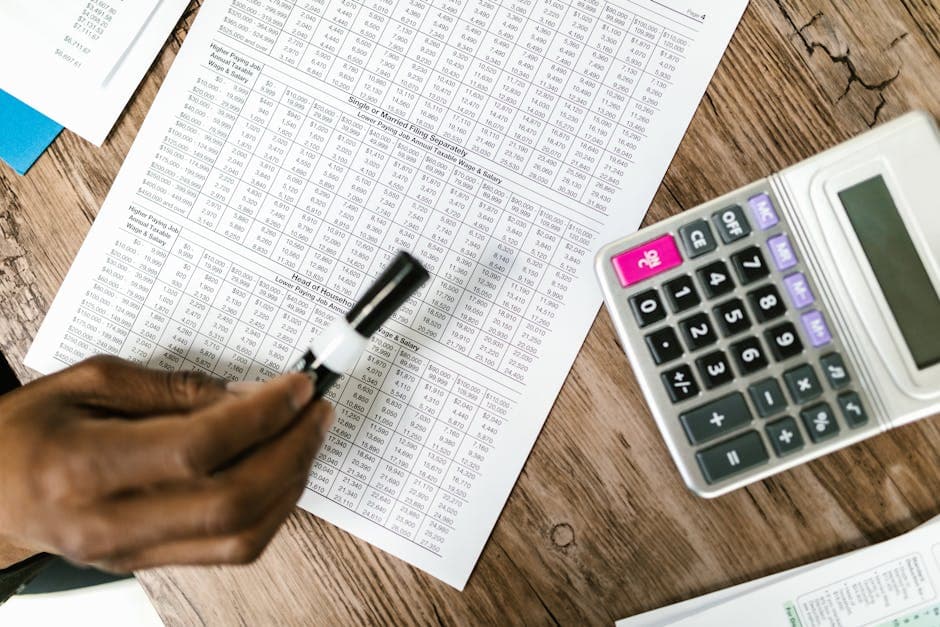
Extracting tables from scanned documents with OCR
OCR for Different File Types
Scanned PDFs
Scanned PDFs are the most common OCR use case. These are PDFs where each page is essentially a full-page image, usually created by a document scanner or multifunction printer. The PDF OCR tool accepts these directly and produces a searchable PDF with an invisible text layer overlaid on the original page images.
The searchable PDF approach is particularly useful because it preserves the visual appearance of the original document while making the text selectable, searchable, and copy-able. This is the standard approach used by law firms, government agencies, and corporate archives.
Photographs and Screenshots
Photos of documents -- taken with a smartphone camera, for example -- present additional challenges compared to scans:
Perspective distortion. The document is usually not perfectly parallel to the camera sensor.
Uneven lighting. Shadows, glare, and uneven ambient light create variations in brightness.
Lower effective resolution. Even a high-megapixel phone photo may have lower effective text resolution than a 300 DPI scan.
For best results with photographed documents, use the phone's document scanning mode (available in most camera apps), which automatically corrects perspective, enhances contrast, and crops to the document edges. The image to text tool processes JPEG and PNG images.
Multi-Page Document Workflows
For large document digitization projects, consider this workflow:
Scan all documents at 300 DPI in PDF format (most scanners support multi-page PDF)
Store both the original scanned PDF and the OCR-processed searchable PDF
Index the searchable PDFs for full-text search
Pro Tip: Keep your original scans even after OCR processing. OCR technology continues to improve, and you may want to re-process older documents with newer, more accurate engines in the future. Storage is cheap -- reprocessing is time-consuming.
Common OCR Challenges and Solutions
Challenge: Mixed Languages in One Document
Documents that contain text in multiple languages (for example, a scientific paper with English body text and Japanese citations) are harder to OCR because the engine optimizes for a single language model.
Solution: Process the document in the dominant language first, then re-process sections in other languages separately. Merge the results manually. Some advanced OCR engines support multi-language detection, but accuracy is typically lower than single-language processing.
Challenge: Poor Quality Scans
Old, faded, or damaged documents produce poor scans that degrade OCR accuracy significantly.
Solution: Apply aggressive preprocessing -- high-contrast binarization, strong noise reduction, and careful deskewing. If the original document is available, rescan at the highest possible resolution. For archival documents that cannot be rescanned, accept that accuracy may be 80-90% and plan for manual correction.
Challenge: Handwriting Recognition
Handwritten text remains one of the hardest problems in OCR. Even neat handwriting produces dramatically lower accuracy than printed text.
Solution: For critical handwritten documents, consider specialized handwriting recognition services rather than general-purpose OCR. For informal needs (handwritten notes, whiteboard captures), general OCR provides a useful starting point that you can then manually correct.
Challenge: Complex Layouts
Multi-column layouts, sidebars, callout boxes, and text that wraps around images can confuse OCR layout analysis, causing text from different sections to be mixed together.
Solution: If layout analysis fails, crop the document into simpler regions and OCR each region separately. For consistently formatted documents (like a magazine template), establish a preprocessing workflow that isolates text regions reliably.
OCR and Document Conversion
OCR is often one step in a larger document processing workflow. After extracting text from a scanned document, you might need to:
Convert the searchable PDF to Word for editing. The how to convert PDF to Word guide covers this in detail.
Reduce the PDF file size after adding the text layer. OCR adds a small amount of data to the PDF, and the how to reduce PDF file size post explains various compression strategies.
Merge multiple OCR-processed documents into a single file. After processing individual pages or sections, you may need to combine them.
Extract specific pages from a large OCR-processed document for sharing or archival.
The document converter category page provides an overview of all available document conversion tools.
Security and Privacy Considerations
When processing documents that contain sensitive information (financial records, medical data, legal contracts, personal identification), security matters:
On-device processing. OCR that runs locally on your computer or phone never transmits your document to an external server. This is the most secure option for highly sensitive documents.
Cloud OCR with encryption. When using online OCR tools, verify that documents are transmitted over encrypted connections (HTTPS) and that the service has a clear data retention and deletion policy.
Automatic deletion. ConvertIntoMP4 automatically deletes uploaded files after processing. Your documents are not stored permanently or used for training purposes.
Redaction after OCR. If you plan to share OCR-processed documents, review them for sensitive information that should be redacted. The fact that text is now searchable makes it easier for others to find sensitive data within the document.
Pro Tip: For documents containing personally identifiable information (PII), social security numbers, or financial data, consider processing them in batches and immediately downloading the results rather than leaving files in any cloud service queue. Delete your browser cache after downloading sensitive OCR results.
OCR for Specific Industries
Legal Document OCR
Law firms process enormous volumes of scanned documents for e-discovery, contract review, and case preparation. Key considerations for legal OCR:
Accuracy is paramount. A misrecognized word in a contract clause could change its meaning. Always proofread OCR output of legal documents.
Bates numbering. Legal documents often carry Bates stamps (sequential identification numbers). These small, sometimes faint numbers at page edges need high-resolution scans to be recognized correctly.
Redaction awareness. Be cautious when OCR-processing documents that contain redacted content. The redaction must be a permanent flat layer, not just a visual overlay, or the OCR engine may "see through" it.
Chain of custody. Maintain records of OCR processing (when, what tool, what settings) for documents that may be used as evidence.
Medical Records OCR
Healthcare organizations digitize patient records for electronic health record (EHR) systems. Medical OCR presents unique challenges:
Specialized terminology. Medical terms, drug names, and abbreviations require domain-specific language models for accurate recognition.
Handwritten physician notes. Historically, doctors' handwriting is notoriously difficult to read -- for humans and OCR engines alike.
HIPAA compliance. In the United States, medical documents contain protected health information (PHI). Ensure your OCR processing complies with HIPAA data handling requirements.
Mixed content. Medical records often combine printed forms, handwritten notes, lab printouts, and imaging results in a single document.
Financial Document OCR
Banks, accounting firms, and finance departments process invoices, receipts, bank statements, and tax documents:
Numeric accuracy is critical. A misrecognized digit in a financial figure can cause significant errors. Double-check all numbers.
Currency symbols and formatting. Commas, periods, and currency symbols vary by locale (1,000.00 vs 1.000,00). Configure the OCR language setting to match the document's locale.
Table-heavy layouts. Financial documents are often organized in tables. Use high-resolution scans and verify cell contents carefully.
OCR Quality Checklist
Before considering an OCR job complete, verify the following:
Spot-check accuracy. Read through several paragraphs comparing OCR output to the original. Focus on numbers, proper nouns, and specialized terms.
Verify page order. Multi-page documents should maintain correct page sequence.
Check for missing content. Ensure that all text regions were detected -- sidebars, footnotes, and captions are commonly missed.
Validate table data. Tables are error-prone. Verify cell contents and alignment.
Test searchability. For searchable PDFs, use Ctrl+F to search for several known terms and confirm they are found.
Confirm language accuracy. Characters with diacritical marks (accents, umlauts, cedillas) should be correctly recognized.
Conclusion
OCR transforms static document images into dynamic, searchable, editable text -- unlocking the content trapped in scanned pages, photographs, and legacy PDFs. The technology has matured significantly with neural network-based engines, but the quality of your results still depends heavily on input preparation, language selection, and post-processing verification.
For quick one-off OCR tasks, the image to text tool and PDF OCR tool provide fast, accurate results directly in your browser. For large-scale digitization projects, combining good scanning practices with batch OCR processing and systematic quality checks produces the best outcomes.
The key takeaway: OCR accuracy is not just about the engine -- it is about the entire pipeline from scanning to post-processing. Invest time in preparing your source documents and reviewing the output, and you will get dramatically better results regardless of which OCR tool you use.
ocrtext extractionscanned documentspdf ocrimage to texttesseract
About the Author
Michael Rodriguez
Video production expert covering codec standards, streaming formats, and professional post-production pipelines.