How to Convert AC3 to MP3: Dolby Digital Audio Conversion
Learn how to convert AC3 (Dolby Digital) audio to MP3 step by step. Covers surround sound downmixing, bitrate selection, batch conversion, and preserving audio quality from DVD and Blu-ray sources.
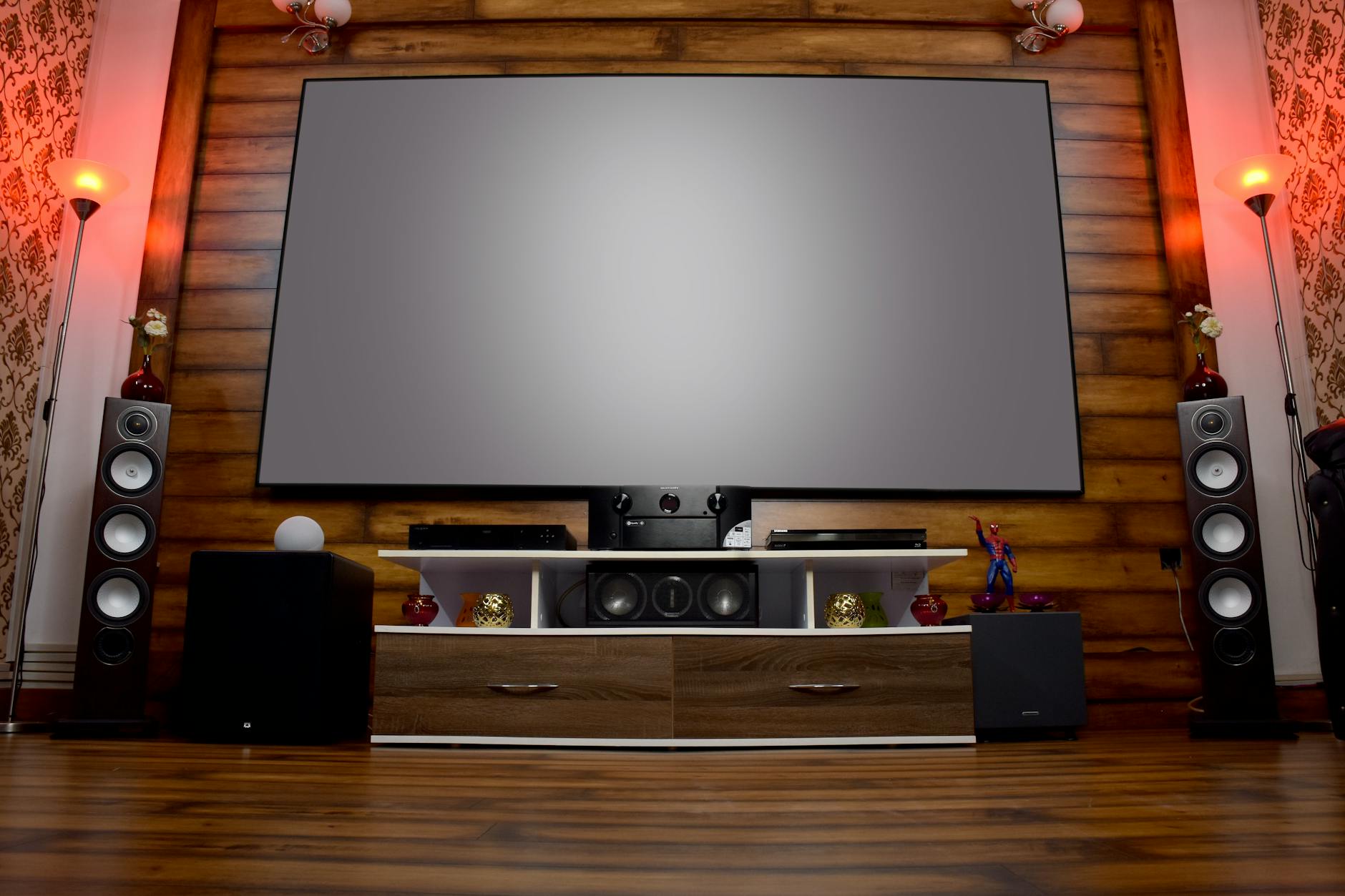
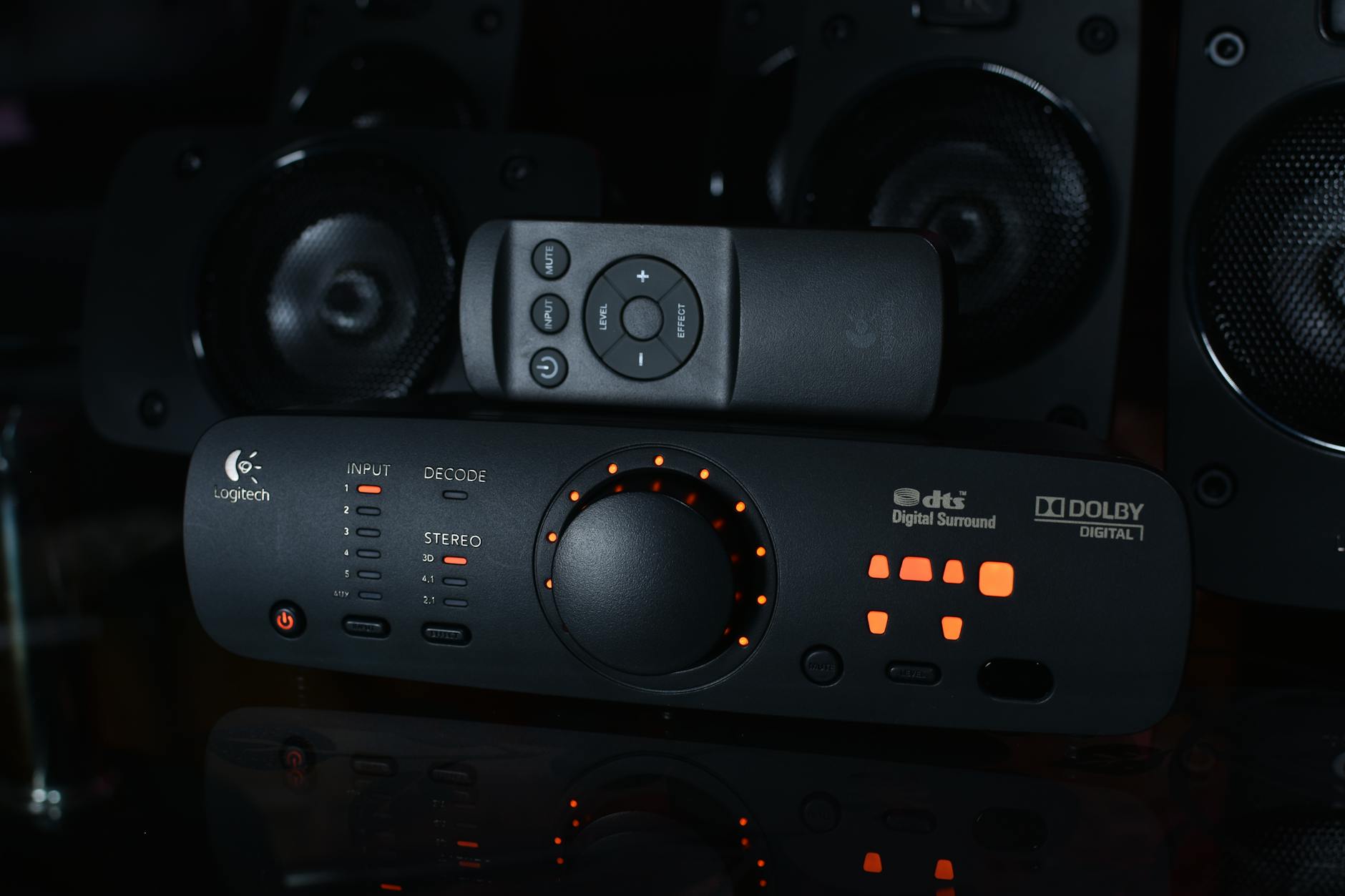
AC3, officially known as Dolby Digital, is the surround sound audio format used in DVDs, Blu-ray discs, digital television broadcasts, and many streaming services. When you pop in a DVD or rip audio from a Blu-ray, the audio track is almost always in AC3 format — typically as a 5.1 surround sound mix with six discrete channels: front left, front right, center, LFE (subwoofer), surround left, and surround right.
The problem is that AC3 files are not widely supported outside of media players and home theater systems. You cannot play an AC3 file on most music apps, car stereos, portable audio players, or smartphones without dedicated software. If you want to listen to a movie soundtrack on your phone, use dialogue audio for a project, or share audio from a DVD rip, you need to convert it to a universally compatible format like MP3.
This tutorial walks through the complete process of converting AC3 to MP3 — including how to properly downmix 5.1 surround to stereo, the right bitrate settings, batch conversion for entire movie libraries, and how to handle common issues like volume differences and channel mapping problems.
AC3 Dolby Digital to MP3 conversion process
Understanding AC3 Audio
Before converting, it helps to understand what you are working with.
AC3 Technical Details
Property
AC3 Specification
Full Name
Dolby Digital (Audio Codec 3)
Compression
Lossy (perceptual coding)
Typical Bitrate
192-640 kbps
Sample Rate
48 kHz (standard), 32 kHz, 44.1 kHz
Channels
Mono, Stereo, or 5.1 Surround
Bit Depth
16-bit or 24-bit
File Extension
.ac3 or embedded in .mkv, .avi, .vob
Primary Use
DVDs, Blu-rays, digital TV, streaming
AC3 vs. MP3 Comparison
Feature
AC3 (Dolby Digital)
MP3
Channels
Up to 5.1 surround
Stereo (2 channels)
Typical Bitrate
384-640 kbps (5.1)
128-320 kbps (stereo)
Device Support
Home theater, media players
Universal
Compression Type
Lossy (psychoacoustic)
Lossy (psychoacoustic)
Optimized For
Film/TV surround sound
Music playback, portable audio
Metadata Support
Limited
ID3 tags (extensive)
Streaming Support
Requires compatible decoder
Universal
Both AC3 and MP3 are lossy formats, which means converting between them involves lossy-to-lossy transcoding. Some quality loss is unavoidable. However, since AC3 files from DVDs and Blu-rays are typically encoded at high bitrates (384-640 kbps across all channels), there is usually enough audio quality in the source to produce a good-sounding MP3.
Converting AC3 to MP3 with FFmpeg
FFmpeg is the most reliable tool for AC3 to MP3 conversion, with full support for Dolby Digital decoding and stereo downmixing.
Basic Conversion
# Simple AC3 to MP3 conversion (auto downmix to stereo)
ffmpeg -i input.ac3 -c:a libmp3lame -b:a 320k output.mp3
FFmpeg automatically detects the channel layout of the AC3 file and downmixes to stereo when encoding to MP3. The default downmix algorithm applies standard coefficients that preserve dialogue clarity and spatial balance.
Controlling the Downmix
The default downmix sometimes produces results where the center channel (dialogue) is too quiet relative to the surround channels. You can control the mix manually:
# Custom downmix with boosted center channel
ffmpeg -i input.ac3 -af "pan=stereo|FL=0.5*FL+0.707*FC+0.5*BL|FR=0.5*FR+0.707*FC+0.5*BR" -c:a libmp3lame -b:a 320k output.mp3
This formula sends 70.7% of the center channel to both the left and right stereo outputs, which is the standard cinema downmix coefficient. Adjust the 0.707 value to taste — increasing it makes dialogue louder relative to surround effects.
Converting from Video Files
AC3 audio is usually embedded in video containers (MKV, AVI, VOB). You can extract and convert in one step:
# Extract AC3 from MKV and convert to MP3
ffmpeg -i movie.mkv -vn -c:a libmp3lame -b:a 256k soundtrack.mp3

# Extract only the first audio stream
ffmpeg -i movie.mkv -map 0:a:0 -c:a libmp3lame -b:a 256k soundtrack.mp3

# Extract the second audio stream (e.g., commentary track)
ffmpeg -i movie.mkv -map 0:a:1 -c:a libmp3lame -b:a 192k commentary.mp3
The -vn flag tells FFmpeg to skip the video stream entirely, producing an audio-only output. The -map flag lets you select a specific audio stream when the video contains multiple tracks (main audio, commentary, alternate language).
Pro Tip: Before converting, check what audio streams are in your video file using ffprobe input.mkv. This shows you all available audio tracks, their codecs, languages, and channel layouts. For videos with multiple AC3 tracks in different languages, use -map 0:a:N to select the right one (where N is the zero-indexed stream number).
Extracting Specific Segments
If you only need a portion of the audio (a scene's dialogue, a soundtrack segment):
Since you are converting from a lossy source (AC3), there is a quality ceiling. The output MP3 cannot contain more audio information than the original AC3 provided after decoding. Here are recommended bitrates:
Source AC3 Bitrate
Recommended MP3 Bitrate
Use Case
640 kbps 5.1 (Blu-ray)
320 kbps stereo
High quality soundtrack listening
448 kbps 5.1 (DVD)
256 kbps stereo
Good quality, balanced file size
384 kbps 5.1 (DVD)
192-256 kbps stereo
Standard quality
192 kbps stereo (TV)
192 kbps stereo
Match source quality
Any (dialogue only)
128 kbps stereo
Speech, podcasts, lectures
Going above 320 kbps for the MP3 output provides no benefit — you are already past the threshold of transparency for most listeners, and the AC3 source has already discarded some audio information during its own encoding.
FFmpeg AC3 to MP3 conversion settings
Using the Online Converter
If you prefer not to use command-line tools, our audio converter handles AC3 to MP3 conversion directly in your browser:
Upload your AC3 file (or video file containing AC3 audio)
Select MP3 as the output format
Choose your target bitrate (192, 256, or 320 kbps)
Click Convert and download your MP3
The converter automatically handles 5.1 to stereo downmixing with optimized coefficients for dialogue clarity. For format-specific options, you can also use the MP3 converter hub.
Batch Converting AC3 Files
Converting All AC3 Files in a Directory
#!/bin/bash
# Convert all .ac3 files to 256 kbps MP3
for ac3 in /path/to/files/*.ac3; do
  filename=$(basename "$ac3" .ac3)
  ffmpeg -i "$ac3" -c:a libmp3lame -b:a 256k "/path/to/output/${filename}.mp3"
done
Extracting AC3 from Multiple Video Files
#!/bin/bash
# Extract and convert audio from all MKV files
for mkv in /path/to/movies/*.mkv; do
  filename=$(basename "$mkv" .mkv)
  ffmpeg -i "$mkv" -vn -c:a libmp3lame -b:a 256k "/path/to/audio/${filename}.mp3"
done
The most common complaint when converting 5.1 AC3 to stereo MP3 is that dialogue (mixed to the center channel) sounds too quiet relative to music and effects (mixed to the left/right and surround channels). Solutions:
This compresses the dynamic range (making quiet parts louder and loud parts quieter) and then normalizes the overall volume. It is particularly useful for movie audio that has extreme dynamic range — whispered dialogue followed by explosive action sequences.
Issue: Volume Jumps Between Converted Files
Different movies and shows are mastered at different loudness levels. If you are building a collection, normalize all files to a consistent loudness:
This applies EBU R128 loudness normalization, targeting -16 LUFS (the standard for streaming platforms). For a complete walkthrough of normalization techniques, see our guide on how to normalize audio volume.
Issue: LFE (Subwoofer) Channel Lost
The LFE channel carries deep bass content below about 120 Hz. The default FFmpeg downmix includes the LFE channel, but at a reduced level. To include more LFE bass:
The 0.5*LFE coefficient mixes the subwoofer channel at 50% volume into both stereo channels. Adjust to taste, but be careful — too much LFE can make the bass overwhelming on headphones.
Issue: Clicks or Pops in Output
This occasionally happens when the AC3 stream has errors or when seeking to a specific timestamp that does not align with an AC3 frame boundary. Solutions:
# Decode to WAV first, then encode to MP3
ffmpeg -i input.ac3 -c:a pcm_s24le intermediate.wav
ffmpeg -i intermediate.wav -c:a libmp3lame -b:a 256k output.mp3
The two-step approach decodes the AC3 fully before encoding, which can resolve frame alignment issues.
Pro Tip: If you have EAC3 (Enhanced AC3 / Dolby Digital Plus) files instead of standard AC3, the same FFmpeg commands work identically. FFmpeg's decoder handles both AC3 and EAC3 transparently. EAC3 is common on Blu-rays and streaming services, and supports higher bitrates and more channels than standard AC3.
Batch AC3 to MP3 conversion workflow
Alternative Output Formats
While MP3 is the most universally compatible choice, you might want to consider other formats depending on your use case:
AAC (.m4a): Better quality than MP3 at the same bitrate. Native support on Apple devices. Use the AAC converter.
FLAC: If you want to preserve the decoded AC3 audio in a lossless container (no further quality loss). Use the FLAC converter. Note: the audio is still limited by the original AC3 encoding quality.
OGG Vorbis: Open-source alternative with good quality. Use the OGG converter.
WAV: Uncompressed decoded audio. Large files but no additional quality loss. Use the WAV converter.
Sometimes you want to keep the original AC3 audio without converting to MP3 — for example, to preserve the 5.1 surround mix for playback on a home theater system. You can extract the AC3 stream from a video container without re-encoding:
# Extract raw AC3 stream (no re-encoding)
ffmpeg -i movie.mkv -map 0:a:0 -c:a copy output.ac3

# Extract to a standalone container
ffmpeg -i movie.mkv -map 0:a:0 -c:a copy output.mka
The -c:a copy flag tells FFmpeg to copy the audio stream as-is, with no decoding or re-encoding. This is instant and preserves the original quality perfectly.
Frequently Asked Questions
Does converting AC3 to MP3 lose quality?
Yes. Both AC3 and MP3 are lossy formats. Converting from one to the other involves decoding the AC3 (recovering a PCM approximation of the original audio) and then encoding that PCM into MP3 (discarding more audio data). The result has been through two stages of lossy compression. However, at high bitrates (256-320 kbps MP3 from a high-quality AC3 source), the quality loss is minimal and acceptable for most listening scenarios.
Can I convert AC3 5.1 to MP3 and keep surround sound?
No. MP3 is a stereo format — it supports a maximum of two channels. Converting 5.1 AC3 to MP3 always involves downmixing six channels to two. If you need to preserve the surround mix, keep the AC3 file or convert to a multichannel format like FLAC or WAV.
What bitrate should I use for AC3 to MP3 conversion?
For most purposes, 256 kbps is the sweet spot — good quality with reasonable file size. Use 320 kbps if you want the absolute best MP3 quality. Use 192 kbps if file size is a priority. For speech-only content (audiobooks, dialogue), 128 kbps is sufficient.
How do I convert DTS to MP3?
DTS is another surround sound format common on Blu-rays. The conversion process is identical — just replace the input file:
FFmpeg handles DTS decoding and downmixing the same way it handles AC3.
Can I convert AC3 to MP3 on my phone?
Not easily with FFmpeg, which is a desktop tool. However, our audio converter works in any mobile browser and can handle AC3 to MP3 conversion without installing anything. Upload your AC3 file, select MP3 output, and download the result.