How to Convert EPUB to PDF: Ebook to Document Conversion
Learn how to convert EPUB ebooks to PDF documents. Covers layout preservation, font embedding, Calibre conversion, online tools, page sizing options, and handling complex ebook formatting.
Alex Thompson·February 19, 2026·12 min read
Why Convert EPUB to PDF?
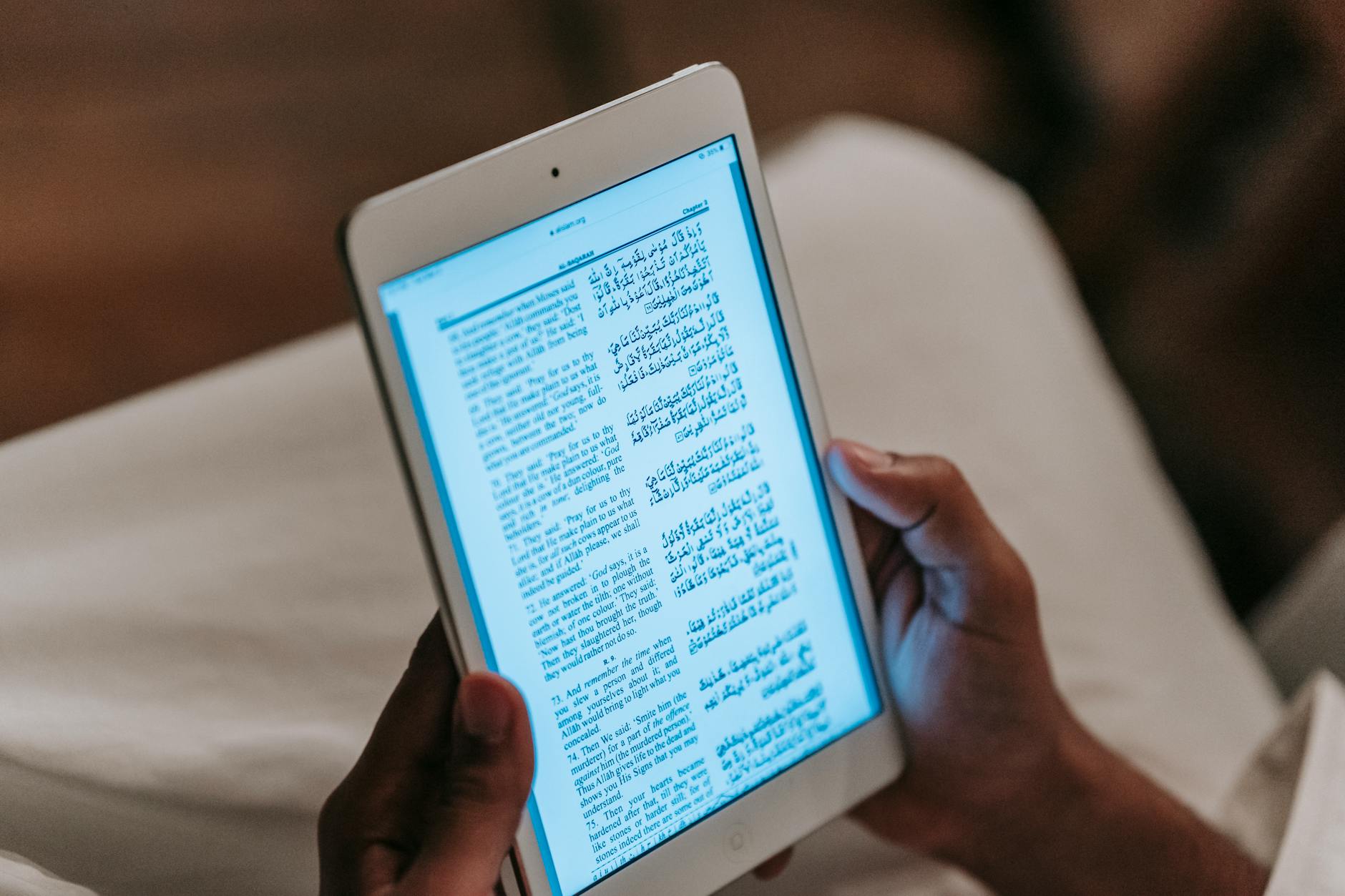
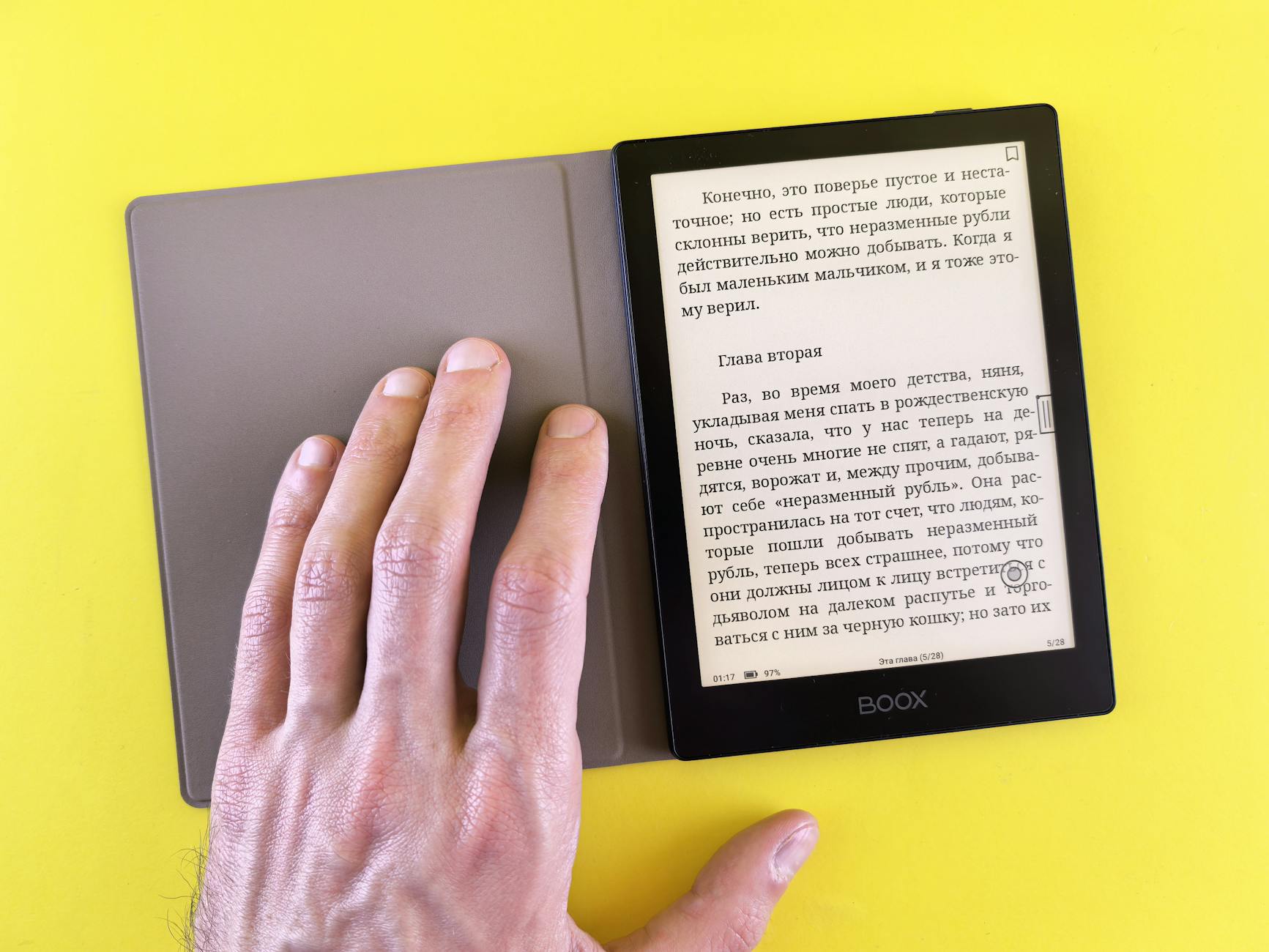
EPUB is the standard format for ebooks. It is supported by Apple Books, Google Play Books, Kobo, and virtually every ebook reader except Amazon Kindle. EPUB files are reflowable -- the text adapts to the screen size, font preferences, and display settings of whatever device the reader uses.
This flexibility is EPUB's greatest strength for reading, but it becomes a problem when you need the content in a fixed format. You want to print chapters from an ebook. You need to submit an ebook manuscript for review in a standard document format. You want to annotate an ebook using PDF tools. You need to share ebook content with someone who does not have an EPUB reader.
PDF solves all of these problems by rendering the ebook's content into fixed pages with consistent typography, layout, and formatting that looks the same everywhere. The conversion from a reflowable format (EPUB) to a fixed-layout format (PDF) involves making decisions about page size, font rendering, margins, and how to handle responsive layout elements.
This guide covers the complete conversion process: understanding the challenges, choosing the right tools, configuring output settings, and handling edge cases that trip up most converters.
EPUB vs PDF: Understanding the Fundamental Difference
Before converting, it helps to understand why this conversion is non-trivial. EPUB and PDF represent documents in fundamentally different ways.
Aspect
EPUB
PDF
Layout model
Reflowable (content adapts to screen)
Fixed (content locked to page coordinates)
Page concept
No pages -- continuous scrolling
Fixed pages with defined dimensions
Font handling
References fonts, reader can override
Embeds fonts, appearance fixed
Text size
User-adjustable
Fixed at conversion time
Images
Scale with text flow
Fixed position and size
Internal structure
HTML + CSS in a ZIP container
Binary stream with object references
Reading experience
Optimized for screens of any size
Optimized for paper and fixed screens
File size
Generally smaller
Generally larger
The conversion challenge is that EPUB has no concept of pages. Content flows continuously, and the "pages" you see in an ebook reader are created dynamically by the reading software based on screen size and font settings. Converting to PDF means making permanent decisions about where every page break falls.
Method 1: Using Calibre (Desktop)
Calibre is the most powerful and widely used ebook management tool, and its EPUB-to-PDF conversion produces excellent results.
Installation
Calibre is free and open source, available for Windows, macOS, and Linux from calibre-ebook.com.
Basic Conversion
Open Calibre and add your EPUB file (drag and drop or click "Add books")
Select the book in your library
Click "Convert books" in the toolbar
In the top-right corner, set the output format to PDF
Click OK to convert with default settings
When complete, click "Click to open" to view the PDF
Configuring PDF Output
Calibre's conversion dialog has several tabs with settings that significantly affect the output quality:
Page Setup tab:
Output profile: Choose "Generic" for standard printing, or select a specific device
Paper size: Letter (8.5 x 11"), A4 (210 x 297mm), or custom dimensions
Margins: Top, bottom, left, right (in points or millimeters)
PDF Output tab:
Default font size: Controls the base text size (12pt is standard)
Monospace font size: Size for code blocks and preformatted text
Serif family / Sans family: Override the ebook's fonts with your preferred typefaces
Insert page breaks before: Tags that force a page break (typically <h1> for chapter starts)
Look & Feel tab:
Font size rescaling: Adjust the overall text size
Line height: Control spacing between lines
Text justification: Left-aligned or justified
Advanced Calibre Settings
For precise control over the conversion, Calibre supports custom CSS injection:
Paste this into the "Extra CSS" field in the Look & Feel tab to override the ebook's default styling.
Pro Tip: Before converting, open the EPUB in Calibre's built-in viewer to see how the content is structured. Look for chapter breaks, image placement, and any unusual formatting. This preview helps you anticipate conversion issues and configure settings accordingly. If chapters do not start on new pages in the PDF, add h1 or h2 to the "Insert page breaks before" setting.
Configuring Calibre's EPUB to PDF conversion settings
Method 2: Online Conversion Tools
For quick conversions without installing software, online tools handle the conversion in the cloud.
The document converter also handles EPUB files as part of its broad format support, and provides additional output options.
Online Conversion Considerations
Online tools are convenient but have limitations compared to Calibre:
Factor
Online Tools
Calibre
Setup required
None (browser-based)
Install application
Customization
Basic (page size, margins)
Extensive (fonts, CSS, page breaks)
Font handling
Server-side font fallbacks
Full font library access
Complex EPUBs
May struggle with advanced CSS
Handles most EPUB features
File size limits
Varies by service
No limit
Privacy
File uploaded to server
Local processing only
Batch processing
Limited
Full support
Speed for single files
Fast
Fast
For simple ebooks with standard formatting, online tools produce results comparable to Calibre. For complex ebooks with custom fonts, advanced layouts, or embedded media, Calibre provides the control needed for a clean conversion.
Method 3: Command-Line Conversion
Using Calibre's CLI
Calibre includes a command-line tool called ebook-convert that is ideal for scripting and automation:
Pandoc produces typographically excellent PDFs because it renders through LaTeX, but requires a LaTeX distribution (TeX Live or MiKTeX) to be installed. For more on LaTeX-based PDF generation, see our guide on LaTeX to PDF for academic papers.
Layout Preservation Challenges
The EPUB-to-PDF conversion is not always straightforward. Several common issues can affect the output quality:
Reflowable Content Becoming Fixed
EPUB's reflowable layout means the content has no inherent page structure. When the converter creates PDF pages, it must decide where to break content. This can result in:
Headings appearing at the bottom of a page with the body text on the next page
Images separated from their captions
Tables split awkwardly across pages
Footnotes disconnected from their references
Most converters handle these cases reasonably well by applying page-break rules (keep headings with following content, avoid breaking images and tables). However, complex layouts may need manual adjustment after conversion.
Font Substitution
EPUBs reference fonts that may or may not be available on the conversion system. If the specified font is not found, the converter substitutes a fallback font. This can change line lengths, paragraph spacing, and page breaks throughout the document.
To minimize font issues:
Use Calibre's font override settings to specify fonts you know are available
Embed fonts in the EPUB before conversion (if you control the source file)
Check the converted PDF for unexpected font changes
Images and Graphics
Images in EPUB files are typically sized relative to the text flow. In PDF, they must have absolute dimensions. The converter scales images to fit the page width while maintaining aspect ratios, but very large or very small images may not look right without manual size adjustments.
Images intended to fill a full screen in the ebook reader might appear too large or too small on a standard page. Conversely, small inline images might look fine on a phone screen but be barely visible on a printed page.
Pro Tip: If your EPUB contains many images, set the PDF page size to match the image aspect ratio rather than forcing standard paper sizes. For example, an illustrated ebook designed for tablet reading might convert better to a custom page size of 7 x 10 inches than to standard Letter or A4, which can leave excessive white space around images.
Table of Contents and Navigation
EPUB files include a navigation structure (NCX or navigation document) that provides the table of contents. Most converters translate this into PDF bookmarks, which appear in the PDF reader's sidebar. Some converters also generate a visual table of contents page with clickable page number links.
If the table of contents is missing from the converted PDF, check whether the converter has a "generate TOC" option, or manually add the TOC using the EPUB's navigation data.
Comparing an EPUB in a reader and its PDF conversion side by side
Optimizing the Output
For Screen Reading
If the PDF will primarily be read on screens (computers, tablets), optimize for the reading experience:
Use a page size that matches common screen ratios (A5 or 6x9" reads well on tablets)
Set generous margins for comfortable reading
Use 11-12pt font size for body text
Enable hyperlinks for internal cross-references
Generate PDF bookmarks from the EPUB's table of contents
For Printing
If the PDF will be printed:
Use standard paper sizes (Letter or A4)
Set margins appropriate for binding (wider left margin for bound documents)
Use 11-12pt font size with at least 1.4 line height
Verify that images meet the print resolution requirements (300 DPI minimum)
Include metadata (title, author, publication date) from the EPUB
Generate a table of contents for navigation
Keep the original EPUB as a source file alongside the PDF
Batch Converting Multiple EPUBs
If you have a library of EPUB files that need PDF conversion:
Using Calibre's Bulk Convert
Select multiple books in the Calibre library
Click "Convert books" (it detects the bulk selection)
Configure settings once -- they apply to all selected books
Click OK and let Calibre process the batch
Using the Command Line
#!/bin/bash
# Batch convert all EPUB files in a directory
for epub in /path/to/ebooks/*.epub; do
  filename=$(basename "$epub" .epub)
  ebook-convert "$epub" "/path/to/output/${filename}.pdf" \
    --paper-size a4 \
    --pdf-default-font-size 12
done
Converting PDF to EPUB is significantly harder than EPUB to PDF because you are converting from fixed layout to reflowable layout. The converter must analyze the PDF's absolute positioning and reconstruct a flowing text structure. For most PDFs, this is possible but imperfect -- complex layouts, multi-column text, and mixed content types challenge every converter.
For a detailed comparison of EPUB and PDF as ebook formats, including when each is appropriate, see our guide on EPUB vs PDF for ebooks.
Common EPUB Types and Conversion Quality
EPUB Type
Example
Conversion Quality
Notes
Text-only novel
Fiction, non-fiction prose
Excellent
Simple content converts cleanly
Illustrated ebook
Cookbooks, travel guides
Good
Images may need size adjustment
Technical manual
Programming books, textbooks
Good
Code blocks and tables may need attention
Fixed-layout EPUB
Comics, children's books
Variable
Already page-based, can convert directly
Academic text
Research papers, dissertations
Good
Footnotes and citations usually preserve
Magazine-style
Multi-column, complex layouts
Fair
Complex layouts may not convert cleanly
Wrapping Up
Converting EPUB to PDF bridges the gap between the ebook world and the document world. The conversion is straightforward for most ebooks -- upload the file, choose your page size, and download the result. The quality of the output depends on the complexity of the source EPUB, the conversion tool's capabilities, and the settings you choose.
For simple, text-heavy ebooks, any conversion tool produces a clean PDF. For complex ebooks with custom layouts, embedded fonts, and extensive imagery, Calibre's detailed configuration options provide the control needed to get the output right. And for batch conversions or automated workflows, command-line tools like ebook-convert and Pandoc handle any volume.
The PDF converter and document converter on ConvertIntoMP4 handle the most common EPUB-to-PDF conversions through a simple upload-and-download workflow, making the process accessible without any software installation.
epub to pdfebook conversionepubpdfdocument conversion
About the Author
Alex Thompson
Software engineer and content creator focused on web technologies, image optimization, and developer tooling.