Why Video Editors Need to Understand Format Conversion
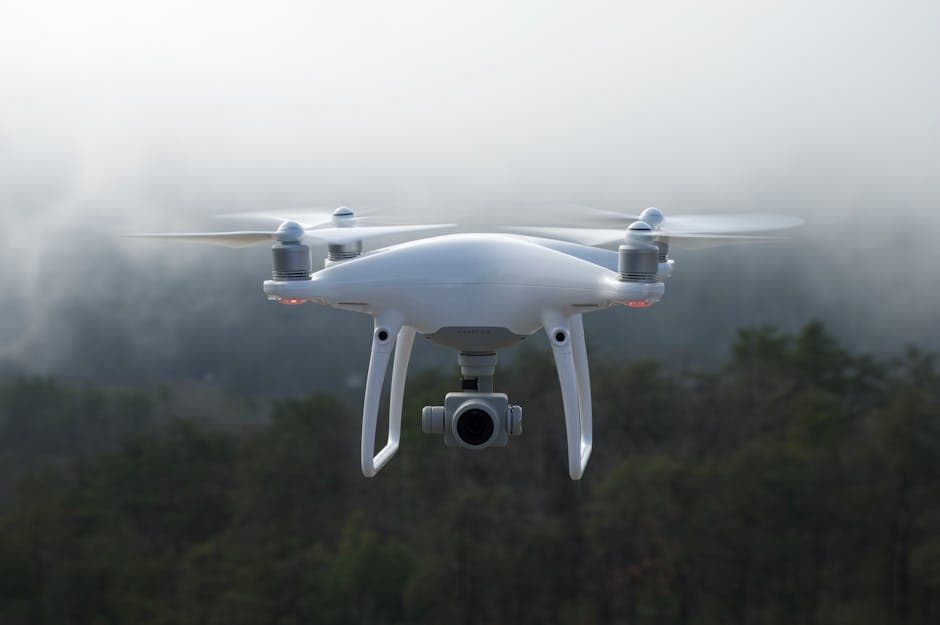
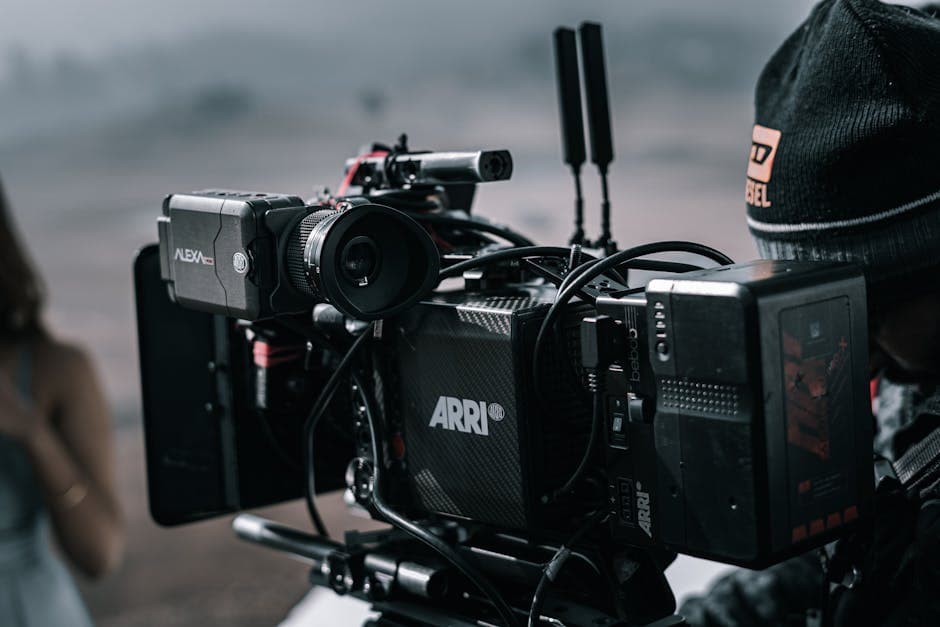
Video editing involves receiving footage in dozens of formats from multiple sources — cameras, drones, smartphones, screen recorders, stock footage libraries, and client archives — and delivering finished content to platforms with specific format requirements. A single project might ingest Canon Cinema RAW Light (.crm), iPhone HEVC (.mov), DJI D-Log M (.mp4), GoPro CineForm (.avi), and stock footage in ProRes (.mov), then deliver to YouTube (H.264 MP4), Instagram (H.264 MP4, different specs), broadcast (ProRes 422 HQ MOV), and an archival master (ProRes 4444 MOV).
Getting conversion wrong at any stage has immediate, visible consequences: dropped frames from codec incompatibility, color shifts from incorrect color space handling, audio sync issues from sample rate mismatches, and quality degradation from unnecessary transcoding.
The Ingest Stage: Getting Footage Into Your NLE
Common Source Formats
| Source | Typical Format | Codec | Color Space | Bit Depth |
|---|---|---|---|---|
| Cinema cameras (RED, ARRI) | .r3d, .ari | REDCODE, ARRIRAW | Wide gamut | 12-16 bit |
| Canon C-series | .mxf, .mp4 | XF-AVC, Cinema RAW Light | BT.709/BT.2020 | 10 bit |
| Sony FX/A-series | .mxf, .mp4 | XAVC S, S-Log3 | S-Gamut3 | 10 bit |
| iPhone | .mov | HEVC, ProRes | BT.709/HLG | 8-10 bit |
| DJI drones | .mp4 | H.264/HEVC | D-Log M | 8-10 bit |
| GoPro | .mp4 | HEVC/H.264 | GP-Log | 8-10 bit |
| Screen recording | .mov, .mp4, .mkv | H.264/HEVC/VP9 | sRGB | 8 bit |
| Stock footage | .mov, .mp4 | ProRes, H.264 | BT.709 | 8-10 bit |
When to Transcode on Ingest
Transcode to editing codec when:
- Source codec causes dropped frames during playback (common with H.265/HEVC and high-bitrate XAVC)
- Multiple codec types in one project cause timeline instability
- Color space conversion is needed at ingest rather than during the edit
- NLE does not natively support the source format
Proxy workflow when:
- 4K+ footage is too heavy for your hardware to edit natively
- You are editing on a laptop or lower-powered system
- Project has hundreds of clips and timeline responsiveness matters
Edit native (no transcode) when:
- Your NLE and hardware handle the source codec smoothly (H.264 at 1080p on modern hardware is fine)
- The project is small and timeline performance is acceptable
- Turnaround time is tight and transcoding would delay the edit
Editing Codecs
The two dominant editing codecs are ProRes and DNxHR:
| Codec | Variants | Platform | NLE Support |
|---|---|---|---|
| Apple ProRes | Proxy, LT, 422, 422 HQ, 4444, 4444 XQ | macOS primary, Windows via plugins | FCP, Resolve, Premiere, Avid |
| Avid DNxHR | LB, SQ, HQ, HQX, 444 | Cross-platform | Avid, Resolve, Premiere, FCP |
Both are intra-frame codecs (each frame is independently compressed), which makes scrubbing, seeking, and trimming instant. Compare this with H.264/HEVC where the decoder must reconstruct frames from previous reference frames — much slower for editing operations.
For proxy workflows, ProRes Proxy or DNxHR LB produce files roughly 1/4 the size of full-quality editing codecs, small enough for smooth 4K editing on modest hardware.
Delivery Stage: Getting Content Out
Platform Delivery Specifications
| Platform | Container | Video Codec | Audio | Resolution | Bitrate |
|---|---|---|---|---|---|
| YouTube | MP4 | H.264 High | AAC 256k | Up to 4K60 | 10-68 Mbps |
| Vimeo | MP4 | H.264/HEVC | AAC 320k | Up to 8K | 10-50 Mbps |
| Instagram Feed | MP4 | H.264 | AAC 128k | 1080x1350 | 3.5 Mbps |
| Instagram Reels | MP4 | H.264 | AAC 128k | 1080x1920 | 3.5 Mbps |
| TikTok | MP4 | H.264 | AAC 128k | 1080x1920 | 2-5 Mbps |
| Broadcast (US) | MXF/MOV | ProRes 422 HQ | PCM 24/48 | 1080i/1080p | Per spec |
| Netflix | MXF/MOV | ProRes 4444/HEVC | PCM 24/48 | 4K | Per spec |
| Client review | MP4 | H.264 | AAC 192k | 1080p | 10-15 Mbps |
For converting existing content to platform-specific formats, our video converter handles the major codecs and containers. For detailed YouTube settings, see our best video settings for YouTube guide.
Export Settings for YouTube
YouTube re-encodes everything you upload. To give YouTube the best source material:
- Container: MP4
- Video codec: H.264 High profile (or HEVC for 4K HDR)
- Bitrate: Use the highest your export allows — YouTube will re-encode regardless
- Frame rate: Match your project (24, 25, 30, 50, 60 fps)
- Audio: AAC-LC 256 kbps stereo (or 384 kbps for music content)
- Color: BT.709 for SDR, BT.2020 with PQ or HLG for HDR
The key insight: YouTube re-encodes to VP9/AV1 regardless of your source codec. Uploading in ProRes 422 HQ produces marginally better YouTube output than H.264 because YouTube's encoder has higher-quality source material to work with — but the difference is tiny and the upload time is much longer.
Color Space and HDR Considerations
SDR Delivery
For standard dynamic range content:
- Color space: BT.709 (Rec. 709)
- Transfer function: Gamma 2.4 (BT.1886)
- Bit depth: 8-bit for distribution, 10-bit for masters
HDR Delivery
For high dynamic range content:
- Color space: BT.2020 (Rec. 2020)
- Transfer function: PQ (ST 2084) for HDR10/Dolby Vision, HLG for broadcast
- Bit depth: 10-bit minimum (required for HDR)
- Codec: HEVC Main 10 profile
Never convert HDR to SDR casually. Tone mapping (compressing HDR dynamic range into SDR) requires deliberate creative decisions about how to map the extra brightness and color range. Automated tone mapping produces acceptable but not optimal results. For professional work, create separate SDR and HDR masters.
For a deep dive into resolution and codec handling at 4K, see our 4K video conversion guide.
Quality and Settings Tips
Never re-encode unnecessarily. If you need to change the container (e.g., MOV to MP4) without changing the codec, use a stream copy (remux). This copies the video and audio bitstreams without re-encoding — instant processing, zero quality loss. Our MOV to MP4 converter supports lossless remuxing.
Transcode once, deliver many. Create one high-quality master (ProRes 422 HQ or DNxHR HQX) and derive all delivery versions from it. Do not re-export from the NLE timeline for every platform — export once to master, then transcode the master to each delivery spec.
Match frame rate to content. 24 fps for cinematic content, 25 fps for PAL/broadcast (Europe, Australia), 30 fps for NTSC/broadcast (North America, Japan), 60 fps for sports and gaming content. Never mix frame rates within a project unless your NLE handles it properly (most do, with conforming). For video format comparisons including frame rate considerations, see our guide on best video formats for 2024.
Audio sample rate must match. Video production uses 48 kHz audio. Music production uses 44.1 kHz. If you import 44.1 kHz music into a 48 kHz video project, the NLE performs real-time sample rate conversion. For final delivery, ensure audio is 48 kHz to avoid sync drift on some playback systems.
Keep project files organized. Separate footage by source camera/format. Maintain a clear naming convention. When transcoding proxies, keep them in a parallel folder structure that maps back to original media.
Common Issues and Troubleshooting
Timeline drops frames during playback. The source codec is too demanding for real-time decoding. Options: transcode to an editing codec (ProRes/DNxHR), create proxies, reduce playback resolution in the NLE, or upgrade hardware (faster CPU, more RAM, NVMe storage).
Colors look different after export. Color space mismatch between the NLE's color management and the export codec. Verify that your export color space tag matches your project (BT.709 for SDR, BT.2020 for HDR). Some NLEs apply gamma shifts on export — check the export settings for color space options.
Audio is out of sync. Variable frame rate (VFR) source files — common from smartphones, screen recorders, and OBS — cause audio drift. Convert VFR to CFR (constant frame rate) before editing, or use a tool that handles VFR normalization during ingest.
Export file is enormous. Check your bitrate settings and codec. ProRes 422 HQ at 4K produces ~110 Mbps — that is 825 MB per minute. For distribution, H.264 at 20-30 Mbps is typical (150-225 MB per minute at 4K). Use CRF-based encoding for the best quality-to-size ratio.
Client or platform rejects the file. Verify codec, container, resolution, and frame rate match the platform's requirements. The most common rejection causes: wrong container (MOV instead of MP4), interlaced video on a progressive-only platform, audio codec mismatch (PCM when AAC is required), and file size exceeding platform limits.
Conclusion
Video editing format management follows a clear pattern: transcode or proxy on ingest for editing performance, edit in your NLE's native format, export a high-quality master, and derive delivery files from that master. Never re-encode unnecessarily, always match color spaces, and verify every delivery file against the platform's specifications before submission.
Ready to convert? Try our free video converter — no registration required. Supports MOV, MP4, MKV, AVI, WebM, and 30+ video formats.