How to Convert Scanned Tables and Documents to Excel Using OCR
Extract data from scanned PDFs, images, and paper documents into editable Excel spreadsheets using OCR. A practical guide covering free tools, accuracy tips, and batch processing.
Priya Patel·April 7, 2026·11 min read
Try these conversions
Free, in your browser — no signup, files auto-delete in 2 hours.
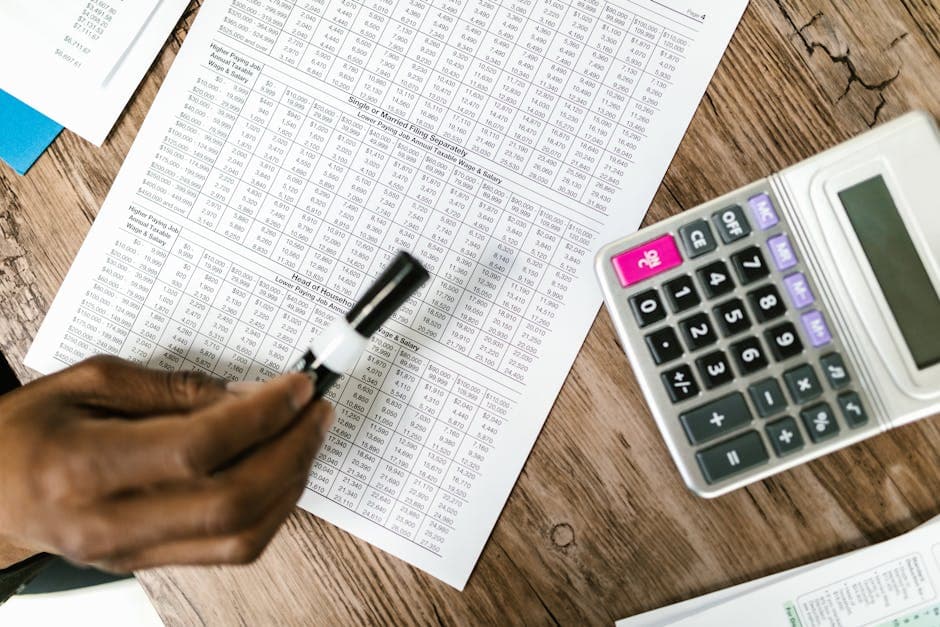
Financial statements from 2015, printed before digital-first workflows were standard. Lab results from a research partner who still faxes reports. Supply chain data your vendor emails as scanned PDFs. Decades of maintenance logs in paper form.
Getting this data into Excel for analysis means either typing it by hand — tedious, error-prone, time-consuming — or using OCR (Optical Character Recognition) to extract the text and table structure automatically.
OCR has improved dramatically in recent years. Modern tools handle printed tables with 95-99% accuracy under good conditions. The remaining accuracy gap comes from scan quality, font choices, table complexity, and whether the OCR tool understands table structure versus just raw text. This guide covers each factor and gives you concrete workflows for common scenarios.
Understanding What OCR Does (And Doesn't Do)
OCR converts an image of text into machine-readable characters. It doesn't understand meaning — it converts pixels to characters using pattern matching and language models. This distinction matters:
What OCR does well:
Printed text from modern printers with good contrast
Common fonts (Times New Roman, Arial, Calibri, standard sans-serif)
Simple single-column layouts
Well-structured tables with clear borders
What OCR struggles with:
Handwriting (requires specialized handwriting recognition, not standard OCR)
Low-resolution scans (under 200 DPI)
Poor contrast (faded ink, colored backgrounds)
Complex multi-column layouts
Tables with merged cells or irregular structure
Mathematical formulas and chemical notation
Decorative or highly stylized fonts
For table extraction specifically, the challenge is twofold: recognizing text within cells accurately, and reconstructing the table structure (rows, columns, cell boundaries) correctly.
Scan Quality Makes or Breaks OCR
Before touching any OCR software, scan quality determines the ceiling of what you can achieve.
Recommended Scan Settings
Parameter
Minimum
Recommended
DPI (resolution)
200
300-400
Color mode
Grayscale
Grayscale or Black & White
File format
JPEG (quality 90+)
PNG or TIFF (lossless)
Page alignment
Straight
Corrected ±1°
The most important factor is DPI. At 200 DPI, characters are recognizable but OCR errors increase significantly. At 300 DPI, modern OCR reaches near-perfect accuracy on clean printed documents. Going beyond 400 DPI provides diminishing returns and increases file size without improving accuracy.
Avoid JPEG at low quality settings for OCR source material — JPEG compression creates artifacts around character edges that confuse OCR engines.
Pre-Processing for Better Results
If you have existing scans that are imperfect, image processing can improve OCR accuracy before applying OCR:
Deskew (straighten tilted pages):
# Using ImageMagick
convert -deskew 40% input.jpg output_straight.jpg

# Using Python with opencv
python3 -c "
import cv2, numpy as np

img = cv2.imread('input.jpg')
gray = cv2.cvtColor(img, cv2.COLOR_BGR2GRAY)
edges = cv2.Canny(gray, 50, 150, apertureSize=3)
lines = cv2.HoughLines(edges, 1, np.pi/180, 200)
if lines is not None:
    angle = np.mean([line[0][1] for line in lines]) * 180 / np.pi - 90
    h, w = img.shape[:2]
    M = cv2.getRotationMatrix2D((w/2, h/2), angle, 1.0)
    rotated = cv2.warpAffine(img, M, (w, h), flags=cv2.INTER_CUBIC)
    cv2.imwrite('output_straight.jpg', rotated)
"
Adobe Acrobat Online PDF OCR — Accurately recognizes tables in scanned PDFs and exports to Excel with structural preservation. Free tier allows limited conversions per month.
Nanonets Table Extraction — Purpose-built for table extraction from PDFs and images. Better at irregular tables than general-purpose OCR.
ConvertIntoMP4 PDF OCR — The PDF OCR tool converts scanned PDFs to searchable text and enables extraction to other formats. Combined with the PDF to Excel converter, this handles the full workflow for scanned PDFs.
Open Source Tools
Tesseract — Google's open-source OCR engine, the foundation of many commercial products. Handles text well but requires additional libraries for table structure extraction.
# Basic Tesseract usage
tesseract input.png output -l eng

# Output as TSV (preserves some layout information)
tesseract input.png output -l eng tsv

# Specify page segmentation mode for tables
tesseract input.png output -l eng --psm 6 tsv
PSM (Page Segmentation Mode) values relevant for tables:
Camelot (Python) — Purpose-built for extracting tables from PDFs (including scanned PDFs with pdfplumber):
pip install camelot-py[cv]
import camelot

# Extract tables from a scanned PDF
tables = camelot.read_pdf('scanned_document.pdf', flavor='stream')
print(f"Found {len(tables)} tables")

# Export first table to CSV
tables[0].df.to_csv('extracted_table.csv', index=False)

# Export all tables to Excel (one sheet per table)
import pandas as pd
with pd.ExcelWriter('all_tables.xlsx') as writer:
    for i, table in enumerate(tables):
        table.df.to_excel(writer, sheet_name=f'Table_{i+1}', index=False)
Tabula — Similar to Camelot; better for digital PDFs, reasonable for OCR-processed PDFs.
Microsoft OneNote (Hidden OCR Capability)
OneNote has an underappreciated OCR feature: insert an image, right-click it, and select "Copy Text from Picture." This runs Microsoft's OCR engine on the image and pastes the text to the clipboard. For casual use, this is often faster than setting up dedicated tools.
Python Pipeline (End-to-End)
A complete Python pipeline for scanned image to Excel:
import pytesseract
import pandas as pd
from PIL import Image
import re

def extract_table_from_image(image_path, output_excel):
    """
    Extract a simple table from a scanned image and save to Excel.
    Works best for clean scans with visible table borders.
    """
    # Load and pre-process image
    img = Image.open(image_path)

    # Run OCR with TSV output (preserves position data)
    data = pytesseract.image_to_data(img, output_type=pytesseract.Output.DATAFRAME)

    # Filter out empty text
    data = data[data['text'].notna() & (data['text'].str.strip() != '')]

    # Group by line (using top position)
    data['row_group'] = (data['top'] / 30).astype(int)  # 30px = ~one row height at 300dpi

    # Reconstruct table rows
    rows = []
    for row_num, group in data.groupby('row_group'):
        row_text = group.sort_values('left')['text'].tolist()
        rows.append(row_text)

    # Convert to DataFrame
    if rows:
        max_cols = max(len(r) for r in rows)
        padded_rows = [r + [''] * (max_cols - len(r)) for r in rows]
        df = pd.DataFrame(padded_rows[1:], columns=padded_rows[0])
        df.to_excel(output_excel, index=False)
        print(f"Saved {len(df)} rows to {output_excel}")

    return df

# Usage
extract_table_from_image('scanned_table.png', 'output.xlsx')
Pro Tip: For tables with visible cell borders, use camelot with flavor='lattice' mode, which uses the borders themselves to detect cell boundaries — significantly more accurate than text-position-based approaches.
Step-by-Step Workflow for Common Scenarios
Scenario 1: Scanned Financial Statement to Excel
Scan the document at 300 DPI in grayscale
Convert to PDF if it's a multi-page document (Windows: Print to PDF; macOS: Print > Save as PDF)
Apply OCR using the PDF OCR tool to create a searchable PDF
Export to Excel using the PDF-to-Excel step
Clean up in Excel: remove page headers/footers, fix number formatting, verify totals
Scenario 2: Image of a Data Table to CSV
# Install required tools
pip install pytesseract Pillow pandas

# Python script for basic table extraction
python3 << 'EOF'
import pytesseract
from PIL import Image
import pandas as pd
import csv

# Read image
img = Image.open('table_scan.png')

# Get TSV data with bounding boxes
tsv = pytesseract.image_to_data(img, output_type=pytesseract.Output.STRING)

# Parse TSV
lines = tsv.split('\n')
rows_by_y = {}
for line in lines[1:]:  # Skip header
    parts = line.split('\t')
    if len(parts) == 12 and parts[11].strip():
        y_pos = int(parts[7]) // 25  # Group by approximate row
        if y_pos not in rows_by_y:
            rows_by_y[y_pos] = []
        rows_by_y[y_pos].append((int(parts[6]), parts[11]))  # (x_pos, text)

# Sort each row by x position, combine text
table_rows = []
for y in sorted(rows_by_y.keys()):
    cells = sorted(rows_by_y[y], key=lambda x: x[0])
    table_rows.append([cell[1] for cell in cells])

# Save to CSV
with open('output.csv', 'w', newline='') as f:
    writer = csv.writer(f)
    writer.writerows(table_rows)

# Load CSV and save to Excel for better compatibility
pd.read_csv('output.csv').to_excel('output.xlsx', index=False)
print("Done! Check output.xlsx")
EOF
For a multi-page document where each page is a separate image file:
# Combine images into a PDF
convert page_*.jpg combined_document.pdf

# Or using img2pdf (better quality preservation)
pip install img2pdf
img2pdf page_*.jpg --output combined_document.pdf

# Then OCR the PDF
tesseract combined_document.pdf output_text pdf
, (comma) and . (period) — especially in number formatting
Post-process extracted numbers to validate and fix:
import re

def clean_number(text):
    """Clean OCR artifacts from numeric text."""
    # Remove spaces within numbers
    text = text.strip()
    # Fix common OCR errors in numbers
    text = text.replace('O', '0').replace('o', '0')
    text = text.replace('l', '1').replace('I', '1')
    text = text.replace('S', '5').replace('s', '5')
    # Try to parse as number
    text = re.sub(r'[^\d.,\-]', '', text)
    return text

# Validate after OCR
def validate_column(df, col_name):
    """Apply cleaning to a numeric column."""
    df[col_name] = df[col_name].astype(str).apply(clean_number)
    # Convert to numeric, coerce errors to NaN
    df[col_name] = pd.to_numeric(df[col_name], errors='coerce')
    return df
Training Custom Tesseract Models
For documents with unusual fonts or formatting, custom Tesseract training significantly improves accuracy. This requires generating training data from samples of your specific document type — a significant undertaking but worthwhile for recurring document workflows processing thousands of pages.
Formatting Extracted Data in Excel
Raw OCR output typically needs cleanup before it's useful:
Flag rows with low-confidence OCR:
If using Tesseract's confidence scores, keep only cells where confidence exceeded a threshold:
# Tesseract includes confidence scores in TSV output
data = pytesseract.image_to_data(img, output_type=pytesseract.Output.DATAFRAME)
# Confidence 0-100; -1 means non-text
high_confidence = data[data['conf'] > 70]
Frequently Asked Questions
What's the minimum scan resolution for accurate table OCR?
300 DPI is the practical minimum for reliable accuracy on typical printed tables. 200 DPI is usable for clean prints with common fonts but produces noticeably more errors. Anything below 150 DPI will produce poor results that require extensive manual correction.
Can OCR extract tables from color PDFs and forms?
Yes, though colored backgrounds sometimes interfere with contrast. Pre-processing to convert to grayscale or increase contrast before OCR usually improves accuracy. Forms with colored fields (light blue, yellow highlighting) typically cause no problems for modern OCR engines.
What about handwritten tables?
Handwriting recognition is a separate technology from printed text OCR. Standard OCR engines (Tesseract) perform poorly on handwriting. Microsoft Azure Form Recognizer and Google Cloud Document AI have handwriting recognition capabilities that work reasonably well on clear handwriting, but accuracy is substantially lower than printed text.
How accurate is OCR on poor-quality scans?
Accuracy degrades rapidly with scan quality. A clean 300 DPI scan might achieve 99% character accuracy; the same document scanned at 150 DPI with the scanner glass slightly dirty might drop to 85%. For financial data where errors have consequences, always manually verify totals after OCR extraction.
How do I handle PDFs that are already text (not scanned)?
For text-based PDFs (not scans), OCR isn't needed — you can extract text directly. The PDF to Excel tool handles text-based PDFs more accurately than OCR-based approaches, and the how to convert PDF to Excel guide covers these workflows.
Conclusion
OCR table extraction from scanned documents is reliable for clean, high-resolution scans of typical printed tables — the kind of accuracy needed for real data work. The main variables are scan quality, table complexity, and whether the OCR tool understands table structure versus just raw text.
For straightforward scanned PDF to searchable PDF conversion, the PDF OCR tool handles this directly. For converting the resulting searchable PDF to Excel, use the PDF to Excel converter. The OCR scanned documents guide covers the broader OCR workflow beyond just tables.
ocrexcelscanned documentspdf to exceltable extractiondata extractionspreadsheet
About the Author
Priya Patel
UX researcher and technical writer exploring document accessibility, font technology, and cross-platform compatibility.