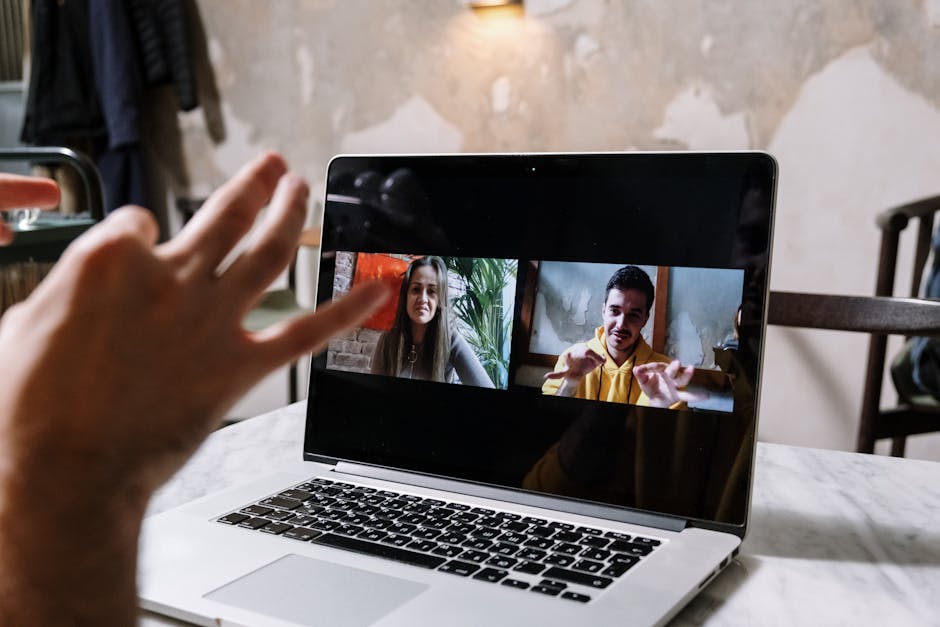
Adobe Connect Meeting Recording Export: From .ZIP to Shareable MP4
Adobe Connect saves recordings in a proprietary format that other tools can't open. Here's the conversion to MP4 for sharing, archiving, and offline viewing.
Priya Patel·May 8, 2026·7 min read
Why Connect Recordings Won't Play in QuickTime
Adobe Connect (formerly Adobe Meeting Center, formerly Macromedia Breeze) has been a corporate webinar platform since 2003. It saves recordings in a proprietary format inside a ZIP archive: .zip containing .flv video, .swf interactive overlays, and .xml metadata.
The flv inside is a Flash Video file using H.263 or VP6 codec. Modern browsers and players can't render it. The swf overlays are Flash-only and unrecoverable in 2026 (Adobe killed Flash in 2020).
This means Connect recordings need conversion before they can be shared with anyone outside the Adobe Connect ecosystem. The conversion path: extract the ZIP, transcode the FLV to MP4, optionally re-add interactive overlays as captions.
This post covers the practical conversion workflow, the limitations (interactive elements are lost), and the corporate compliance considerations. For broader recording cleanup, see Zoom Recording Cleanup.
Try these conversions
Free, in your browser — no signup, files auto-delete in 2 hours.
The output is a universally-playable MP4. CRF 22 produces files about 30-40% the size of the source FLV (Connect's compression is inefficient). Quality is preserved.
For batch conversion of multiple recordings:
for f in *.flv; do
  ffmpeg -i "$f" \
    -c:v libx264 -preset slow -crf 22 \
    -pix_fmt yuv420p \
    -c:a aac -b:a 192k \
    -movflags +faststart \
    "${f%.flv}.mp4"
done
Connect recordings vary in resolution depending on the era:
2008-2015: typically 800×600 or 640×480
2016-2020: 1280×720
2021+: 1280×720 or 1920×1080
For older low-resolution recordings, upscaling with AI tools (Topaz Video AI, Adobe Speech Enhancement) can improve clarity. For modern recordings: direct conversion is fine.
The Connect recording's bit rate is typically 200-400 kbps for video, low quality by modern standards. Don't try to preserve more than what's there.
Audio Considerations
Connect's audio is typically:
Codec: MP3 (older) or AAC (newer)
Bitrate: 64-96 kbps (low quality)
Channels: Mono
Sample rate: 22 kHz or 44.1 kHz
For voice content, this is acceptable. For music or high-quality narration, the source quality is the limit. Re-encoding to higher bitrate doesn't recover lost detail.
The conversion preserves video and audio. The interactive elements are lost:
Chat messages: were rendered as overlay during playback. Conversion to MP4 loses them.
Polls and quiz results: shown as separate panels in Connect. Lost in conversion.
Whiteboard annotations: drawn on the shared screen. Some Connect versions burn these into the video; others render as overlay (lost).
Speaker spotlights: in Connect, the active speaker has visual emphasis. Conversion preserves only what was visually rendered.
For workflows where chat and Q&A matter, export the chat log separately from Connect (it's available as a text file). Distribute alongside the MP4 as a transcript supplement.
Adding Captions
For accessibility compliance, add captions to converted recordings:
Option 1: Auto-generated
YouTube auto-generates captions on upload. Upload your converted MP4 as Unlisted, let YouTube transcribe. Download the SRT and edit for accuracy.
Option 2: Whisper (local)
OpenAI's Whisper model (free) transcribes locally. The Whisper.cpp project provides standalone executable.
whisper input.mp4 --output_format srt
Quality varies by speaker accent and audio quality. Connect recordings with low audio quality get less accurate transcriptions.
Option 3: Commercial service
Rev, Otter, Descript, Trint: 99%+ accuracy human transcription, $1-2 per minute. For corporate compliance work, professional transcription is often required.
The captions are now part of the video frames. Pros: universal display. Cons: viewers can't toggle off.
File Size and Storage
For typical Connect recording exports:
Source duration
FLV size
MP4 size (CRF 22)
30 minutes
45-90 MB
25-50 MB
60 minutes
90-180 MB
50-100 MB
2 hours
180-360 MB
100-200 MB
Connect's older recordings are surprisingly small due to low bitrate. Modern HD recordings are larger but still manageable for archival.
For corporate archives, MP4 at 720p with H.264 produces files small enough to store thousands of hours on standard NAS.
Pro Tip: For training videos that will be re-watched many times, convert to multiple bitrates: 1080p high quality (~50 MB/hour) for desktop viewing, 480p low quality (~12 MB/hour) for mobile viewing. Use HLS streaming or tag the file as "low/high" in your library.
Compliance Considerations
For corporate archives:
Retention policies: Many companies retain training videos for 3-7 years. Connect's archival format is brittle; converting to MP4 protects against future Adobe Connect platform changes.
Searchability: Connect's internal search indexes audio. After conversion, the audio is in a generic MP4 with no search index. Use a transcription service to generate searchable text alongside the video.
Privacy/PII: Recordings often contain employee names, internal info, or customer data. Transcripts may reveal PII that the video alone doesn't expose. Apply appropriate access controls to both.
FLV won't open in FFmpeg: corrupted file from incomplete download. Re-download from Connect.
Audio out of sync: rare in Connect output. Re-mux with -vsync cfr flag.
Output looks soft / pixelated: source is low-resolution. AI upscaling can help; results vary.
File too large for SharePoint upload: SharePoint limit is 250 GB per file but typical corporate setups have 10 GB upload caps. Re-encode at higher CRF if needed.
Black frames at start/end: Connect adds intro/outro slates. Trim with FFmpeg:
Can I export Connect recordings directly to MP4 from Connect?
Some Connect versions have a "Convert to MP4" option in the admin panel. If available, use it. If not, the FLV-extraction-and-FFmpeg path is the workaround.
What about Adobe Connect on mobile?
Connect's mobile recording playback is the same proprietary FLV. Mobile users typically can't play the .zip-format recordings; they need the converted MP4.
Are Connect recordings searchable?
Within the Connect platform, yes (audio is indexed). After conversion, the MP4 isn't searchable until you generate a transcript and index that separately.
Can I batch-process my entire Connect recording archive?
Yes. The FFmpeg loop above processes a folder of FLV files. Schedule overnight on a server. A 1000-recording archive (300 hours of content) takes about 8-12 hours on modern hardware.
What about Connect Webinars vs Connect Meetings?
Both produce the same recording format. The conversion workflow is identical.
Will Adobe stop supporting Connect?
Connect remains supported as of 2026, but Adobe's strategic focus has shifted. Best practice: migrate critical recordings to MP4 archives now, not later. Long-term Connect platform availability isn't guaranteed.
For Adobe Connect recording export: extract the ZIP, convert FLV to MP4 with FFmpeg (CRF 22, H.264, AAC, faststart). Add SRT captions for accessibility. Lose the interactive overlays (chat, polls). For corporate compliance archives, convert legacy Connect recordings now while the platform still works. Our video converter hub handles related format conversions.
Adobe Connectwebinar recordingMP4FLVtraining video
About the Author
Priya Patel
UX researcher and technical writer exploring document accessibility, font technology, and cross-platform compatibility.