HTML to Image Conversion: Screenshots, Social Cards, and Automation
Convert HTML to PNG, JPG, or PDF using headless browsers and online tools. Learn practical workflows for social cards, email headers, PDFs, and automated screenshot pipelines.
Emma Wilson·April 5, 2026·10 min read
When HTML Needs to Become an Image
Browsers render HTML into pixels — that is their entire job. But extracting those pixels as a static image file is a separate operation that requires either a headless browser, a screenshot API, or a purpose-built rendering tool.
The need comes up more often than you might expect. Open Graph images for blog posts and social media previews, PDF generation from web pages, email header graphics, dynamic certificates, QR code cards, invoice PDFs — all of these involve taking some HTML content and capturing it as a portable image or document.
This guide covers the full range of approaches: browser-based conversion, headless Puppeteer automation, online tools, and the specific settings that produce clean output for common use cases.
Try these conversions
Free, in your browser — no signup, files auto-delete in 2 hours.
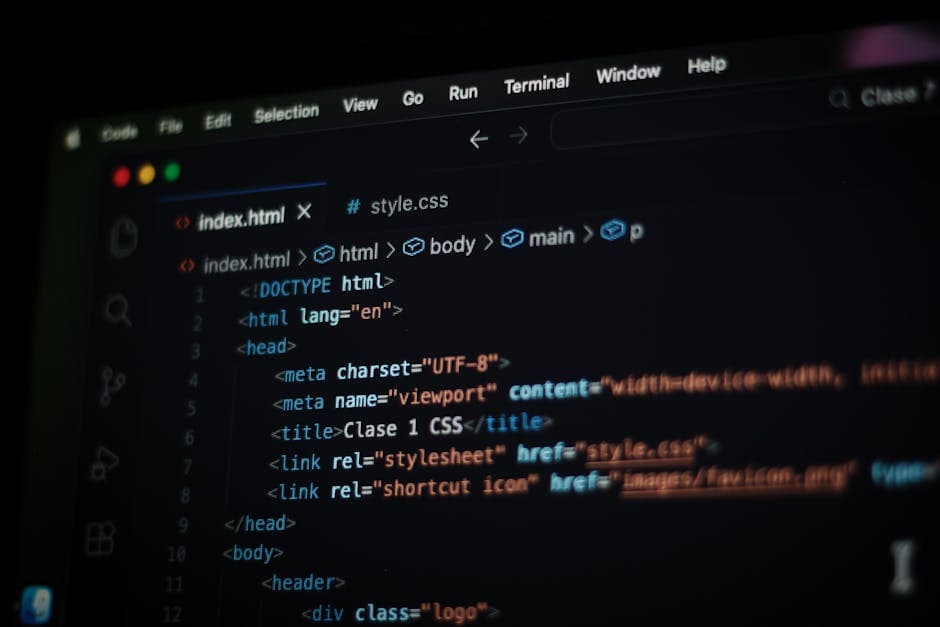
When a browser renders an HTML page, it constructs a Document Object Model, applies CSS, runs JavaScript, loads external resources (fonts, images), and paints pixels to the screen. Converting HTML to an image means capturing the output of this pipeline as a static file.
The quality and accuracy of the conversion depends entirely on how faithfully the rendering engine handles your HTML and CSS. Missing fonts, unloaded images, and JavaScript timing issues are the most common failure modes.
Output Format Choices
Format
Best For
Notes
PNG
Screenshots, social cards, UI documentation
Lossless, transparent backgrounds
JPEG
Photos in page, social media thumbnails
Lossy, no transparency, smaller files
PDF
Printable documents, invoices, reports
Vector text, selectable content, multi-page
WebP
Web-only screenshots, thumbnails
Good compression, browser-native
SVG
Simple diagrams, icon generation
Rarely used for full-page capture
For social sharing cards, PNG is usually the right choice — it handles text and logos cleanly without compression artifacts. For documents that users will print or sign, PDF preserves text as searchable vector content. For web thumbnails, WebP offers better compression.
Method 1: ConvertIntoMP4 Online Tool
The fastest way to capture an HTML page as an image or PDF without writing code is ConvertIntoMP4's HTML to PDF converter. Upload an HTML file or paste a URL, and the tool renders it using a headless browser and returns a PDF or image.
This approach works well for:
Converting single HTML files (templates, invoices, certificates)
Generating PDFs from web pages you do not control
Quick testing of rendering output without setting up a local tool
For bulk conversions or automated workflows, the API approach covered later in this guide is more practical.
Method 2: Puppeteer (Node.js)
Puppeteer is Google's official Node.js library for controlling headless Chrome. It is the most widely used tool for programmatic HTML-to-image conversion.
Basic Screenshot
import puppeteer from "puppeteer";

const browser = await puppeteer.launch();
const page = await browser.newPage();

// Set viewport for consistent output
await page.setViewport({ width: 1200, height: 630 });

// Navigate to URL or load HTML
await page.goto("https://yoursite.com/page", { waitUntil: "networkidle0" });

// Take screenshot
await page.screenshot({
  path: "output.png",
  type: "png",
  fullPage: false, // true for full-page capture
});

await browser.close();
The waitUntil: 'networkidle0' option tells Puppeteer to wait until there are no more than 0 active network connections for 500ms — this ensures fonts, images, and any API-loaded content have finished loading before capture.
Pro Tip: Add @media print { ... } CSS rules to your HTML for clean PDF output. You can hide navigation bars, expand collapsed sections, and adjust font sizes specifically for the printed version.
Method 3: Sharp for Node.js (Compositing)
For generating images from HTML templates programmatically, Sharp can composite text and shapes onto images. This is faster than headless Chrome for simple cards but cannot handle complex CSS layouts.
import sharp from "sharp";

// Create a 1200x630 social card
await sharp({
  create: {
    width: 1200,
    height: 630,
    channels: 4,
    background: { r: 26, g: 26, b: 46, alpha: 1 },
  },
})
  .composite([
    // Overlay a logo
    { input: "logo.png", top: 40, left: 40 },
  ])
  .png()
  .toFile("social-card.png");
For text rendering, Sharp uses SVG overlays, which gives you font control without a full browser:
The canonical OG image size is 1200×630 pixels (1.91:1 ratio). Most social platforms accept this size:
Twitter/X: 1200×630 (summary_large_image) or 800×418
LinkedIn: 1200×627
Facebook: 1200×630
Discord: 1280×640
Settings for social card screenshots:
PNG format — clean edges for text and logos
DPR 1 — social platforms resize images anyway; DPR 2 doubles file size with no visible benefit on most platforms
Full CSS: ensure @font-face fonts are loaded before screenshot
Email Header Images
Email clients cannot render HTML/CSS consistently (Gmail strips most CSS, Outlook has its own rendering engine). Converting your email header design to an image sidesteps these compatibility issues.
Target dimensions: 600px wide (matches most email templates). Height varies, but keep it under 200px for headers. Use JPEG for photo-heavy headers, PNG for graphics with text.
Avoid relying on images for critical email content — screen readers and users with images disabled will not see it. Use email images for visual enhancement, with descriptive alt text.
Automated Invoice and Certificate Generation
PDF is the right format for documents users might print or sign. A typical invoice generation pipeline:
Populate an HTML template with data (order ID, line items, totals)
Render with Puppeteer/headless Chrome
Output A4 PDF with 15–20mm margins
Store in cloud storage, email to customer
For the HTML to PDF conversion step, ConvertIntoMP4's tool handles this for single files. For high-volume automated generation, running headless Chrome server-side is more practical.
Full-Page Documentation Screenshots
Capturing full-page screenshots of documentation for offline reference or design reviews:
This doubles resolution (2400×1260 physical pixels), making text and details sharper. File size increases roughly 4x. Use this for print output; skip it for web thumbnails where social platforms resize anyway.
Comparing Conversion Approaches
Approach
Setup
Quality
Speed
Best For
ConvertIntoMP4 online
None
High
Instant
Single files, PDFs
Puppeteer (local)
Node.js install
Highest
Fast (~0.5s)
Automated pipelines
Playwright
Node.js install
Highest
Fast
Testing + screenshots
wkhtmltopdf
Binary install
Moderate
Fast
Simple HTML→PDF
WeasyPrint
Python install
Good
Moderate
CSS Paged Media
For complex layouts with modern CSS (grid, flexbox, custom properties), Puppeteer or Playwright with a current Chrome version produces the most accurate output. Tools like wkhtmltopdf use an older WebKit version and can render modern CSS incorrectly.
Frequently Asked Questions
Can I convert a public website URL to an image?
Yes — both Puppeteer and ConvertIntoMP4's HTML to PDF tool accept URLs. However, sites that require authentication or have bot detection may block headless browser requests. For pages you control, use direct HTML string rendering instead of a public URL.
What resolution should I use for print-quality output?
For A4/Letter print at 300 DPI, your pixel dimensions should be approximately 2480×3508 (A4) or 2550×3300 (US Letter). Set deviceScaleFactor: 2 or 3 in Puppeteer and adjust viewport accordingly. For the PDF route, Puppeteer's pdf() method handles DPI internally — just set the paper format and let the browser render text as vectors.
How do I capture an element, not the whole page?
Use page.$eval() to find an element and screenshot({ clip: ... }) to capture just that region:
Or use element.screenshot() directly for cleaner code.
Is there a free API for HTML-to-image conversion?
Several services offer free tiers: ScreenshotOne, URLBox, ApiFlash. ConvertIntoMP4's API also supports HTML-to-PDF conversion — see the API documentation for endpoint details and rate limits.
For related workflows, the how to convert HTML to PDF post covers the PDF-specific side of this process in more detail. If you need to compress the resulting images after conversion, the image compressor handles lossless and lossy reduction for PNG and JPEG files.
Practical Starting Point
For most teams adding social card generation or invoice PDF export, the minimal viable setup is Puppeteer running in a Node.js service (or serverless function) with a simple HTML template. The initial setup takes under an hour and produces consistent output across environments.
ConvertIntoMP4's HTML to PDF converter handles the one-off cases. For anything that needs to run automatically at scale, headless Chrome is the right foundation — and the code examples in this guide give you a working starting point.
For related image manipulation after your HTML screenshot is generated — resizing, compressing, or cropping — ConvertIntoMP4's image converter hub covers those downstream operations.
html to imagehtml to pngscreenshotspuppeteersocial cardsautomationhtml to pdf
About the Author
Emma Wilson
Digital media specialist with expertise in audio engineering, podcast production, and ebook publishing workflows.