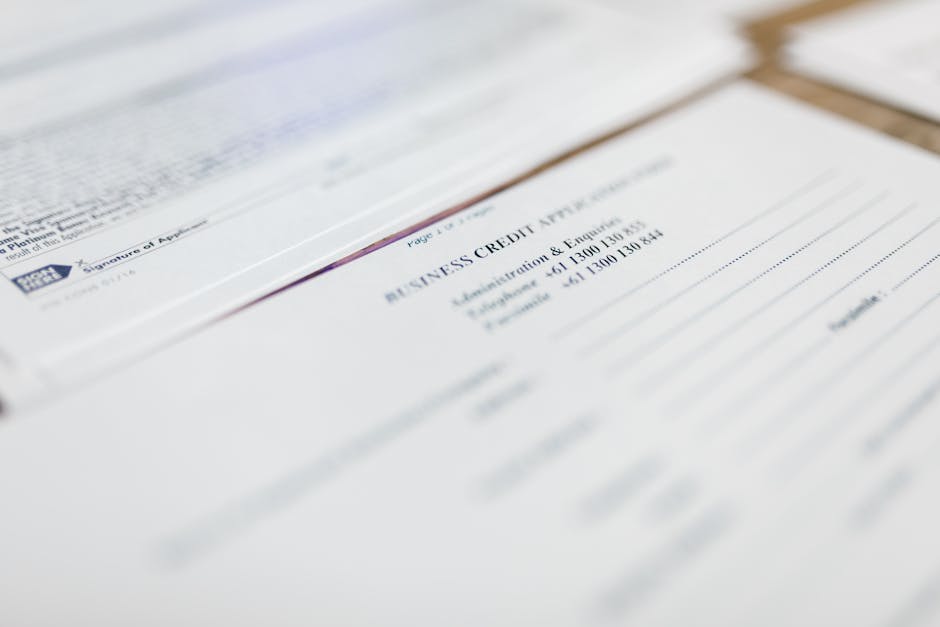
AcroForms use PDF's built-in form specification. Fields have names, types (text, checkbox, radio, dropdown, signature), and they're embedded in the PDF structure. These are what you'd get from Adobe Acrobat, LibreOffice, or most form creation tools.
You can fill them in any modern PDF viewer — Adobe Reader, Preview on Mac, browser-based viewers. The data you enter is embedded in the PDF as form data, separate from the page content.
XFA (XML Forms Architecture) is an older Adobe-specific format used in enterprise workflows. XFA forms require Adobe Acrobat/Reader to fill — they won't work in browsers, Preview, or most PDF libraries. If you encounter a form that only works in Acrobat, it's likely XFA.
Most organizations are moving away from XFA, but you'll still encounter them from banks, government agencies, and large enterprises.
A scanned paper form saved as PDF has no form fields. To fill it digitally, you need to either add annotation-style text boxes on top, or use OCR to detect form fields and create interactive ones.
ConvertIntoMP4's PDF OCR tool can convert scanned PDFs to searchable, text-based documents, which is the first step in making a flat PDF workable.
For straightforward interactive forms, browser-based filling works without installing anything.
Chrome, Firefox, Edge, and Safari all display AcroForm PDFs with fillable fields. Open the PDF, click the fields, type your data, then use the browser's print function (Save as PDF) to save the filled form.
Limitation: Browser viewers don't always support all field types. Signature fields, calculated fields, and JavaScript-driven forms may not function correctly.
For adding text to flat PDFs or editing existing content, ConvertIntoMP4's PDF editor lets you place text boxes, checkboxes, and annotations anywhere on the page — useful for flat PDFs where there are no embedded form fields.
If the form requires a signature, ConvertIntoMP4's PDF signing tool handles typed signatures, drawn signatures, and uploaded signature images with proper positioning.
pypdf reads and writes AcroForm fields:
from pypdf import PdfReader, PdfWriter

reader = PdfReader("form.pdf")
writer = PdfWriter()
writer.append(reader)

# Get all field names
fields = reader.get_fields()
print("Available fields:", list(fields.keys()))

# Fill fields
writer.update_page_form_field_values(
    writer.pages[0],
    {
        "first_name": "Jane",
        "last_name": "Smith",
        "email": "jane@example.com",
        "date": "2026-04-06",
        "signature": "",
    }
)

# Flatten the form (make it non-editable)
for page in writer.pages:
    writer.update_page_form_field_values(page, {}, auto_regenerate=False)

with open("filled_form.pdf", "wb") as f:
    writer.write(f)
Getting field names from an unknown PDF:
from pypdf import PdfReader

reader = PdfReader("unknown_form.pdf")
fields = reader.get_fields()
for name, field in fields.items():
    print(f"Name: {name}")
    print(f"  Type: {field.get('/FT', 'Unknown')}")
    print(f"  Value: {field.get('/V', '')}")
    print(f"  Options: {field.get('/Opt', [])}")
pdfrw is another option that handles some edge cases pypdf doesn't:
import pdfrw

ANNOT_KEY = '/Annots'
ANNOT_FIELD_KEY = '/T'
ANNOT_VAL_KEY = '/V'
ANNOT_RECT_KEY = '/Rect'

def fill_pdf(input_pdf_path, output_pdf_path, data_dict):
    template_pdf = pdfrw.PdfReader(input_pdf_path)
    for page in template_pdf.pages:
        annotations = page[ANNOT_KEY]
        if annotations is None:
            continue
        for annotation in annotations:
            if annotation['/Subtype'] == '/Widget':
                if annotation[ANNOT_FIELD_KEY]:
                    key = annotation[ANNOT_FIELD_KEY][1:-1]  # remove parentheses
                    if key in data_dict:
                        annotation.update(
                            pdfrw.PdfDict(V='{}'.format(data_dict[key]))
                        )
    template_pdf.Root.AcroForm.update(
        pdfrw.PdfDict(NeedAppearances=pdfrw.PdfObject('true'))
    )
    pdfrw.PdfWriter().write(output_pdf_path, template_pdf)

fill_pdf("form.pdf", "filled.pdf", {
    "first_name": "Jane",
    "last_name": "Smith",
})
pdf-lib handles form filling in JavaScript environments:
import { PDFDocument } from "pdf-lib";
import { readFileSync, writeFileSync } from "fs";

async function fillForm(inputPath, outputPath, data) {
  const pdfBytes = readFileSync(inputPath);
  const pdfDoc = await PDFDocument.load(pdfBytes);

  const form = pdfDoc.getForm();

  // List all fields
  const fields = form.getFields();
  fields.forEach((field) => {
    console.log(field.getName(), field.constructor.name);
  });

  // Fill text fields
  if (data.firstName) form.getTextField("first_name").setText(data.firstName);
  if (data.lastName) form.getTextField("last_name").setText(data.lastName);
  if (data.email) form.getTextField("email").setText(data.email);

  // Check/uncheck checkboxes
  if (data.agreeTerms) form.getCheckBox("agree_terms").check();

  // Select dropdown option
  if (data.country) form.getDropdown("country").select(data.country);

  // Flatten form (make read-only)
  form.flatten();

  const filledBytes = await pdfDoc.save();
  writeFileSync(outputPath, filledBytes);
}

await fillForm("form.pdf", "filled.pdf", {
  firstName: "Jane",
  lastName: "Smith",
  email: "jane@example.com",
  agreeTerms: true,
  country: "United States",
});
For generating hundreds or thousands of PDFs — certificates, invoices, contracts, personalized letters — a template-based approach is more practical than filling individual forms.
import csv
from pypdf import PdfReader, PdfWriter
from pathlib import Path

def generate_certificates(template_path, csv_path, output_dir):
    output_dir = Path(output_dir)
    output_dir.mkdir(exist_ok=True)

    with open(csv_path) as f:
        reader = csv.DictReader(f)
        for i, row in enumerate(reader):
            pdf_reader = PdfReader(template_path)
            writer = PdfWriter()
            writer.append(pdf_reader)

            writer.update_page_form_field_values(
                writer.pages[0],
                {
                    "recipient_name": row["name"],
                    "course_name": row["course"],
                    "completion_date": row["date"],
                    "certificate_id": f"CERT-{i+1:04d}",
                }
            )

            out_path = output_dir / f"certificate_{row['name'].replace(' ', '_')}.pdf"
            with open(out_path, "wb") as out_file:
                writer.write(out_file)
            print(f"Generated: {out_path}")

generate_certificates("certificate_template.pdf", "recipients.csv", "certificates/")
For complex layouts, generating HTML then converting to PDF gives much more design control than filling PDF form fields:
# Using weasyprint
from weasyprint import HTML

template = """
<!DOCTYPE html>
<html>
<head>
<style>
  body {{ font-family: Arial; padding: 60px; }}
  .certificate {{ border: 4px double #gold; padding: 40px; text-align: center; }}
  .name {{ font-size: 36px; font-weight: bold; color: #2c3e50; }}
  .course {{ font-size: 24px; color: #555; margin: 20px 0; }}
</style>
</head>
<body>
  <div class="certificate">
    <h1>Certificate of Completion</h1>
    <p class="name">{name}</p>
    <p>has successfully completed</p>
    <p class="course">{course}</p>
    <p>Date: {date}</p>
  </div>
</body>
</html>
"""

import csv
from pathlib import Path

with open("recipients.csv") as f:
    for row in csv.DictReader(f):
        html = template.format(**row)
        filename = f"certificates/{row['name'].replace(' ', '_')}.pdf"
        HTML(string=html).write_pdf(filename)
The HTML to PDF tool handles this conversion interactively if you want to test your template before scripting it.
For applications that need to generate PDFs on demand, the ConvertIntoMP4 API enables programmatic PDF generation:
curl -X POST https://api.convertintomp4.com/v1/convert \
  -H "X-Api-Key: ck_your_key" \
  -H "Content-Type: application/json" \
  -d '{
    "inputUrl": "https://your-storage.com/template.html",
    "outputFormat": "pdf",
    "options": {
      "pageSize": "A4",
      "margin": "20mm"
    }
  }'
"Flattening" converts a form with filled-in fields into a plain PDF where the text is burned into the page content. This is important for:
- Sending forms that shouldn't be edited further
- Archiving completed forms reliably
- Ensuring the form looks the same in all PDF viewers
Using ghostscript (most reliable):
gs -dBATCH -dNOPAUSE -sDEVICE=pdfwrite \
   -dFILTERTEXT -dFILTERVECTOR -dFILTERIMAGE \
   -sOutputFile=flattened.pdf filled_form.pdf
Using qpdf:
qpdf --flatten-annotations=all filled_form.pdf flattened.pdf
Using pypdf:
writer.update_page_form_field_values(page, {}, auto_regenerate=False)
Sometimes you need to go the other direction — extract data from already-filled forms.
Extract all field values:
from pypdf import PdfReader

reader = PdfReader("filled_form.pdf")
fields = reader.get_fields()

for name, field in fields.items():
    value = field.get('/V', '')
    print(f"{name}: {value}")
Export to CSV:
import csv
from pypdf import PdfReader
from pathlib import Path

output_rows = []

for pdf_path in Path("filled_forms/").glob("*.pdf"):
    reader = PdfReader(pdf_path)
    row = {"filename": pdf_path.name}

    fields = reader.get_fields()
    if fields:
        row.update({name: str(field.get('/V', '')) for name, field in fields.items()})

    output_rows.append(row)

if output_rows:
    with open("extracted_data.csv", "w", newline="") as f:
        writer = csv.DictWriter(f, fieldnames=output_rows[0].keys())
        writer.writeheader()
        writer.writerows(output_rows)
Some PDF forms are encrypted and require a password to fill or edit. For forms you legitimately own and have lost access to, ConvertIntoMP4's PDF unlock tool can help.
For forms you're creating, password protecting your PDFs prevents unauthorized editing after distribution.
Digital signatures in PDFs use cryptographic certificates to verify identity. When filling forms with signature fields programmatically, you're typically adding a visual signature image rather than a cryptographic signature — these are legally valid in many jurisdictions as "electronic signatures" but are not the same as certified digital signatures.
For legally binding document workflows, research the e-signature requirements in your jurisdiction.
| Field Type | pypdf class | pdf-lib method |
|---|
| Single-line text | TextField | getTextField() |
| Multi-line text | TextAreaField | getTextField() |
| Checkbox | CheckBoxField | getCheckBox() |
| Radio button | RadioButtonField | getRadioGroup() |
| Dropdown | DropdownField | getDropdown() |
| List box | ListBoxField | getOptionList() |
| Signature | SignatureField | getSignature() |
| Push button | PushButtonField | N/A |
The form creator likely protected the form. Either specific fields are read-only by design, or the entire form is locked. A locked AcroForm can sometimes be unlocked (if you own it) by processing through the PDF editor, though this depends on the type of protection applied.
Yes — LibreOffice Writer can create basic AcroForms (Insert → Form Controls). For complex forms, tools like JotForm, Typeform, or Google Forms export to PDF, or you can use PDF form creation libraries in code.
Calculated fields use JavaScript embedded in the PDF. These calculations only run in full PDF viewers like Adobe Acrobat/Reader. When filling programmatically, you'll need to calculate the values yourself and set them directly — the JavaScript won't execute in library-based filling.
Yes. Filling adds data to form fields. Signing adds a signature (cryptographic or visual) to a signature field. Some forms require both — you fill out the data fields, then sign. ConvertIntoMP4's sign PDF tool handles the signature step.
Yes — the PDF merge tool combines any number of PDFs into a single document, maintaining all their content.
PDF form automation at scale requires understanding the difference between form filling (writing to AcroForm fields) and document generation (creating new PDFs from templates). Choose the approach that matches your data structure:
- Fixed template, variable data → Form filling or HTML-to-PDF generation
- Variable template → HTML-to-PDF with template engines
- High volume → API-based generation with queuing
For further PDF processing — compression, merging, splitting — the PDF tools overview covers the full range of operations available. And for batch document workflows beyond PDFs, the batch file processing guide covers multi-format automation patterns.